26. Locking, Logging Out, Shutting Down
Locking the screen
When you leave the computer for a moment, lock it. Your windows stay open behind a closed screen, and only your password opens it again.
- Click the padlock in the middle of the Front Panel,
- or press Super+L (the key with the Windows logo and L),
- or choose Lock Screen in the Workspace Menu (right mouse button on the backdrop).
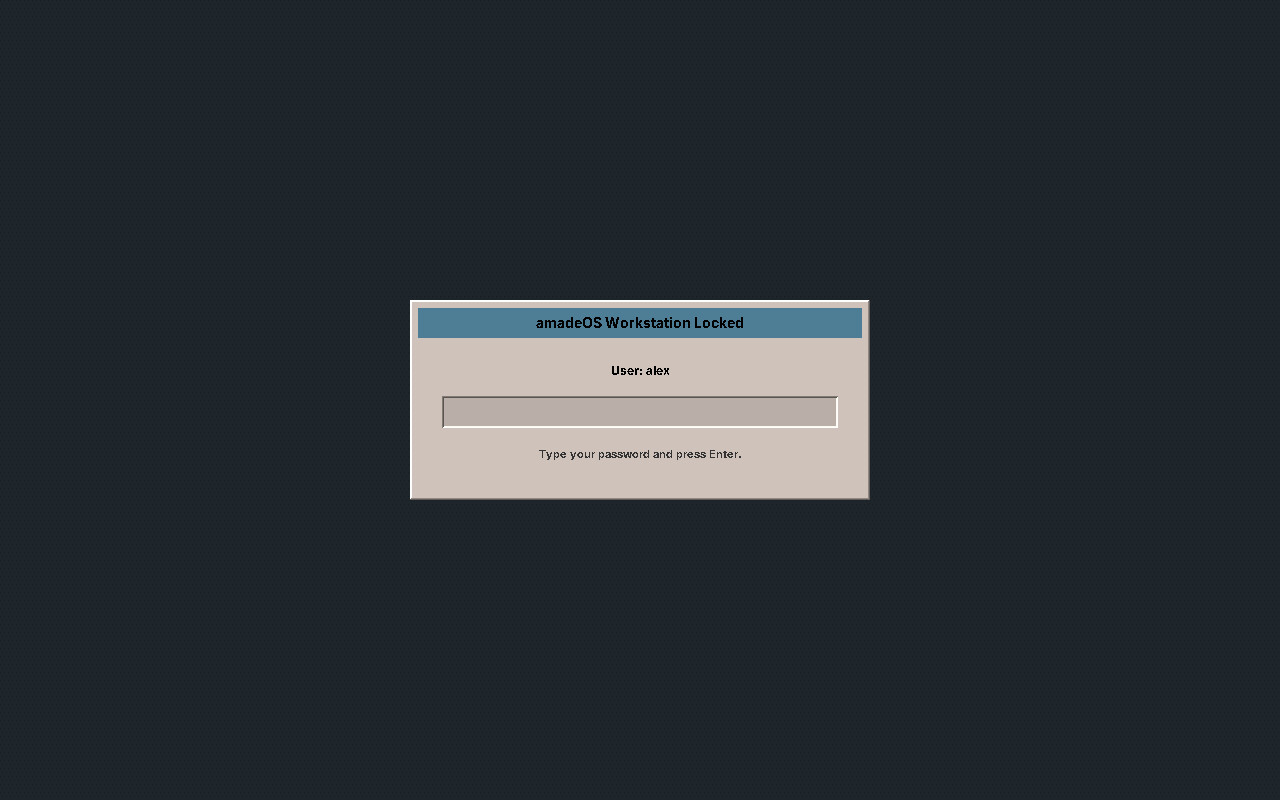
To unlock, type your password and press Enter.
After a time without keyboard or mouse, the screen saver starts, and a little later the screen locks by itself. How long that takes, and which picture the screen saver shows, is set on the Screen page of Settings (chapter 34).
Your data
The lock grabs the keyboard and mouse for itself, so no program behind it can read what you type. If the lock program should ever crash, it starts again at once and the screen stays locked.
The EXIT button
EXIT, at the right of the workspace switch, opens the window amadeOS Session & Power Control:
| Button | What it does |
|---|---|
| Log Out | Ends your session and returns to the login screen. |
| Reboot | Ends the session and restarts the computer; asks once more. |
| Shut Down | Ends the session and switches the computer off; asks once more. |
| Exit to Shell | Logs out and switches the screen to the text console, for repairs with commands. The login screen is still there: Ctrl+Alt+F7 brings it back. |
| Cancel | Closes the window. |
Log Out… in the Workspace Menu does the same.
Save first
Logging out ends all your programs. Save your work before; amadeOS does not yet ask the programs to save.
Without logging in
At the login screen, Reboot… and Shut Down… at the bottom right restart or switch off the computer (chapter 20). The power button of the computer also shuts amadeOS down properly.
CDE heritage
CDE had the same padlock and EXIT button at the same places. amadeOS adds the keyboard shortcut Super+L and the choice of rebooting or shutting down directly from EXIT.