47. Image Viewer, Image Scan and Fractals
Image Viewer
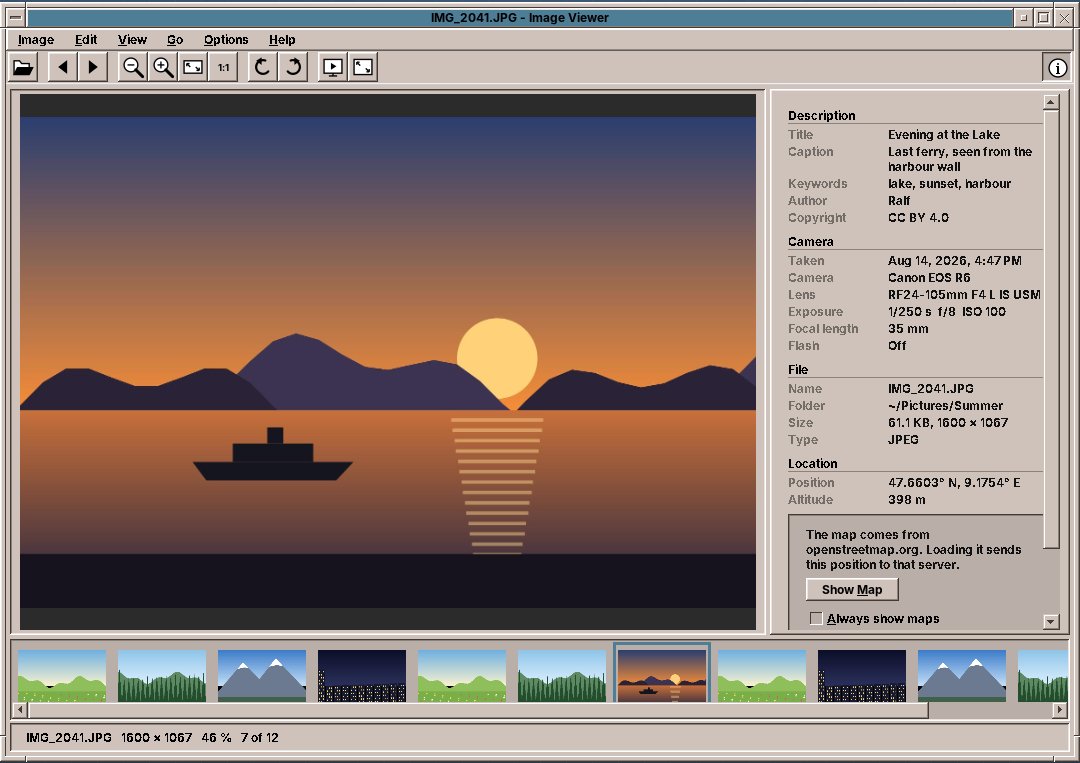
The Image Viewer shows your photos and pictures, one after the other, as large as the window allows. It turns them, plays them as a slideshow on the whole screen, and shows what the camera wrote into them: when and with which camera a photo was taken, its title and caption, and where it was taken, on a map.
Start it from the Graphics drawer, or with amade-imageviewer. A double-click on a picture in the File Manager opens it in the Image Viewer, and pictures can also be dropped on its window.
Looking at pictures
The Image Viewer opens JPEG, PNG, GIF, BMP, TIFF and WebP pictures. When you open one picture, all the pictures of its folder come along, sorted by name the way people count: IMG_9 comes before IMG_10. The film strip below the picture shows them small; a click on one shows it. View → Film Strip hides the strip.
| Key or mouse | What it does |
|---|---|
| Right, Page Down, Space or the wheel | Next picture |
| Left, Page Up, Backspace or the wheel | Previous picture |
| Home, End | First and last picture of the folder |
| Ctrl++, Ctrl+-, Ctrl + wheel | Zooms in and out |
| Ctrl+0 | Fits the picture into the window |
| Ctrl+1 | Shows the picture at its actual size, one pixel of the picture on one pixel of the screen |
| Drag | Moves a zoomed picture |
| Ctrl+L, Ctrl+R | Turns the picture left or right |
The status line at the bottom shows the file name, the size of the picture in pixels, the zoom and where you are in the folder, such as 7 of 12.
Turning pictures
Photos taken with the camera held upright appear upright: the camera notes how it was held, and the Image Viewer follows the note. If a picture still lies on its side, turn it with Ctrl+L or Ctrl+R, or mirror it in the View menu. That only changes how you see it. Image → Save Rotation (Ctrl+S) writes the turn into the file.
JPEG photos are turned without loss: the Image Viewer moves the compressed blocks of the picture instead of compressing it again, so nothing is made worse. For that it needs the program jpegtran, which comes with amadeOS; if it is missing, the Image Viewer says so and names the package to install with Software. PNG and BMP pictures are simply written anew, which loses nothing either. Other formats cannot be saved turned.
The sidebar
View → Information Sidebar (F9), or the ⓘ button at the right of the tool bar, shows what is known about the picture, in up to four sections:
- Description: title, caption, keywords, author and copyright, as photo programs and cameras write them.
- Camera: when the photo was taken, the camera and lens, exposure time, aperture and ISO, focal length and flash.
- File: name, folder, file size, size in pixels and format.
- Location: where the photo was taken, if the camera or phone recorded it, and the height above the sea.
A section appears only when the picture has something for it. The link All metadata… at the end lists everything written in the picture, tag by tag.
If you switch on Options → Window Title from Metadata, the window shows the picture's title instead of its file name, if the picture has a real title. Cameras that write a placeholder such as OLYMPUS DIGITAL CAMERA are ignored.
The map
For a photo with a location, the sidebar can show the place on a map from OpenStreetMap, the free map of the world made by volunteers. The map is not loaded on its own: to draw it, the Image Viewer has to ask the OpenStreetMap server for the map pieces around the place, and so tells it where the photo was taken. The sidebar asks first. Click Show Map for this one picture, or tick Always show maps (also in the Options menu) to be asked no more.
Below the map, Open in Browser shows the place on openstreetmap.org, and Copy puts the coordinates on the clipboard. Both work without loading the map.
Under the hood
The map pieces are kept for seven days in ~/.cache/amadeos/imageviewer/tiles, so a folder of holiday photos asks the server only once for its region. The Image Viewer loads at most two pieces at a time and names itself to the server, as the rules of the OpenStreetMap tile servers ask.
Full screen and slideshow
F11 shows the picture on the whole screen, without window and menus; Esc or F11 goes back. All the keys of the table above still work, and a click on the left or right third of the screen goes back or on.
F5, View → Slideshow or the ▶ button in the tool bar starts a slideshow on the whole screen: the pictures follow one another on their own.
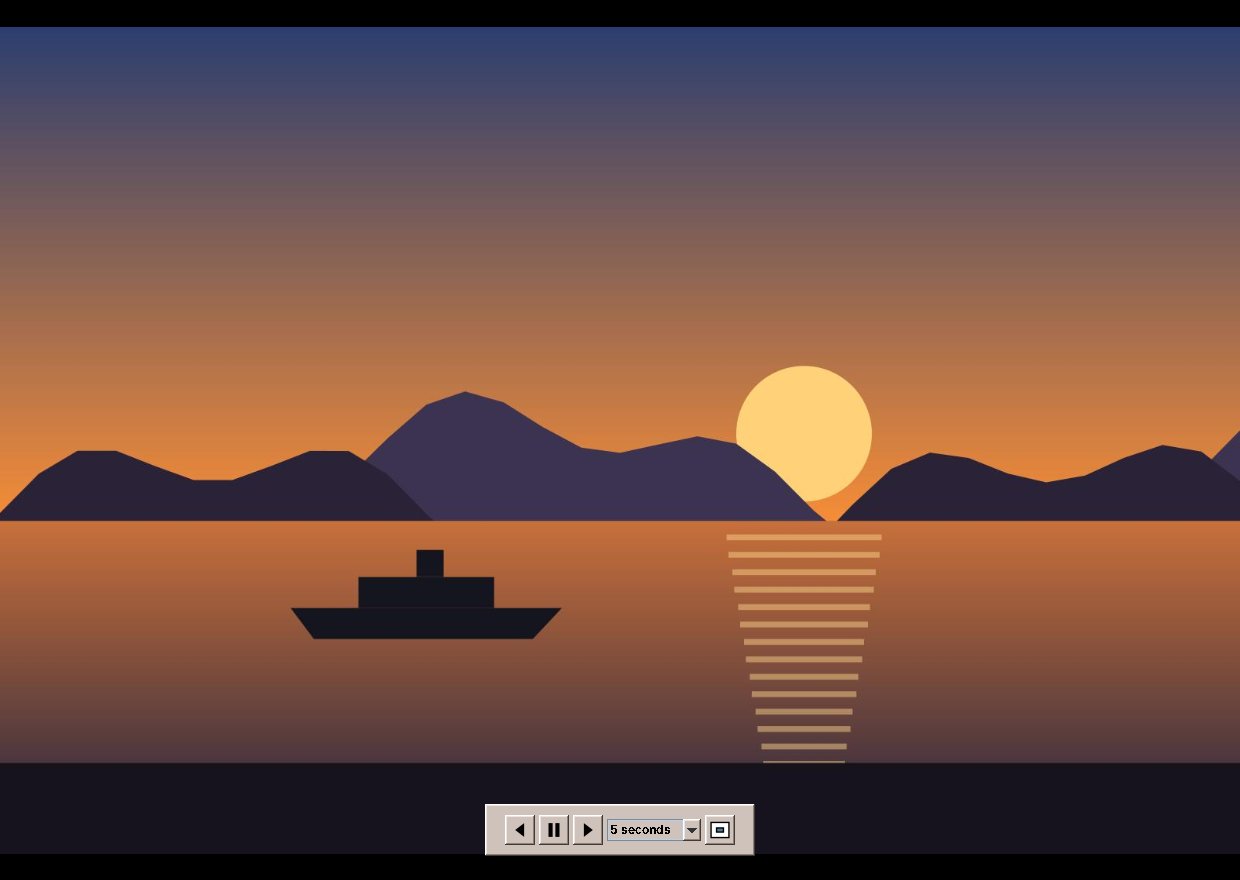
- When you move the mouse, a control bar appears at the bottom: previous, play or pause, next, the time each picture stays, and a button to leave the full screen. Two seconds after the mouse rests, the bar and the pointer disappear again.
- Space pauses the slideshow, and a Pause sign shows for a moment; Space again goes on.
- The arrow keys jump to the previous or next picture, and the time for that picture starts anew.
- Esc ends the slideshow and the full screen.
Options → Slideshow sets the time per picture, 3, 5, 10 or 30 seconds, and two choices: Shuffle shows the pictures in a random order, and Loop starts again at the beginning after the last one; in a shuffled loop no picture comes twice before all have been seen.
More
- Image → Move to Trash (Del) puts the picture into the Trash Can of the Front Panel, from where it can be brought back. The Image Viewer shows the next picture.
- Edit → Copy Image (Ctrl+C) copies the picture for other programs, Edit → Copy Path (Ctrl+Shift+C) its file name with the folder.
- Image → Print (Ctrl+P) prints the picture as large as the paper allows, across the page for wide pictures.
Planned
Using a picture as the backdrop of a workspace, moving pictures (animated GIF and WebP), HEIC photos from phones, simple editing such as cropping, brightness and contrast, and writing the title, caption and keywords into a picture.
Image Scan
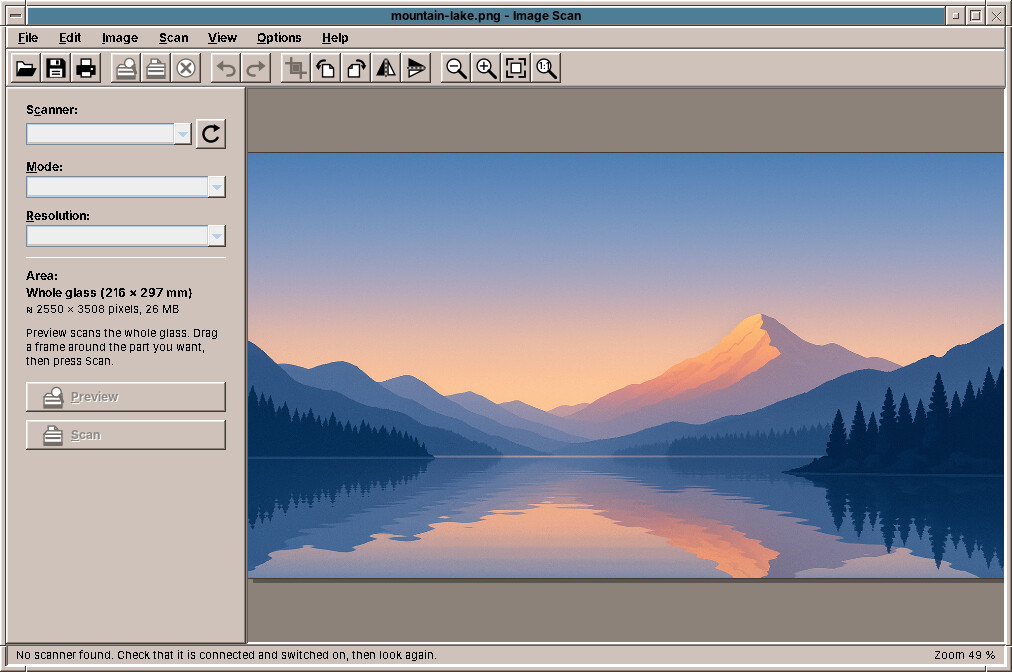
Image Scan scans photos, letters and documents from a flatbed scanner, lets you cut out the part you want, turn it, and save it.
Start it from the Graphics drawer, or with amade-imagescan.
Scanning
- Put the original on the glass. The panel on the left shows the Scanner; ↻ looks for scanners again.
- Click Preview. Image Scan scans the whole glass quickly at low resolution.
- Drag a frame around the photo or page you want. Its eight handles change its size.
- Choose the Mode, colour, grey or black and white, and the Resolution. The panel shows how large the result will be, for example ≈ 2480 × 3508 pixels, 25 MB.
- Click Scan. Only the framed part is scanned. Cancel Scan stops it.
300 dpi is right for letters and most photos, 600 dpi for small photos you want to print larger. Image Scan remembers the scanner, mode and resolution you used last.
Editing and saving
Crop to the frame, turn left, right or by 180°, mirror; undo and redo. The picture keeps every pixel: nothing is made worse by turning it.
File → Save stores the scan as PNG (the default), JPEG or TIFF, with a dated name in your Pictures folder. The resolution is written into the file, so a scanned A4 page prints as A4 again. Image Scan also opens existing pictures to crop or turn them (in the File Manager: Open with → Image Scan), prints them at their true size, and copies them to the clipboard.
No scanner found?
Image Scan uses SANE, the scanner system of Linux. Most USB scanners, network scanners and the scanners of all-in-one printers work without a driver from the maker. If none is found, check that the scanner is switched on and connected, and type scanimage -L in a terminal: it lists the scanners SANE sees.
Planned
Several pages into one PDF, brightness and contrast, straightening a crooked scan, and the scan button on the scanner.
Fractals
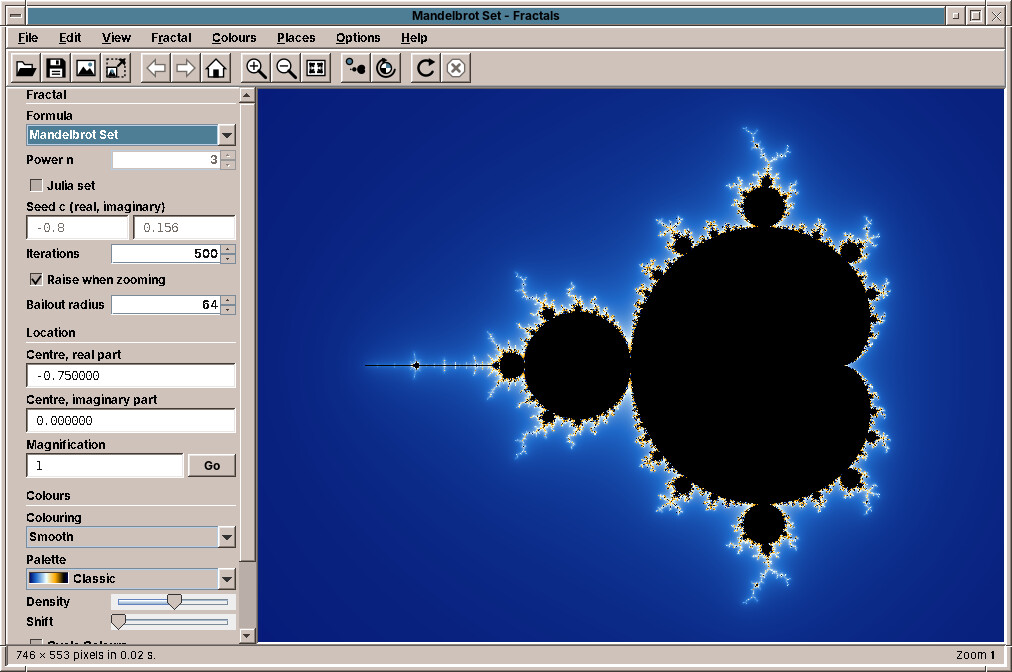
Fractals draws the Mandelbrot set and its relatives: endless shapes from a short formula, which show ever new detail the further you zoom in.
Start it from the Graphics drawer, or with amade-fractals.
Exploring
| Mouse | What it does |
|---|---|
| Click | Zooms in two times at that point |
| Right click | Zooms out |
| Drag a frame | Fills the window with what is in the frame |
| Wheel | Zooms at the pointer |
| Drag with the right or middle button | Moves the picture |
| Ctrl + click | Shows the Julia set of that point |
Back, Forward and Home in the tool bar go through what you have seen; F11 shows the picture on the whole screen. While a new picture is calculated, the old one moves and grows at once, so you never wait to see where you are.
The Places menu goes straight to famous spots: Seahorse Valley, Elephant Valley, a triple spiral, a tiny copy of the whole set, and a zoom of 10²⁰ times. The Mandelbrot set can be zoomed to a magnification of about 10²⁹⁰, a number with 290 zeros.
Formulas and colours
The panel on the left chooses the formula: Mandelbrot, Multibrot, Burning Ship, Tricorn, Celtic, Buffalo, Phoenix, Magnet and Newton's method, each but Newton also as a Julia set. Colouring and Palette change the colours without calculating again; the palette Desktop Colours takes the colours of your palette in Settings, and colour cycling sets the colours moving.
Saving
File → Save Image saves the picture as you see it. File → Export Image calculates it at any size up to 64 megapixels: Full HD, 4K, 8K, or A4 at 300 dpi for a poster. A parameter file (.fractal) keeps a place with all its digits; Copy Parameters puts it on the clipboard to send to a friend.
Under the hood
Fractals uses all processor cores. Below the precision of ordinary numbers, the Mandelbrot set is calculated with perturbation: one point with hundreds of digits, and every pixel as a small difference from it.