27. Network, Sound and Printing
The network
A wired network works by itself: plug in the cable, and amadeOS connects. The network cell at the right end of the Front Panel shows a cable then; its tooltip names the connection.
For a WLAN, click the network cell. A menu lists the networks in reach with their signal strength. Click one; for a protected network amadeOS asks for its password once and remembers it. Show password shows what you typed.
| In the network menu | What it does |
|---|---|
| A network | Joins it. |
| The current network | A submenu with Disconnect and Forget network (forget the password). |
| Search again | Looks for networks anew. |
| Network settings… | Opens the detailed settings in a terminal window, for fixed addresses, VPNs and hidden networks (chapter 54). |
If the cell shows a cross, there is no connection; Not connected in its tooltip, or Network service is not running if the network service itself has stopped (chapter 57).
Coming from Windows or macOS
The network cell is the network icon of the Windows taskbar or the macOS menu bar. Mobile hotspots of phones appear in the list like any other WLAN.
Your data
WLAN passwords are kept on your computer only, readable by the system and its administrators. The desktop sends nothing to a server when it connects; the system only sets its clock from a public time server.
Sound
Sound works without setting anything up: amadeOS uses PipeWire, the sound system of current Linux distributions, for speakers, headphones and USB sound cards. Programs that play sound, the Audio Station, the Video Player, the games and Firefox, use the device that is active.
The sound cell next to the network cell sets the volume for the whole computer. Its loudspeaker shows one to three waves for how loud it is, and an X when the sound is muted.
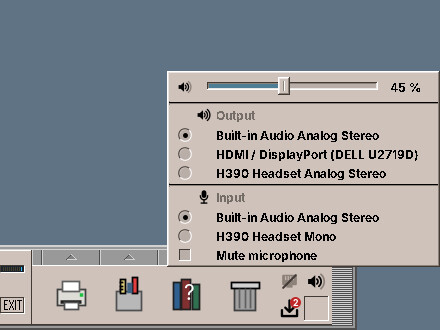
Click the cell for its menu:
| In the sound menu | What it does |
|---|---|
| The slider | Sets the volume from 0 to 100 %. Moving it also ends muting. |
| The loudspeaker left of the slider | Mutes the sound, and a second click turns it on again. |
| Output | The speakers, headphones, HDMI screens and USB headsets. Click one to play through it; what is playing moves over at once. |
| Input | The microphones. Click one to record from it, for example for a video call. |
| Mute microphone | Keeps the microphone in use silent. |
Two shortcuts work without opening the menu: turn the mouse wheel over the cell to make it louder or softer in steps of 5 %, and click it with the middle button to mute. The tooltip names the volume and the output, for example Volume 45 % · Built-in Audio Analog Stereo. When the loudspeaker is grey and crossed out, the sound system is not running (chapter 57).
A headset plugged in appears in the menu at once. Most programs also have a volume control of their own; it sets their share of the volume of the cell.
Coming from Windows or macOS
The sound cell is the speaker icon of the Windows taskbar or the sound control of the macOS menu bar, with the choice of the output and the input in one menu.
The beep, the short sound the desktop makes for a mistake, is set on the Beep page of Settings (chapter 33).
Printing
Most printers sold in the last ten years print without a driver (IPP Everywhere, AirPrint). Connect them by USB, or to the same network, and amadeOS finds them by itself.
Click the Print Manager in the Front Panel to see them. It lists the printers with their state, and for each printer its jobs:
- Cancel, hold or release a print job,
- pause and resume a printer,
- choose the default printer, the one programs offer first,
- print a test page.
If a printer does not appear by itself, open the Print Manager's drawer and choose Add or Configure Printers. That opens the administration page of the print system (CUPS) in the web browser, at http://localhost:631: Administration → Add Printer. Chapter 54 explains it in more detail.
CDE heritage
The Print Manager follows CDE's dtprintinfo, which had its slot at the same place on the right of the Front Panel.
Under the hood
The sound cell talks to PipeWire through pactl (package pulseaudio-utils) and follows pactl subscribe, so a change made by another program shows at once. Volume and mute act on the default output, @DEFAULT_SINK@; choosing a device sets the default and moves the running streams with pactl move-sink-input.
The network cell asks NetworkManager through nmcli; members of the group netdev may change connections without a password (polkit rule /usr/share/polkit-1/rules.d/50-amadeos-network.rules). Network settings… runs nmtui. The Print Manager amadeos-print speaks the printing protocol IPP to CUPS directly, over its socket /run/cups/cups.sock; members of the group lpadmin may pause printers and choose the default without a password. The first user of an installed system and the live user are in both groups.