0. Setting Up
Before the first application, your machine needs four things: a Java Development Kit, Git, an editor and the source code. This chapter installs them, builds the finished text editor amade-pad and runs it. At the end you know that everything works, and you know where things are.
What you need
| Tool | Why | Version |
|---|---|---|
| JDK (Java Development Kit) | compiles and runs the applications | 25 |
| Git | fetches the source code, keeps your changes | any recent |
| An IDE | editing, running, debugging | IntelliJ IDEA, VS Code with the Java extensions, or Eclipse |
| Gradle | builds the projects | nothing to install: each project brings its own Gradle wrapper |
The applications are developed on Linux and run on the amadeOS desktop, but everything in this book also works on any other Linux, and nearly everything on Windows and macOS. Where a program needs something only Linux has (a scanner driver, the keyring, the trash of the desktop), its chapter says so.
Installing the JDK and Git
Install the Temurin JDK 25 from adoptium.net (tick Set JAVA_HOME in the installer) and Git for Windows from git-scm.com.
Check the result in a new terminal:
The exact numbers differ; the Java version must start with 25.
Behind the scenes: toolchains
The build files ask Gradle for a Java 25 toolchain. If your default java is older, Gradle looks for an installed JDK 25 and uses it for compiling, testing and running. You only need one JDK 25 somewhere on the machine.
Getting the source code
The shared library and every application live in their own Git repositories. Clone them next to each other into one directory:
mkdir -p ~/projects/amade && cd ~/projects/amade
git clone https://github.com/datazuul/amade-commons.git
git clone https://github.com/datazuul/amade-pad.git
~/projects/amade/
├── amade-commons/   shared library of all amadeOS programs, and this book in docs/handbook
└── amade-pad/       the first application, a text editor
Why next to each other? An application declares amade-commons as a normal dependency, which Gradle would download from JitPack, a service that builds a library straight from its Git repository:
The part after the last colon is a commit of amade-commons. Each application names the exact state of the library it was written and tested with. A change in amade-commons never breaks an application by surprise: the application moves to a newer commit when someone has checked that it still works.
But each application's settings.gradle also says: if amade-commons is checked out next to me, build that instead.
rootProject.name = 'amade-pad'

// Develop against a local amade-commons checkout next to this one; without it, the version from
// JitPack given in build.gradle is used.
if (file('../amade-commons/settings.gradle').exists()) {
    includeBuild '../amade-commons'
}
Gradle calls this a composite build. When you change amade-commons, the application sees the change at once, without publishing anything. That is how you will work in this book: library and application side by side.
Pitfall: which amade-commons am I using?
With the composite build, an application uses whatever branch your amade-commons checkout is on, not the commit in build.gradle. If an application suddenly fails to compile after you switched branches in amade-commons, that is why. git -C ../amade-commons status tells you where you are.
Building and running Pad
The first run takes a while: the wrapper downloads Gradle itself, then the libraries. Later runs start in seconds. A window opens:
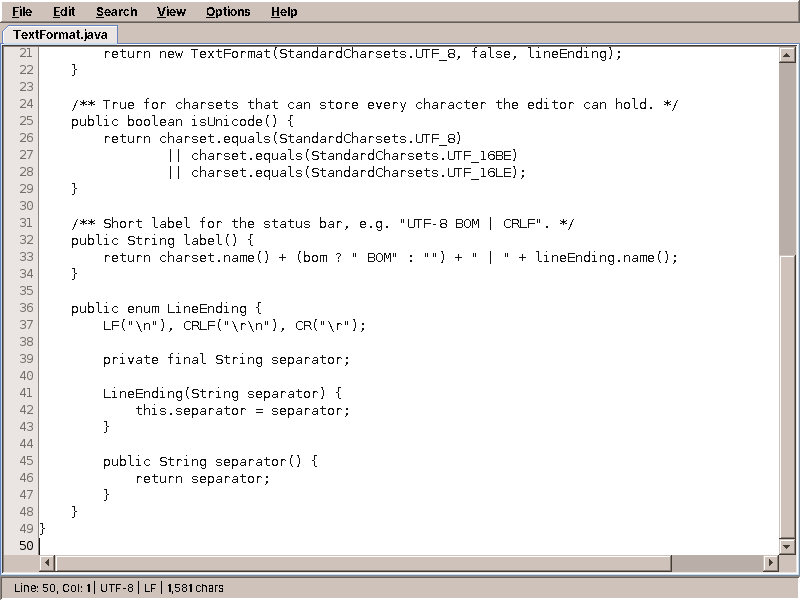
Type something, save it with Ctrl+S, open it again with Ctrl+O. Close the window when you are done. To open a file right away, pass it as an argument:
Now run the tests:
A few tests open real windows and skip themselves on a machine without a screen. To run them there too (a server, a CI build), use a virtual X server:
Some applications call other programs, and their tests run the real program. Those tests skip themselves when the program is missing, so the build still passes, but they only test something once it is installed. CI installs them; on your own machine, install them for the applications you work on:
| Application | Program | Debian/Ubuntu package |
|---|---|---|
| amade-imageviewer | jpegtran (turns JPEGs without loss, chapter 35) |
libjpeg-turbo-progs |
The test report is in build/reports/tests/test/index.html: open it in a browser to see every test and its result.
Tip
./gradlew tasks lists everything the build can do. The ones you will use most: run, test, jar (a single runnable jar in build/libs/) and deb (a Debian package).
Opening the project in an IDE
Open the folder amade-pad in your IDE and let it import it as a Gradle project. The IDE then reads build.gradle, finds amade-commons next door and knows every class, in both repositories.
File → Open, choose the folder. IntelliJ recognises build.gradle and imports it. Set Settings → Build Tools → Gradle → Gradle JVM to Java 25 if it is not chosen.
Install the Extension Pack for Java and the Gradle for Java extension, then File → Open Folder.
File → Import → Gradle → Existing Gradle Project.
To start the editor from the IDE, run the class eu.amadeos.apps.pad.bootstrap.AmadePadApplication.
Pitfall: \"non-project file\"
If your editor marks every import red and calls the file a non-project file, the folder was opened as plain files, not imported as a Gradle project. Import it as shown above; the errors disappear. They never meant that the code is wrong: ./gradlew build compiles it fine.
Where an application keeps its files
amadeOS programs follow the XDG Base Directory specification. Environment variables decide where files go, with defaults when they are not set, which is the usual case:
| What | Variable | Default | Example |
|---|---|---|---|
| Settings | $XDG_CONFIG_HOME |
~/.config |
~/.config/amadeos/pad/language.conf |
| Data | $XDG_DATA_HOME |
~/.local/share |
mail folders, calendars |
| Cache | $XDG_CACHE_HOME |
~/.cache |
album covers, thumbnails |
The desktop itself keeps two files there that every application reads:
| File | Written by | Says |
|---|---|---|
~/.config/amadeos/theme.conf |
Settings | the colour theme, e.g. dark-slate |
~/.config/amadeos/locale.conf |
the desktop's language setting | the language, e.g. de_DE.UTF-8 |
All of them are plain text files. Open one in an editor: you will see exactly what was saved. Change theme.conf while Pad is running, and watch the window change its colours.
Installing an application on amadeOS
On amadeOS and other Debian systems an application is installed as a Debian package:
The editor then appears in the Text & Office drawer of the Front Panel, and amade-pad starts it from a terminal. sudo apt remove amade-pad removes it again. Chapter 10 shows how the package is made.
When something goes wrong
| Symptom | Cause and fix |
|---|---|
Cannot find a Java installation ... matching languageVersion=25 |
No JDK 25 installed. Install it as above. |
Could not resolve com.github.datazuul:amade-commons |
amade-commons is not checked out next to the application and JitPack cannot be reached. Clone amade-commons next to it. |
Cannot expand ZIP .../amade-commons/build/libs/amade-commons-0.1.0.jar when building the jar |
The fat jar wants the library's jar before Gradle built it. Run ./gradlew jar in amade-commons once, then again in the application. |
JpegtranMissingException in RotationSaverTest |
amade-imageviewer from before the tests skipped themselves, and jpegtran is not installed. Install libjpeg-turbo-progs as above, or update the checkout. |
| Window tests fail with odd screen sizes | An old virtual X server is still running on that display. Find it with pgrep -a Xvfb and end it. |
| Everything is tiny on a high-resolution screen | Start with -Dsun.java2d.uiScale=2, e.g. JAVA_TOOL_OPTIONS=-Dsun.java2d.uiScale=2 ./gradlew run. |
| The application starts in the wrong language | amadeOS programs follow their own language setting, then the desktop's, then LANG. Try LANG=en_US.UTF-8 ./gradlew run, and look into ~/.config/amadeos/pad/language.conf. |
Everything works? Then the next chapter explains why amadeOS applications are written with Swing and a library of their own, instead of one of the large application frameworks.