34. Screenshot
The programs of Part III so far were large: a fractal explorer, a scanning program, two players. Screenshot is small, about 2,400 lines of Java and 1,200 lines of tests, and it does one thing: it takes a picture of the screen. To do that well it has to know more about the desktop around it than any program before it. It reads the pixels of the whole screen, asks the X server which windows are on it, covers every screen with a window of its own while the user picks, and keeps running after its window has closed, because on X11 a copied picture lives in the program that copied it.
Two small parts move into amade-commons with this chapter, each with its third user: the user's pictures folder, and a picture on the clipboard. Fractals and Imagescan had their own copies of both.
What you build
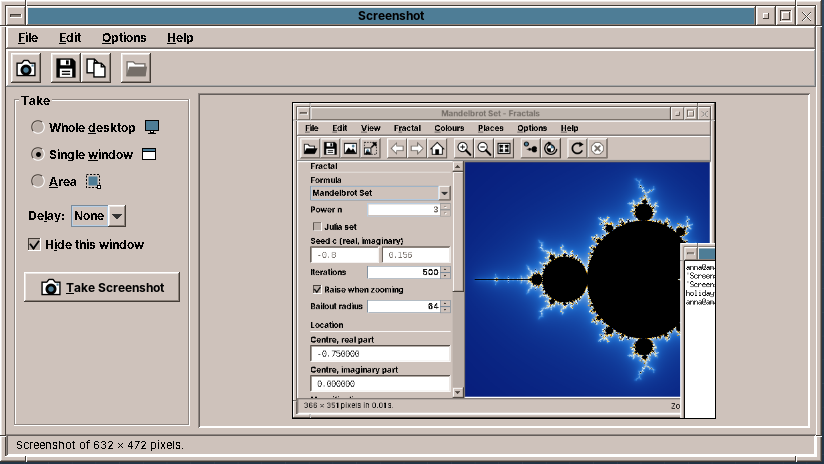
- Three modes: the whole desktop, a single window picked with a click, or an area drawn with the mouse.
- A delay of 3, 5 or 10 seconds, to open a menu before the picture is taken, and a choice whether Screenshot hides its own window.
- Save (Ctrl+S) into the pictures folder as
Screenshot 2026-10-22 14-05-33.pngwithout a question, or Save As PNG or JPEG anywhere. Open Folder shows the folder in the file manager. - Copy (Ctrl+C) puts the picture on the clipboard. It can still be pasted after the window has closed.
- A command line for key bindings:
amade-screenshot --area --copytakes an area and copies it, without the window. - Five languages, following the desktop.
What you will learn
- How to read the pixels of all screens with
java.awt.Robot, and why the window has to get out of the way first. - Why a screenshot program freezes the desktop before the user picks, and how a full-screen window shows the frozen picture.
- How to ask the X server for its windows through JNA, and how to keep a vanished window from ending the program.
- How the X11 clipboard works, and why a program that copied something must not end.
- How one program offers a window and a command line, with a sealed interface and a
switch. - How to find the user's pictures folder in their own language.
Reading the screen
Java can read the screen without any native code of its own: java.awt.Robot, made for automated tests, has createScreenCapture. On X11 it asks the X server for the pixels of the root window, which holds everything that is visible. RobotScreen first adds up the bounds of all screens, so that two monitors side by side become one wide picture:
    @Override
    public Rectangle bounds() {
        Rectangle all = new Rectangle();
        for (GraphicsDevice device : GraphicsEnvironment.getLocalGraphicsEnvironment().getScreenDevices()) {
            Rectangle screen = device.getDefaultConfiguration().getBounds();
            all = all.isEmpty() ? screen : all.union(screen);
        }
        return all;
    }
    @Override
    public synchronized BufferedImage grab(Rectangle area) {
        try {
            if (robot == null) robot = new Robot();
        } catch (AWTException e) {
            throw new IllegalStateException(e.getMessage(), e);
        }
        return robot.createScreenCapture(area);
    }
The Robot is created on first use, because its constructor fails without a display, and the tests construct the program without one. Screen is an interface with these two methods; the presenter's tests answer it with a picture of their own, so they need neither a screen nor a Robot.
The mouse pointer is not in the picture
The X server draws the pointer separately from the windows, and the root window's pixels do not contain it. For screenshots that is usually what the user wants. A tool that must show the pointer asks the XFixes extension for its image and paints it in.
Taking a screenshot
A screenshot of the desktop should not show the screenshot program. So take() hides the window first, then counts down the delay, waits a little longer, and only then reads the screen:
    public void take() {
        if (taking || closed) return;
        taking = true;
        updateCommands();
        Options o = options;
        if (o.hideWindow()) view.hideForCapture();
        background.execute(() -> {
            try {
                for (int left = o.delay(); left > 0; left--) {
                    int seconds = left;
                    ui.execute(() -> view.showStatus(msg.format("status.countdown", seconds)));
                    pause.sleep(1000);
                }
                if (o.hideWindow()) pause.sleep(SETTLE_MILLIS);
                Capture capture = captures.capture(o.mode().needsSelection());
                ui.execute(() -> captured(o.mode(), capture));
            } catch (InterruptedException e) {
                Thread.currentThread().interrupt();
                ui.execute(this::cancelled);
            } catch (RuntimeException e) {
                LOG.warn("Screenshot failed", e);
                ui.execute(() -> failed(e));
            }
        });
    }
Hiding is asynchronous. setVisible(false) returns at once, but the X server still has to unmap the window, and every program below it has to repaint what was covered. A grab right away often shows a grey hole where Screenshot was. SETTLE_MILLIS, 400 milliseconds, is enough on every machine we tried, and the user does not notice it after pressing a button.
The countdown and the grab run on the background executor, as every slow step in this book does; each change the user sees goes back through the ui executor. Pause is an interface, so the test that checks the countdown does not wait three seconds:
    @BeforeEach
    void setUp() {
        preferences = new ScreenshotPreferences(dir.resolve("screenshot.properties"));
        pictures = dir.resolve("Pictures");
        Screen screen = new Screen() {
            @Override
            public Rectangle bounds() {
                return DESKTOP;
            }

            @Override
            public BufferedImage grab(Rectangle area) {
                if (grabFailure != null) throw grabFailure;
                grabs++;
                BufferedImage image = new BufferedImage(area.width, area.height, BufferedImage.TYPE_INT_RGB);
                image.setRGB(10, 20, Color.RED.getRGB());
                return image;
            }
        };
        DesktopLauncher launcher = new DesktopLauncher() {
            @Override
            public void open(Path file) {
                opened.add(file);
            }
        };
        presenter = new MainPresenter(view, MSG, null, preferences, new CaptureService(screen, () -> windows),
                new ImageFiles(), launcher, pictures, executor, executor, pauses::add, () -> TIME, keepAlive,
                () -> quits++);
        presenter.start();
    }
    @Test
    void theDesktopIsTakenWithTheWindowOutOfTheWay() {
        presenter.take();
        assertFalse(view.visible);
        assertTrue(view.commands.taking());
        presenter.take();
        executor.runAll();
        assertEquals(1, grabs, "a second press while taking does nothing");
        assertEquals(List.of(MainPresenter.SETTLE_MILLIS), pauses);
        assertEquals(List.of("hide", "show"), view.events);
        assertEquals(320, view.shot.getWidth());
        assertEquals("Screenshot of 320 × 200 pixels.", view.lastStatus());
        assertEquals(new MainView.Commands(true, false, false), view.commands);
    }
The test's executor runs everything on the test's thread, in order, when runAll() is called. That is how it can check that a second press while taking does nothing, and that the window was hidden before and shown after.
A bug in the window manager
The first version of the program lost its window after the first screenshot. Hiding worked, but setVisible(true) showed nothing, and the program could not be reached any more.
The cause was in the amadeOS window manager. When a program unmaps its window, the window manager has to take its frame away and keep the window, because the program may show it again; the ICCCM, the rule book of X11 window managers, calls this the withdrawn state. The window manager treated an unmap like a closed window: it destroyed the frame, and with the frame the program's window inside it. No program before Screenshot hid and showed its own main window, so nobody had noticed.
The fix is in amadeos-system: on an unmap, the window manager moves the window out of its frame back to the root window, removes it from its save set, and remembers where the frame was, so that the window comes back at the same place. A test in the window manager's integration tests now hides and shows a window.
Tip: the program that finds a bug is often not the one that has it
A new program uses the desktop in a new way. When something fails in a way your code cannot explain, try the same steps with a small test program, here a JFrame that hides and shows itself. If it fails too, the bug is below you, and a test there protects every later program.
Freeze first, pick later
For a window or an area, the user has to pick. Screenshot does not let the user pick on the live desktop. It takes the whole desktop first and shows that picture full-screen; the user picks on the picture, and the chosen part is cut out of it. Capture is that frozen moment:
/**
 * The whole desktop at one moment, with the windows that were on it. Areas and windows are cut from this
 * frozen picture, so menus that close when the focus moves are still in it.
 *
 * @param image   the pixels of {@code bounds}
 * @param bounds  the desktop, in desktop coordinates
 * @param windows the windows' bounds in desktop coordinates, the top first; empty for a desktop shot
 */
public record Capture(BufferedImage image, Rectangle bounds, List<Rectangle> windows) {
    public Capture {
        windows = List.copyOf(windows);
        bounds = new Rectangle(bounds);
    }

    /** A copy of the part of the picture inside the area (desktop coordinates); empty if outside. */
    public Optional<BufferedImage> crop(Rectangle area) {
        return Selection.clip(area, bounds).map(part -> {
            BufferedImage sub = image.getSubimage(part.x - bounds.x, part.y - bounds.y, part.width, part.height);
            BufferedImage copy = new BufferedImage(part.width, part.height, BufferedImage.TYPE_INT_RGB);
            copy.createGraphics().drawImage(sub, 0, 0, null);
            return copy;
        });
    }
}
Freezing has three advantages. A menu that closes when the focus moves stays open in the picture. What the user sees while picking is exactly what they get. And the windows are listed at the same moment the pixels are taken, so a window that moves while the user picks does not move in the picture:
    /** Call off the event dispatch thread: the X server is asked synchronously. */
    public Capture capture(boolean withWindows) {
        Rectangle bounds = screen.bounds();
        List<Rectangle> list = withWindows ? windows.topFirst() : List.of();
        return new Capture(screen.grab(bounds), bounds, list);
    }
crop copies the pixels instead of returning getSubimage. A sub-image shares the pixels of the whole desktop, so a 200-pixel icon would keep 30 megabytes of a 4K desktop alive for as long as it is on the clipboard.
    @Test
    void cropsInDesktopCoordinates() {
        Capture capture = new Capture(desktopImage(), DESKTOP, List.of());
        BufferedImage part = capture.crop(new Rectangle(0, 0, 10, 10)).orElseThrow();
        assertEquals(10, part.getWidth());
        assertEquals(Color.RED.getRGB(), part.getRGB(0, 0));
        BufferedImage corner = capture.crop(new Rectangle(190, 190, 50, 50)).orElseThrow();
        assertEquals(new Rectangle(0, 0, 10, 10), new Rectangle(corner.getWidth(), corner.getHeight()));
        assertEquals(Color.BLUE.getRGB(), corner.getRGB(9, 9));
        assertEquals(Optional.empty(), capture.crop(new Rectangle(500, 500, 5, 5)));
    }
After the grab, the presenter either has its picture or opens the overlay:
    private void captured(CaptureMode mode, Capture capture) {
        if (!mode.needsSelection()) {
            finished(capture.image());
            return;
        }
        view.select(mode, capture, chosen -> {
            Optional<BufferedImage> part = chosen.flatMap(capture::crop);
            if (part.isPresent()) finished(part.get());
            else cancelled();
        });
    }
Which windows are there
To light up the window under the pointer, Screenshot needs the windows' positions and their order from top to bottom. Java knows only its own windows. The X server knows all of them: the children of the root window, in stacking order from the bottom to the top. Under a window manager that puts each window into a frame, as the amadeOS one does, those children are the frames, so a picked window comes with its title bar and border.
Java cannot ask the X server for this, so Screenshot calls libX11 through JNA, the library Video and Audio used for libmpv and libcdio (chapter 32, chapter 33). The calls are declared in an interface, and JNA finds the functions in libX11.so.6 by their names:
    /** The few libX11 calls needed here. */
    interface X11 extends Library {
        Pointer XOpenDisplay(String name);

        int XCloseDisplay(Pointer display);

        NativeLong XDefaultRootWindow(Pointer display);

        int XQueryTree(Pointer display, NativeLong window, NativeLongByReference root, NativeLongByReference parent,
                       PointerByReference children, IntByReference count);

        int XGetWindowAttributes(Pointer display, NativeLong window, XWindowAttributes attributes);

        int XFree(Pointer data);

        int XSync(Pointer display, int discard);

        ErrorHandler XSetErrorHandler(ErrorHandler handler);
    }
XQueryTree gives the children of the root window; XGetWindowAttributes fills a C structure with each one's position, size and state. Only windows that are viewable count, and the list is turned around, so that the top window comes first:
    private List<Rectangle> windows(Pointer display) {
        NativeLongByReference root = new NativeLongByReference();
        NativeLongByReference parent = new NativeLongByReference();
        PointerByReference children = new PointerByReference();
        IntByReference count = new IntByReference();
        if (x11.XQueryTree(display, x11.XDefaultRootWindow(display), root, parent, children, count) == 0) {
            return List.of();
        }
        Pointer array = children.getValue();
        if (array == null) return List.of();
        List<Rectangle> bottomFirst = new ArrayList<>();
        try {
            for (int i = 0; i < count.getValue(); i++) {
                NativeLong window = array.getNativeLong((long) i * Native.LONG_SIZE);
                XWindowAttributes a = new XWindowAttributes();
                if (x11.XGetWindowAttributes(display, window, a) == 0) continue;
                if (a.map_state != IS_VIEWABLE || a.width <= 1 || a.height <= 1) continue;
                bottomFirst.add(new Rectangle(a.x, a.y, a.width + 2 * a.border_width, a.height + 2 * a.border_width));
            }
        } finally {
            x11.XFree(array);
        }
        x11.XSync(display, 0);
        Collections.reverse(bottomFirst);
        return bottomFirst;
    }
XWindowAttributes has 23 fields. JNA lays out a Structure from the list of its fields, in the order of @Structure.FieldOrder, with the sizes of the machine it runs on: an int is 4 bytes, a NativeLong and a Pointer 8 on a 64-bit system. That is why JNA is used here and not the foreign function API of LaunchFeedback (chapter 45), where each field's offset is written by hand. For one event of five fields that is fine; for 23 fields, a structure that JNA lays out is easier to get right.
Pitfall: Xlib's default error handler ends the program
A window can close between XQueryTree and XGetWindowAttributes. The X server then answers with a BadWindow error, and Xlib's default handler for errors prints a message and calls exit. Your Java program ends, without an exception and without a stack trace. A program that asks about other programs' windows must install its own handler first:
    /**
     * A window can close between listing and asking for its size. The default handler would end the
     * program for that error; this one only ignores it.
     */
    interface ErrorHandler extends Callback {
        int callback(Pointer display, Pointer event);
    }
The handler itself, IGNORE = (display, event) -> 0, is kept in a static final field. JNA calls into Java through it from C, and if the garbage collector removed it, the next error would jump into freed memory.
Without libX11 or without a display, the list is empty and a warning goes to the log; the user can still take the desktop or an area. The Debian package depends on libx11-6, and build.gradle adds JNA:
    // The list of windows on the screen comes from libX11.
    implementation 'net.java.dev.jna:jna:5.14.0'
What lies on top is in the picture
A window is cut from the desktop as it looked. If another window covered part of it, that part is in the picture too. Look at the right edge of the picture at the top of the chapter: the Terminal covered the corner of the Fractals window, and so it is in the screenshot.
X11 has no simple way to read a covered window. Its pixels may not exist at all, since programs draw only what is visible. A compositing window manager keeps every window's pixels off-screen, and the XComposite extension can hand them out; the amadeOS window manager does not composite. So the rule is the same as in most screenshot tools: bring the window to the front before you take it.
Picking on the frozen desktop
SelectionOverlay is an undecorated, always-on-top JFrame over all screens. With one screen it becomes a full-screen window, which the window manager puts above the panel; with several it covers their combined bounds:
    /** Shows the overlay; {@code done} gets the chosen rectangle in desktop coordinates, or nothing. */
    public static SelectionOverlay show(Capture capture, CaptureMode mode, String hint,
                                        Consumer<Optional<Rectangle>> done) {
        EdtExecutor.requireEdt();
        SelectionOverlay overlay = new SelectionOverlay(capture, mode, hint, done);
        GraphicsDevice[] screens = GraphicsEnvironment.getLocalGraphicsEnvironment().getScreenDevices();
        if (screens.length == 1 && screens[0].isFullScreenSupported()) {
            screens[0].setFullScreenWindow(overlay);
        } else {
            overlay.setVisible(true);
        }
        overlay.toFront();
        overlay.canvas.requestFocusInWindow();
        return overlay;
    }
Inside it, SelectionCanvas paints the frozen desktop, dims it, and lights up the rectangle being chosen:
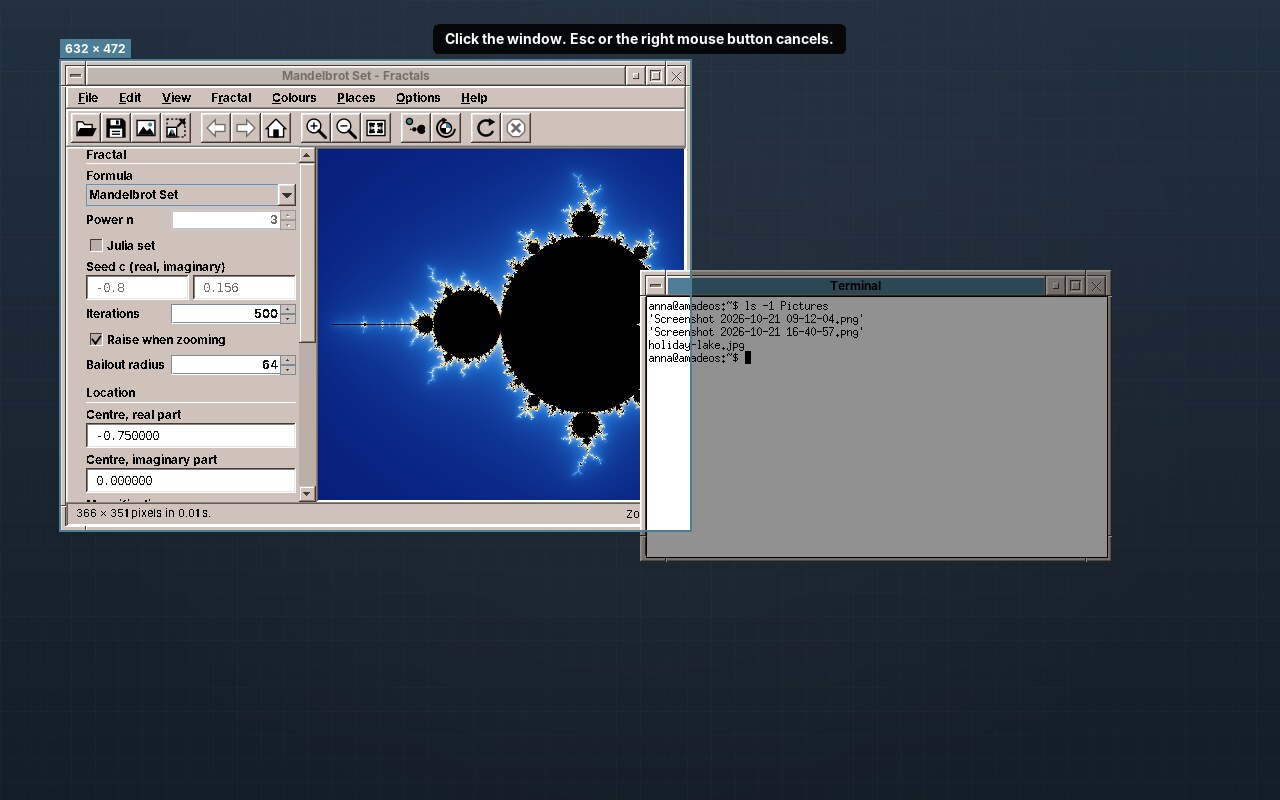
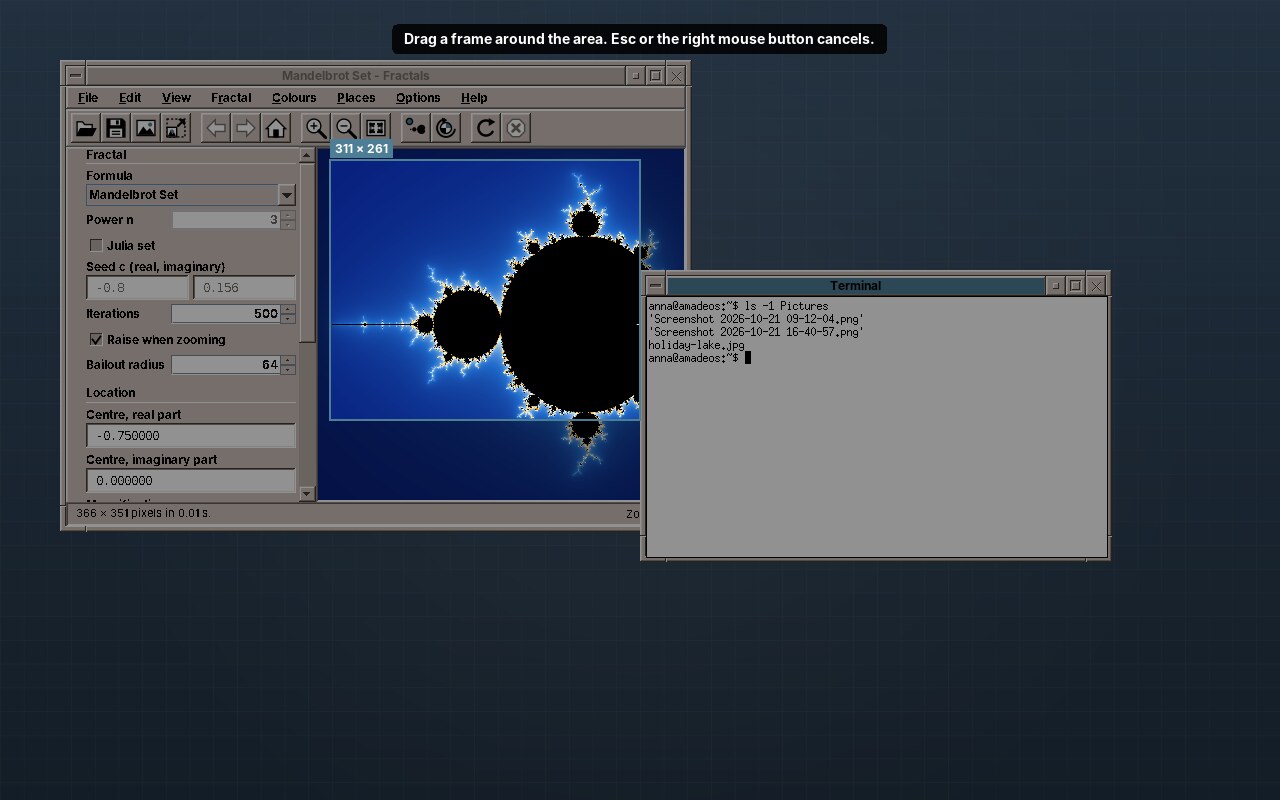
The mouse events become four methods in desktop coordinates, the component's coordinates plus the capture's origin. On a second monitor left of the first, the desktop starts at a negative x, and the component still starts at 0:
    void pressed(Point at) {
        if (mode == CaptureMode.AREA) {
            start = at;
            mark(Selection.between(at, at));
        } else {
            moved(at);
        }
    }

    void dragged(Point at) {
        if (mode == CaptureMode.AREA && start != null) mark(Selection.between(start, at));
    }

    void released(Point at) {
        if (mode == CaptureMode.AREA) {
            if (start == null) return;
            Rectangle area = Selection.between(start, at);
            start = null;
            if (Selection.isLargeEnough(area)) finish(Selection.clip(area, capture.bounds()));
            else mark(null);
        } else {
            Optional<Rectangle> window = Selection.windowAt(capture.windows(), at);
            if (window.isPresent()) finish(Selection.clip(window.get(), capture.bounds()));
        }
    }

    void moved(Point at) {
        if (mode == CaptureMode.WINDOW) mark(Selection.windowAt(capture.windows(), at).orElse(null));
    }
The geometry itself is in Selection, plain static methods without Swing. between makes a rectangle from two corners in whichever direction the mouse was dragged, and includes both corners; windowAt takes the first window in the list that contains the point, which is the top one:
    /** The rectangle between two corners, whichever way the mouse was dragged; both corners are inside. */
    public static Rectangle between(Point start, Point end) {
        int x = Math.min(start.x, end.x);
        int y = Math.min(start.y, end.y);
        return new Rectangle(x, y, Math.abs(end.x - start.x) + 1, Math.abs(end.y - start.y) + 1);
    }
    /**
     * The window under the point.
     *
     * @param topFirst the windows' bounds, the top of the stack first
     */
    public static Optional<Rectangle> windowAt(List<Rectangle> topFirst, Point point) {
        for (Rectangle window : topFirst) {
            if (window.contains(point)) return Optional.of(window);
        }
        return Optional.empty();
    }
Painting dims four rectangles around the lit one, instead of dimming everything and painting the lit part again, and labels it with its size. The accent colour is the theme's title-bar colour, which the desktop uses for "active" everywhere:
    @Override
    protected void paintComponent(Graphics graphics) {
        Graphics2D g = (Graphics2D) graphics.create();
        try {
            g.drawImage(capture.image(), 0, 0, null);
            Rectangle lit = marked == null ? null : new Rectangle(marked.x - capture.bounds().x,
                    marked.y - capture.bounds().y, marked.width, marked.height);
            g.setColor(DIM);
            if (lit == null) {
                g.fillRect(0, 0, getWidth(), getHeight());
            } else {
                // Dim everything around the lit rectangle.
                g.fillRect(0, 0, getWidth(), lit.y);
                g.fillRect(0, lit.y + lit.height, getWidth(), getHeight() - lit.y - lit.height);
                g.fillRect(0, lit.y, lit.x, lit.height);
                g.fillRect(lit.x + lit.width, lit.y, getWidth() - lit.x - lit.width, lit.height);
                Color accent = accent();
                g.setColor(accent);
                g.setStroke(new BasicStroke(2f));
                g.drawRect(lit.x, lit.y, lit.width - 1, lit.height - 1);
                label(g, lit.width + " × " + lit.height, lit, accent);
            }
            hint(g);
        } finally {
            g.dispose();
        }
    }
The four mouse methods are package-private, so a test can call them with points instead of sending mouse events to a window it would have to show:
    @Test
    void theWindowUnderThePointerIsLitAndPicked() throws Exception {
        OnEdt.run(() -> {
            SelectionCanvas canvas = canvas(CaptureMode.WINDOW);
            canvas.moved(new Point(60, 60));
            assertEquals(Optional.of(TOP), canvas.marked());
            canvas.moved(new Point(0, 10));
            assertEquals(Optional.of(BOTTOM), canvas.marked());
            canvas.moved(new Point(250, 250));
            assertEquals(Optional.empty(), canvas.marked());
            canvas.released(new Point(250, 250));
            assertTrue(results.isEmpty(), "a click beside every window picks nothing");
            canvas.released(new Point(0, 10));
            // The part off the desktop is cut away.
            assertEquals(List.of(Optional.of(new Rectangle(-100, 0, 200, 200))), results);
        });
    }
Tip: test the geometry, not the mouse
java.awt.Robot can move the mouse in a test, but such tests need a visible window, a window manager that gives it the focus, and time. They break when one of them is missing. A component that turns events into calls of its own methods can be tested with those methods, and only a short manual test is left for the events.
Saving
Save asks nothing. The file is called after the date and time, without colons, which some file systems and file managers do not like, and a second screenshot in the same second gets (2):
    /** A file in the folder that does not exist yet. */
    public static Path unused(Path folder, LocalDateTime time, ImageFormat format) {
        String base = PREFIX + " " + STAMP.format(time);
        Path path = folder.resolve(base + "." + format.defaultExtension());
        for (int n = 2; Files.exists(path); n++) {
            path = folder.resolve(base + " (" + n + ")." + format.defaultExtension());
        }
        return path;
    }
Two quick presses of Ctrl+S could find the same free name, if both looked before either wrote. So the name is looked for in the same synchronized block that writes the file, on the background executor:
    private void write(Supplier<Path> target, ImageFormat format) {
        BufferedImage picture = shot;
        background.execute(() -> {
            Path path;
            synchronized (saving) {
                path = target.get();
                try {
                    files.write(picture, path, format);
                } catch (IOException | RuntimeException e) {
                    LOG.warn("Could not save {}", path, e);
                    ui.execute(() -> view.showError(msg.format("error.save", path, message(e))));
                    return;
                }
            }
            ui.execute(() -> {
                lastSaved = path;
                view.showStatus(msg.format("status.saved", path.getFileName(), path.getParent()));
                updateCommands();
            });
        });
    }
ImageFiles writes into a temporary file next to the target and moves it over, the atomic write of chapter 21, so a full disk never leaves half a picture. For JPEG it sets the quality to 92 and makes sure the picture has no alpha channel, which the JPEG writer would otherwise refuse.
The folder is the user's pictures folder, and that is the first part that moves into amade-commons (below).
The clipboard on X11
On Windows, a program that copies a picture hands it to the system, and the system keeps it. X11 works differently. The clipboard is a selection: the X server only remembers which program owns it. A program that pastes asks the owner for the data, and the owner sends it at that moment. When the owner ends, the clipboard is empty.
For a text editor that hardly matters, because the user pastes while the editor is still open. For Screenshot it matters a lot: take an area, copy it, close Screenshot, paste it into a mail, and there is nothing to paste. Command-line tools like xclip solve this by staying in the background until another program takes the clipboard over. Screenshot does the same.
Copying puts an ImageSelection on the clipboard with a callback for the moment it is lost:
    public void copy() {
        if (shot == null) return;
        view.copyToClipboard(shot, () -> ui.execute(this::clipboardLost));
        ownsClipboard = true;
        view.showStatus(msg.get("status.copied"));
    }
Closing the window ends the program only if it does not own the clipboard:
    /**
     * Closes the window. While a copied screenshot is on the clipboard the program stays in the background,
     * so that it can still be pasted, and ends when another program takes the clipboard over.
     */
    public void exit() {
        if (closed) return;
        closed = true;
        view.close();
        if (ownsClipboard) {
            keepAlive.hold();
        } else {
            quit.run();
        }
    }
    private void clipboardLost() {
        ownsClipboard = false;
        if (closed) {
            keepAlive.release();
            quit.run();
        }
    }
Why does a program without windows not end by itself? AWT keeps the JVM alive while windows are displayable, and the event thread stops a moment after the last one has been disposed. With no window and no other thread, the JVM ends, and the clipboard with it. KeepAlive is a thread that is not a daemon thread, so the JVM waits for it, and it waits for a latch:
/**
 * Keeps the program running without a window. On X11 the clipboard holds no data: it only names the
 * program that has it, and a program that pastes asks that one. So after Copy the program has to stay until
 * another program takes the clipboard over, the way {@code xclip} does.
 */
public final class KeepAlive {
    private final CountDownLatch released = new CountDownLatch(1);
    private Thread thread;

    /** Starts a non-daemon thread that waits until {@link #release()}. */
    public synchronized void hold() {
        if (thread != null) return;
        thread = new Thread(() -> {
            try {
                released.await();
            } catch (InterruptedException e) {
                Thread.currentThread().interrupt();
            }
        }, "clipboard-keeper");
        thread.setDaemon(false);
        thread.start();
    }

    public void release() {
        released.countDown();
    }

    public synchronized boolean isHolding() {
        return thread != null && released.getCount() > 0;
    }
}
The test plays the whole story without a clipboard: copy, close, nothing ends, the clipboard is lost, the program ends.
    @Test
    void aCopiedShotOutlivesTheWindow() {
        presenter.take();
        executor.runAll();
        presenter.copy();
        assertSame(view.shot, view.clipboard);
        assertTrue(presenter.ownsClipboard());
        assertTrue(view.lastStatus().startsWith("Copied to the clipboard."));
        presenter.exit();
        assertTrue(view.closed);
        assertEquals(0, quits, "stays for pasting");
        assertTrue(keepAlive.isHolding());
        view.clipboardLost.run();
        executor.runAll();
        assertEquals(1, quits);
        assertFalse(keepAlive.isHolding());
    }
Behind the scenes: a clipboard manager
Desktops solve this once for all programs with a clipboard manager: a small program that watches the clipboard and, when the owner is about to end, takes the data over and becomes the owner itself. Then no program has to stay behind. amadeOS has none yet. When it has one, KeepAlive becomes unnecessary, and the clipboard manager will also remember the last few things copied.
One program, two faces
Without arguments Screenshot opens its window. With options it takes one picture at once and ends, which is what a key binding or a script wants:
amade-screenshot --desktop                        saved in the pictures folder
amade-screenshot --area --copy                    drawn with the mouse, to the clipboard
amade-screenshot --window --delay 3 --file /tmp/shot.png
CommandLine.parse turns the arguments into one of four records of a sealed interface:
    /** No arguments: the window. */
    record OpenWindow() implements CommandLine {
    }

    record Help() implements CommandLine {
    }

    record Version() implements CommandLine {
    }

    /**
     * Take one screenshot without the window.
     *
     * @param file where to save it; empty with {@code save} for the pictures folder
     */
    record Take(CaptureMode mode, int delay, boolean copy, boolean save, Optional<Path> file) implements CommandLine {
    }
and main decides with a switch that the compiler checks for completeness: a fifth record without a case would not compile.
    /** Without arguments the window; with options one screenshot at once (see {@link CommandLine}). */
    public static void main(String[] args) {
        CommandLine command;
        try {
            command = CommandLine.parse(List.of(args));
        } catch (IllegalArgumentException e) {
            System.err.println("amade-screenshot: " + e.getMessage());
            System.err.print(CommandLine.USAGE);
            System.exit(2);
            return;
        }
        switch (command) {
            case CommandLine.Help help -> System.out.print(CommandLine.USAGE);
            case CommandLine.Version v -> System.out.println("amade-screenshot " + version());
            case CommandLine.OpenWindow open -> AmadeApplication.launch(APP, injector -> {
                MainWindow window = injector.getInstance(MainWindow.class);
                MainPresenter presenter = injector.getInstance(MainPresenter.class);
                window.bind(presenter);
                window.setVisible(true);
                presenter.start();
            }, new ScreenshotModule());
            case CommandLine.Take take -> AmadeApplication.launch(APP,
                    injector -> injector.getInstance(QuickShot.class).run(take), new ScreenshotModule());
        }
    }
--help and --version print and end without starting anything. The other two cases start through AmadeApplication.launch, so the overlay of the command line has the desktop's theme and language as well. QuickShot does what the window does, without the window: it waits, takes, lets the user pick, then saves, prints the path, and copies:
    private void deliver(CommandLine.Take take, BufferedImage picture) {
        background.execute(() -> {
            if (take.save() || take.file().isPresent()) {
                Path path = take.file().map(Path::toAbsolutePath)
                        .orElseGet(() -> FileNames.unused(picturesFolder, clock.get(), ImageFormat.PNG));
                ImageFormat format = ImageFormat.forPath(path).orElse(ImageFormat.PNG);
                try {
                    files.write(picture, path, format);
                    out.println(path);
                } catch (IOException | RuntimeException e) {
                    fail(msg.format("error.save", path, e.getMessage()));
                    return;
                }
            }
            if (!take.copy()) {
                exit.accept(0);
                return;
            }
            ui.execute(() -> {
                ImageSelection.put(Toolkit.getDefaultToolkit().getSystemClipboard(), picture, () -> {
                    keepAlive.release();
                    exit.accept(0);
                });
                keepAlive.hold();
            });
        });
    }
The exit status tells a script what happened: 0 for a picture, 1 if the user cancelled or something failed, 2 for wrong arguments. With --copy, the program ends when another program takes the clipboard over, as above.
Pitfall: the command line is an interface too
A script relies on the options, the output and the exit status as much as a user relies on the menus. Print the saved path alone on standard output, so that file=$(amade-screenshot --area) works, and messages on standard error. CommandLineTest checks every option and every wrong combination, such as --save together with --file.
The pictures folder and the clipboard move into amade-commons
Fractals opens its export dialog in the user's pictures folder and copies pictures to the clipboard (chapter 30). Imagescan does the same with its scans (chapter 31). Both had a private method picturesDirectory() and a private record ImageSelection, line for line the same. Screenshot is the third program to need them, and it needed a little more: a callback when the clipboard is lost, and a pictures folder that follows XDG_CONFIG_HOME. That is the moment to move them.
The pictures folder: XdgDirectories.pictures()
The user's folders for documents, music and pictures have names in the user's language: ~/Bilder in German, ~/Images in French. The program xdg-user-dirs-update creates them at the first login and writes their names into ~/.config/user-dirs.dirs:
XdgDirectories already knew the configuration directory (chapter 44), so the new method lives there:
    /**
     * The user's pictures folder: {@code XDG_PICTURES_DIR} from {@code user-dirs.dirs} in the config home, which
     * holds the translated name ({@code ~/Bilder}, {@code ~/Images}), else {@code ~/Pictures}. The folder may not
     * exist yet; a program that saves into it creates it, a file chooser falls back to the home folder.
     */
    public Path pictures() {
        Path home = Path.of(userHome);
        try {
            Path dirs = configHome().resolve("user-dirs.dirs");
            if (Files.isRegularFile(dirs)) {
                for (String line : Files.readAllLines(dirs)) {
                    line = line.strip();
                    if (!line.startsWith("XDG_PICTURES_DIR=")) continue;
                    String value = line.substring(line.indexOf('=') + 1).replace("\"", "");
                    if (value.startsWith("$HOME")) return home.resolve(value.substring(5).replaceFirst("^/+", ""));
                    if (value.startsWith("/")) return Path.of(value);
                }
            }
        } catch (IOException | RuntimeException e) {
            // an unreadable file counts as no file
        }
        return home.resolve("Pictures");
    }
The old copies in Fractals and Imagescan replaced $HOME anywhere in the line and looked only in ~/.config. The new method reads user-dirs.dirs from the configuration directory, which follows XDG_CONFIG_HOME, and accepts $HOME/... and absolute paths, the two forms the file may contain. It does not check whether the folder exists: Screenshot creates it when it saves the first picture, while a file chooser in Fractals or Imagescan falls back to the home folder.
    @Test
    void picturesFolderFollowsTheUserDirectories() throws Exception {
        XdgDirectories xdg = new XdgDirectories(Map.of("XDG_CONFIG_HOME", dir.resolve("cfg").toString()), "/home/anna");
        assertEquals(Path.of("/home/anna/Pictures"), xdg.pictures(), "no user-dirs.dirs");

        Files.createDirectories(dir.resolve("cfg"));
        Files.writeString(dir.resolve("cfg/user-dirs.dirs"),
                "# written by xdg-user-dirs-update\nXDG_DESKTOP_DIR=\"$HOME/Schreibtisch\"\nXDG_PICTURES_DIR=\"$HOME/Bilder\"\n");
        assertEquals(Path.of("/home/anna/Bilder"), xdg.pictures());

        Files.writeString(dir.resolve("cfg/user-dirs.dirs"), "XDG_PICTURES_DIR=\"/data/photos\"\n");
        assertEquals(Path.of("/data/photos"), xdg.pictures());
    }
A picture on the clipboard: ImageSelection
Swing has StringSelection for text, but nothing for pictures. A Transferable offers the picture as DataFlavor.imageFlavor, and Java converts it to PNG and the other image types that the pasting program asks for:
/**
 * A picture on the clipboard. Java offers it to other programs as PNG and other image types. When another
 * program puts something on the clipboard, {@code lost} runs; on X11 the picture is gone from then on.
 */
public record ImageSelection(Image image, Runnable lost) implements Transferable, ClipboardOwner {
    /** Puts the picture on the system clipboard. */
    public static void copy(Image image) {
        put(Toolkit.getDefaultToolkit().getSystemClipboard(), image, () -> { });
    }

    /** Puts the picture on {@code clipboard}; {@code lost} runs when another program takes the clipboard over. */
    public static void put(Clipboard clipboard, Image image, Runnable lost) {
        ImageSelection selection = new ImageSelection(image, lost);
        clipboard.setContents(selection, selection);
    }

    @Override
    public DataFlavor[] getTransferDataFlavors() {
        return new DataFlavor[]{DataFlavor.imageFlavor};
    }

    @Override
    public boolean isDataFlavorSupported(DataFlavor flavor) {
        return DataFlavor.imageFlavor.equals(flavor);
    }

    @Override
    public Object getTransferData(DataFlavor flavor) throws UnsupportedFlavorException {
        if (!isDataFlavorSupported(flavor)) throw new UnsupportedFlavorException(flavor);
        return image;
    }

    @Override
    public void lostOwnership(Clipboard clipboard, Transferable contents) {
        lost.run();
    }
}
copy(image) is the one-liner Fractals and Imagescan need. put(clipboard, image, lost) is Screenshot's: the record is its own ClipboardOwner, and lost runs when another program takes the clipboard over. The test uses a private Clipboard, which works without a display:
    @Test
    void anImageOnTheClipboardKnowsWhenItIsReplaced() throws Exception {
        Clipboard clipboard = new Clipboard("test");
        BufferedImage picture = new BufferedImage(4, 3, BufferedImage.TYPE_INT_RGB);
        AtomicInteger lost = new AtomicInteger();
        ImageSelection.put(clipboard, picture, lost::incrementAndGet);
        assertSame(picture, clipboard.getData(DataFlavor.imageFlavor));
        assertFalse(clipboard.isDataFlavorAvailable(DataFlavor.stringFlavor));

        clipboard.setContents(new StringSelection("text"), null);
        EventQueue.invokeAndWait(() -> { }); // the clipboard tells the old owner on the event thread
        assertEquals(1, lost.get());
    }
Pitfall: lostOwnership comes later
A Clipboard tells its old owner on the event dispatch thread, after setContents has returned. The test waits for the event thread with an empty invokeAndWait before it checks. Code that reacts to the loss must not assume it happens inside setContents either.
Re-pinning the programs
- amade-commons gets
XdgDirectories.pictures()andhome(), anddesktop.ImageSelection, with their tests. - Screenshot deletes its
PicturesFolderand itsImageSelection;ScreenshotModuleasks Guice forXdgDirectories, whichCommonsModulebinds. - Fractals and Imagescan delete their
ImageSelectionrecords, keep a three-linepicturesDirectory()for the file chooser's fallback, and copy withImageSelection.copy. - All three pin the new amade-commons commit, and all their tests run.
What amade-commons gives Screenshot
| Part | Since | Screenshot uses it for |
|---|---|---|
AmadeApplication, AppInfo, CommonsModule, EdtExecutor |
chapter 10 | start-up for the window and for the command line, results back on the event dispatch thread |
Messages, Mnemonics, LocaleSettings, TranslationCheck |
chapter 10 | five languages, the menu letters, the language menu, the test that every text is translated |
AmadeUI, DesktopTheme |
chapter 10 | the accent colour of the overlay |
DesktopLauncher |
chapter 11 | Open Folder |
AppDirectories, PropertiesFile |
chapter 20 | screenshot.properties: the mode, the delay, hiding the window |
ToolIcon, StandardGlyph, ToolButtons, @Ui |
chapter 30 | the toolbar; the camera and mode icons are its own glyphs |
XdgDirectories.pictures() |
this chapter | where Save puts the pictures |
ImageSelection |
this chapter | Copy, and noticing when another program takes the clipboard |
And what stays in Screenshot
- Reading the screen and the window list.
RobotScreenandX11WindowListserve one program. If a second program needs the windows of the desktop, the list moves then. - The overlay. Picking a rectangle on a frozen desktop is Screenshot's purpose.
KeepAlive. No other program should stay behind after its window has closed. The right place to solve this for every program is a clipboard manager, not a library.
Exercises
- The pointer. Add an option Include the pointer. The XFixes function
XFixesGetCursorImagereturns the cursor's pixels and its position; declare it in a second JNA interface forlibXfixes, and paint the cursor into the capture. Which coordinates does it return on a second screen? - The active window. A key binding for Alt+Print wants the active window without a click. The window manager names it in the root window's property
_NET_ACTIVE_WINDOW. Read it withXGetWindowProperty, find its frame withXQueryTree'sparent, and add--activeto the command line. - Print key. The amadeOS window manager grabs one global key, Super+L for the screen lock, with
XGrabKeyon the root window. Grab Print, Alt+Print and Shift+Print the same way and startamade-screenshot --desktop,--activeand--area. Why must each key be grabbed four times, with and without NumLock and CapsLock? - Fewer bytes on the clipboard. A 4K desktop is 33 million bytes as an
intimage. Measure how long a paste into another Java program takes, then offer the PNG bytes directly with aDataFlavorforimage/png. Which programs ask for which flavour? - Undo the move?
SelectionandFileNamesare as general asImageSelection. Why did they stay in Screenshot? Write down the rule this book follows, and find a part of amade-commons that would not pass it today.
Summary
java.awt.Robotreads the pixels of all screens without native code of your own. Hide your window first and give the desktop a moment to repaint.- Freeze the desktop before the user picks: the picture, the window list and what the user sees are then the same moment.
- The X server lists its windows as the children of the root window, bottom first. JNA makes the two calls needed, and lays out a 23-field C structure from a field list.
- Install an X error handler before asking about other programs' windows. Xlib's default handler ends the whole program.
- Test geometry with plain methods and points, not with simulated mouse events.
- On X11 the clipboard is only the name of the program that has the data. A program that copied something must stay until another program takes the clipboard over.
- One
maincan serve a window and a command line: a sealed interface for the parsed arguments and aswitchthe compiler checks. - A new program finds bugs below it. Screenshot found one in the window manager: hiding a window destroyed it.
XdgDirectories.pictures()andImageSelectionmove into amade-commons, their third user after Fractals and Imagescan.