63. The Front Panel
The Front Panel is the bar at the bottom of the screen, built after CDE's: the clock and calendar on the left, then the drawers of applications, the workspace switch in the middle, and on the right the printers, tools, help, trash and the status cells. It is a desktop module, a single Swing window with no Guice and no presenter, and it is the program users touch most. This chapter shows how a Swing window becomes a dock, how the drawers fill themselves from the installed applications, and how the status cells show what the system is doing.

What you will learn
- How a window tells the window manager that it is a dock, and keeps space free for itself.
- How the drawers fill themselves from desktop entries, so a package that installs an application also puts it into the panel.
- How the panel starts programs, shows the busy cursor while they start, and how the busy light above EXIT reads the disks and the network from
/proc. - How the workspace buttons are renamed in place, as in CDE, and how the panel tells the other programs the names.
- The status cells: small widgets that read the system in the background and appear only when they have something to show.
Start-up
The panel starts with main, as every desktop module does (chapter 60):
    public static void main(String[] args) {
        if (!acquireSingleInstanceLock()) {
            LOGGER.warning("Another instance of AmadeDesktopPanel is already running. Exiting.");
            return;
        }

        String displayName = args.length > 0 ? args[0] : null;
        X11EwmhHelper ewmhHelper;
        try {
            ewmhHelper = X11EwmhHelper.open(displayName);
        } catch (Exception e) {
            LOGGER.log(Level.SEVERE, "Failed to connect to X11 display: " + e.getMessage(), e);
            System.exit(1);
            return;
        }

        SwingUtilities.invokeLater(() -> {
            try {
                AmadeDesktopPanel panel = new AmadeDesktopPanel(ewmhHelper);
                panel.addNotify();
                panel.registerAsDock();
                panel.setVisible(true);
                // Under a window manager, AWT's XToolkit writes _NET_WM_WINDOW_TYPE_NORMAL while it maps
                // the window; the window manager takes the strut as the dock's sign meanwhile, and the
                // type is put right here for everyone else who reads it.
                panel.registerAsDock();
            } catch (Exception ex) {
                LOGGER.log(Level.SEVERE, "Error initializing desktop panel: " + ex.getMessage(), ex);
                System.exit(1);
            }
        });
    }
The panel is the session's main program: amadeos-session starts the window manager and the autostart programs, then runs the panel and ends when the panel ends. Three things happen before the window appears. A file lock in the home directory (~/.amadeos-panel.lock) makes sure only one panel runs, even if the session's autostart and a user both start one. The X connection is opened through X11EwmhHelper from base, and without one the panel ends at once: a panel without a display has nothing to do. And the window is created on the event dispatch thread, like every Swing window.
A window that is a dock
A Swing JFrame is a normal window to the window manager: it gets a frame, a title bar and a place in the window list. The panel must be none of that. It says so with two properties of the Extended Window Manager Hints (EWMH), the standard every X11 window manager reads:
    public void setDockProperties(long win, int screenW, int screenH, int dockH) {
        // 1. _NET_WM_WINDOW_TYPE = _NET_WM_WINDOW_TYPE_DOCK
        Memory typeMem = new Memory(NativeLong.SIZE);
        typeMem.setNativeLong(0, netWmWindowTypeDock);
        x11.XChangeProperty(display, new NativeLong(win), netWmWindowType, xaAtomAtom, 32, LibX11.PropModeReplace, typeMem, 1);

        // 2. _NET_WM_STRUT = [0, 0, 0, dockH]
        Memory strutMem = new Memory(NativeLong.SIZE * 4);
        strutMem.setNativeLong(0, new NativeLong(0)); // left
        strutMem.setNativeLong(NativeLong.SIZE, new NativeLong(0)); // right
        strutMem.setNativeLong(NativeLong.SIZE * 2, new NativeLong(0)); // top
        strutMem.setNativeLong(NativeLong.SIZE * 3, new NativeLong(dockH)); // bottom
        x11.XChangeProperty(display, new NativeLong(win), netWmStrut, xaCardinalAtom, 32, LibX11.PropModeReplace, strutMem, 4);

        // 3. _NET_WM_STRUT_PARTIAL = [0, 0, 0, dockH, 0, 0, 0, 0, 0, 0, 0, screenW]
        Memory partialMem = new Memory(NativeLong.SIZE * 12);
        for (int i = 0; i < 12; i++) {
            partialMem.setNativeLong((long) i * NativeLong.SIZE, new NativeLong(0));
        }
        partialMem.setNativeLong(NativeLong.SIZE * 3, new NativeLong(dockH)); // bottom
        partialMem.setNativeLong(NativeLong.SIZE * 10, new NativeLong(0)); // bottom_start_x
        partialMem.setNativeLong(NativeLong.SIZE * 11, new NativeLong(screenW)); // bottom_end_x
        x11.XChangeProperty(display, new NativeLong(win), netWmStrutPartial, xaCardinalAtom, 32, LibX11.PropModeReplace, partialMem, 12);

        x11.XFlush(display);
    }
_NET_WM_WINDOW_TYPE_DOCKtells the window manager not to frame the window, to keep it above the others on every workspace, and to leave it out of the window list and Alt+Tab._NET_WM_STRUTand_NET_WM_STRUT_PARTIALreserve the bottom 85 pixels of the screen, so that maximised windows end above the panel instead of under it.
Swing has no API for either. The helper sets them on the native window with XChangeProperty through JNA, which needs the window's X11 id; the panel gets it from AWT's peer, with JNA's Native.getWindowID as fallback. That is why main calls addNotify first: it creates the native window before it is shown.
Pitfall: AWT overwrites the window type
main calls registerAsDock twice, before and after setVisible. AWT's X11 toolkit writes _NET_WM_WINDOW_TYPE_NORMAL itself while it maps a window, so a type set only before mapping is gone afterwards. amadeOS's window manager recognises the panel by its strut in that moment, and the second call puts the type right for every other program that reads it.
Because the window manager looks for the type and not for a name, any program that sets these properties is a panel to it. That is what makes the virtual package amadeos-panel possible (chapter 60).
Slots and widgets
The panel is a row of slots, each a DockWidget:
package eu.amadeos.system.panel.cde.widget;

import javax.swing.JComponent;
import eu.amadeos.commons.theme.DesktopTheme;

public interface DockWidget {
    String id();
    JComponent component();
    void onThemeChanged(DesktopTheme theme);
    default void start() {}
    default void stop() {}
}
A widget is a Swing component with a life: start after the panel is built (the clock starts its timer here), stop when it goes, and onThemeChanged when Settings picks another palette. The panel keeps them in a list and passes each event on, so a new kind of slot needs no change to the panel beyond adding it. The width of the panel follows the slots: it is the preferred width of its content, centred on the screen.
The look is CDE's and drawn by hand: CdePanelChrome paints the chiselled frame and the row of drawer tabs, each widget its bevels, all in the colours of the current DesktopTheme (chapter 42). Nothing in the panel has a colour of its own.
Drawers from desktop entries
Most slots are drawers: a button that starts the main application of its kind, and above it a tab that opens a list of the others. Here is the Tools drawer open:
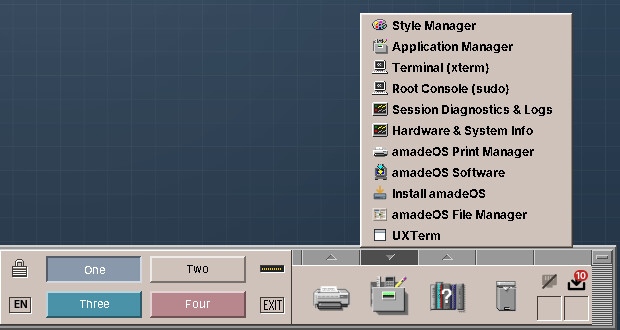
A drawer is not a fixed list. It is filled from the desktop entries of the installed applications, the .desktop files every package puts into /usr/share/applications. Each drawer stands for one or more freedesktop.org categories:
    FILE_MANAGER("FileManager", "File Management", "file-manager", Set.of("filemanager", "filetools")),
    TEXT_EDITOR("TextEditor", "Text Editors", "text-editor", Set.of("texteditor", "wordprocessor")),
    OFFICE("Office", "Office", "text-editor", Set.of("office", "spreadsheet", "presentation", "calendar",
            "projectmanagement", "chart", "database", "finance", "flowchart", "publishing", "dictionary")),
    TERMINAL("TerminalEmulator", "Terminals", "terminal", Set.of("terminalemulator", "terminal")),
    MAIL("Email", "Electronic Mail", "mail", Set.of("email", "mail", "contactmanagement", "news")),
    PRINTING("Printing", "Printers", "printer", Set.of("printing", "hardwareprinting", "printer", "cups")),
    HELP("Help", "Help & Information", "help", Set.of("documentation", "help", "systemhelp")),
    MONITOR("Monitor", "System & Monitor", "diagnostics", Set.of("monitor", "system", "hardwaresettings", "systemmonitor")),
    SETTINGS("Settings", "Settings & Tools", "style", Set.of("settings", "desktopsettings", "preferences", "packagemanager")),
    UTILITY("Utility", "Accessories", "app-manager", Set.of("utility", "accessories")),
    DEVELOPMENT("Development", "Development", "terminal", Set.of("development", "ide", "debugger")),
    GRAPHICS("Graphics", "Graphics", "graphics", Set.of("graphics", "viewer", "rastergraphics", "2dgraphics", "vectorgraphics", "3dgraphics", "photography", "scanning")),
    NETWORK("Network", "Internet & Network", "window", Set.of("network", "webbrowser", "chat")),
    AUDIO_VIDEO("AudioVideo", "Sound & Video", "multimedia", Set.of("audiovideo", "audio", "video", "player", "recorder")),
    GAMES("Game", "Games", "games", Set.of("game", "actiongame", "adventuregame", "arcadegame", "boardgame", "blocksgame",
            "cardgame", "kidsgame", "logicgame", "roleplaying", "shooter", "sportsgame", "strategygame")),
    OTHER("Other", "Applications", "app-manager", Set.of());
Each constant maps the categories that a desktop entry may name (Categories=Graphics;Viewer;) to a drawer and its icon. The matching is generous on purpose: an entry that says Viewer or Scanning without Graphics still lands in the Graphics drawer, and an entry with no category at all lands in Other. XdgApplicationManager reads the entries from ~/.local/share/applications, /usr/local/share/applications and /usr/share/applications, skips those with NoDisplay=true, and answers by category.
A category drawer puts the installed applications first and the panel's own entries after them. Its button starts the first application of the category, and a fallback when there is none:
    /**
     * A drawer for a category: the installed applications of the category, then the panel's own entries. Its
     * button starts the first application of the category, or {@code fallbackPrimaryAction} while there is none.
     * The drawer is filled again whenever programs are installed or removed.
     */
    private DrawerDockWidget createCategoryDrawer(
            String id,
            String title,
            String iconKey,
            XdgCategory category,
            ActionListener fallbackPrimaryAction,
            Supplier<List<DrawerTool>> defaultTools,
            boolean hasDrawer) {
        Supplier<List<DrawerTool>> tools = () -> {
            List<DrawerTool> list = new ArrayList<>(xdgTools(category));
            list.addAll(defaultTools.get());
            return list;
        };
        Supplier<ActionListener> primary = () -> primaryAction(category, fallbackPrimaryAction);
        DrawerDockWidget drawer = new DrawerDockWidget(id, title, iconKey, primary.get(), tools.get(), hasDrawer);
        refills.add(() -> drawer.update(primary.get(), tools.get()));
        return drawer;
    }

    /** A drawer whose button always does the same; its entries are filled again like a category drawer's. */
    private DrawerDockWidget fixedDrawer(String id, String title, String iconKey, ActionListener primaryAction,
                                         Supplier<List<DrawerTool>> tools) {
        DrawerDockWidget drawer = new DrawerDockWidget(id, title, iconKey, primaryAction, tools.get(), true);
        refills.add(() -> drawer.update(primaryAction, tools.get()));
        return drawer;
    }

    /** Starts the first installed application of the category, or the fallback while there is none. */
    private ActionListener primaryAction(XdgCategory category, ActionListener fallback) {
        List<XdgDesktopEntry> apps = XdgApplicationManager.getInstance().getApplicationsByCategory(category);
        if (apps.isEmpty()) {
            return fallback;
        }
        XdgDesktopEntry primaryApp = apps.get(0);
        return e -> {
            try {
                primaryApp.launch();
                launched();
            } catch (Exception ex) {
                LOGGER.warning("Failed to launch primary app " + primaryApp.name() + ": " + ex.getMessage());
                launchFailed(primaryApp.name(), ex);
            }
        };
    }

    /** Fills the drawers again from the desktop entries just read; on the EDT. */
    void refillDrawers() {
        refills.forEach(Runnable::run);
    }
Some drawers mix both kinds. Tools has fixed entries for the desktop's own programs and then everything that calls itself Settings or Monitor, without the ones that only start what a fixed entry already starts:
        // Slot 10: Tools (with drawer ▲): desktop settings, application catalog, terminals, clipboard history and diagnostics,
        // like CDE's Tools subpanel; then the other installed Settings and System applications (the
        // installer of the live image, for example), except those the fixed entries already start.
        Supplier<List<DrawerTool>> toolsTools = () -> {
            List<DrawerTool> tools = new ArrayList<>(List.of(
                    new DrawerTool(PanelTexts.get("panel.tool.style"), "style", e -> launchProcess("amadeos-settings")),
                    new DrawerTool(PanelTexts.get("panel.tool.apps"), "app-manager", e -> showApplicationManagerDialog(this)),
                    new DrawerTool(PanelTexts.get("panel.tool.terminal"), "terminal", e -> launchProcess("xterm")),
                    new DrawerTool(PanelTexts.get("panel.tool.root.console"), "terminal", e -> launchProcess("xterm", "-title", "Root Shell", "-e", "sudo", "sh")),
                    new DrawerTool(PanelTexts.get("panel.tool.clipboard"), "clipboard", e -> launchProcess("amadeos-clipboard")),
                    new DrawerTool(PanelTexts.get("panel.tool.logs"), "diagnostics", e -> launchProcess("amadeos-logviewer")),
                    new DrawerTool(PanelTexts.get("panel.tool.sysinfo"), "diagnostics", e -> launchProcess("amadeos-sysinfo"))
            ));
            tools.addAll(xdgTools(List.of(XdgCategory.SETTINGS, XdgCategory.MONITOR),
                    Set.of("amadeos-settings", "amadeos-style", "amadeos-logviewer", "amadeos-sysinfo", "xterm")));
            return tools;
        };
        DrawerDockWidget toolsDrawer = fixedDrawer(
                "tools", PanelTexts.get("panel.drawer.tools"), "app-manager",
                e -> showApplicationManagerDialog(this),
                toolsTools
        );
        widgets.add(toolsDrawer);
        rightSlots.add(toolsDrawer.component());
startsOnly decides what a duplicate is: an entry whose Exec is just one of the fixed programs, with or without its directory and field codes such as %U, and without Terminal=true. So Debian's xterm.desktop (Exec=xterm) stays out next to Terminal, but a user's entry Exec=xterm -title Backup -e backup.sh is shown. Leaving out every entry of a fixed program would hide exactly the entries users write for their own scripts.
That is how amadeOS Software and the installer of the live image appear in the screenshot: nobody wrote them into the panel. Software's desktop entry says Categories=System;Settings;PackageManager;, and the panel did the rest. For the applications of this book, the desktop entry is part of the package (chapter 50); the right Categories line is all it takes to get into the right drawer.
Tip: which categories go where
Chapter 50 has the table of categories and drawers from the application's side. Give a program its one main category and the specific ones that fit: Mail says Network;Email;, and Email puts it first in Mail & Internet.
Drawers that follow
A drawer that is filled once is out of date as soon as Software installs a program. So the panel watches the directories of the desktop entries, and when a package has written its entries and nothing has changed for two seconds, it reads them again in the background and fills every drawer again on the EDT:
        // The drawers follow programs that are installed or removed: read the desktop entries again in the
        // background, then fill the drawers on the EDT.
        applicationsWatch = ApplicationsWatcher.start(XdgApplicationManager.getApplicationDirectories(),
                ApplicationsWatcher.SETTLE_MILLIS, () -> {
                    XdgApplicationManager.getInstance().reload();
                    SwingUtilities.invokeLater(this::refillDrawers);
                });
ApplicationsWatcher in base is a WatchService with a settle time, the same pattern as the package watcher of chapter 64. That is why each drawer above is built from suppliers, not lists: createCategoryDrawer and fixedDrawer keep a small Runnable per drawer that asks the suppliers again and hands the result to DrawerDockWidget.update, which closes an open drawer, replaces its entries and, for a category drawer, the program its button starts. A new graphics program is in the Graphics drawer a few seconds after its installation, and after its removal it is gone.
A directory that does not exist yet is watched too. A new user has no ~/.local/share/applications until the first desktop entry is saved there, and a WatchService can only watch a directory that exists. So ApplicationsWatcher watches the nearest existing parent for ENTRY_CREATE, ignores everything else created there, and registers the directory itself as soon as it appears. After registering a parent it looks again, because mkdir -p may have created the next level in the meantime.
Starting programs
A program started from the panel or the window manager's root menu must not depend on the program that started it. The session restarts a window manager that crashed, and the user's editor must not go down with it. ProcessLauncher in base starts every program the same way:
    static Process start(List<String> command, File workingDirectory, Path log) throws IOException {
        Objects.requireNonNull(command);
        if (command.isEmpty()) {
            throw new IOException("Cannot launch an empty command");
        }
        List<String> fullCommand = new ArrayList<>();
        if (isOnPath("setsid")) {
            fullCommand.add("setsid");
        }
        fullCommand.addAll(command);

        ProcessBuilder pb = new ProcessBuilder(fullCommand);
        if (workingDirectory != null && workingDirectory.isDirectory()) {
            pb.directory(workingDirectory);
        }
        pb.redirectInput(ProcessBuilder.Redirect.from(new File("/dev/null")));
        pb.redirectErrorStream(true);
        pb.redirectOutput(outputTarget(log));
        LOGGER.info(() -> "Launching: " + String.join(" ", command));
        return pb.start();
    }
setsidgives the program a session of its own, so it does not get the panel's signals.- Standard input is
/dev/null, so a program that reads it gets an end of file instead of waiting. - Both outputs go to a log file of its own in
~/.cache/amadeos/logs, named after the program, where Session Diagnostics & Logs shows them. Without that, the output would go to a pipe nobody reads: a program that writes a lot would block once about 64 KB fill the pipe, and die fromSIGPIPEon its next write after the program that started it has ended.
XdgDesktopEntry.launch turns the Exec line into a command (without the field codes such as %F) and starts it through the same method, so a drawer entry and a fixed entry behave alike.
The busy cursor
A Java program needs a second or two before its window appears, and a click without any answer gets clicked again. The public start method announces each start to the window manager with the X11 message _AMADEOS_LAUNCH (LaunchFeedback). The window manager shows a watch as the cursor until a new window is mapped, at most twenty seconds, and meanwhile sets _AMADEOS_LAUNCH_BUSY on the root window. The panel reads that flag in its timer, twice a second, and shows the watch over itself too:
        // Check for theme and workspace updates on root window
        pollTimer = new Timer(500, e -> {
            String remoteThemeId = helper.getDesktopTheme();
            if (remoteThemeId != null && !remoteThemeId.isBlank()
                    && !remoteThemeId.equals(ThemeManager.currentTheme().id())) {
                ThemeManager.applyTheme(remoteThemeId);
            }
            int remoteDesktop = helper.getCurrentDesktop();
            if (remoteDesktop >= 0 && remoteDesktop < 4) {
                switcher.setActiveWorkspace(remoteDesktop + 1);
            }
            boolean launching = helper.isLaunchBusy() || System.currentTimeMillis() - launchedAt < 1000;
            showBusy(launching);
            switcher.activityLight().setLaunching(launching);
            switcher.activityLight().setInstalling(updatesCell.installing());
            // A new resolution (Settings > Display): back to the bottom centre of the new screen.
            if (screenSize != null && !screenSize.equals(new Dimension(helper.screenWidth(), helper.screenHeight()))) {
                placeDock();
                registerAsDock();
            }
        });
        pollTimer.start();
The same timer follows the workspace (switched with a key or the root menu, not only with the panel's buttons) and the theme (chapter 62). The panel's own clock, launchedAt, shows the watch for the first second even before the window manager has answered. The applications of this book announce their own starts the same way: DesktopLauncher in amade-commons sends the same message (chapter 45).
The busy light
Above EXIT sits CDE's busy light, a slit of ten LED dashes. ActivityLight in the package activity draws it, and the same timer tells it what the window manager says: setLaunching with the flag above, and setInstalling while the updates cell installs. Everything else the light reads itself. A daemon thread of its own reads two files of /proc four times a second. /proc/diskstats counts the sectors of 512 bytes read and written per block device, and ActivityCounters sums the whole disks only, because a partition, a device-mapper volume or a loop device would count the same bytes twice. /proc/net/dev counts the bytes per interface, without lo, whose traffic never leaves the computer. Every two seconds the thread also looks through /proc/*/comm for a dpkg, so an install from a terminal shows too. Only the difference between two readings matters, so the rates need no calibration. The thread hands them to the EDT with invokeLater, and there one method decides what the ten dashes show:
    /** The ten dashes as they are to be seen now. */
    Dash[] dashes() {
        Dash[] dashes = new Dash[DASHES];
        Arrays.fill(dashes, Dash.OFF);
        if (launching) {
            // 2 Hz: on for one tick, off for the next
            if (tick % 2 == 0) Arrays.fill(dashes, Dash.BUSY);
        } else if (installing || installerRunning) {
            // The chaser comes in on the left and leaves on the right, then starts again
            int head = tick % (DASHES + CHASER - 1);
            for (int i = head - CHASER + 1; i <= head; i++) {
                if (i >= 0 && i < DASHES) dashes[i] = Dash.INSTALL;
            }
        } else if (meterShown) {
            for (int i = 0; i < diskLevel; i++) dashes[i] = Dash.DISK;
            for (int i = 0; i < networkLevel; i++) dashes[DASHES - 1 - i] = Dash.NETWORK;
        }
        return dashes;
    }
The order is the priority: a start wins over an install, and an install wins over the meter. The levels are logarithmic steps (64 KB/s lights the first disk dash, 50 MB/s the fifth), and a level rises at once but falls by one dash per tick, so a burst of a quarter second stays visible like the glow of a real LED. The component repaints only when the pattern changes. Because the counters come from a Path, the tests feed it a directory with a fake diskstats and net/dev, and they call tick directly instead of waiting for the thread. Settings > Front Panel switches the disk and network halves off through panel.conf (activity.meter, chapter 62).
Workspace names
The four workspace buttons are called One to Four in the panel's language until the user renames them. Renaming works as in CDE: a click on the button of the current workspace turns it into a text field. So the button's action listener first asks whether its workspace is the current one already:
            btn.addActionListener(e -> {
                // CDE: a click on the current workspace's button starts renaming it.
                if (activeWorkspace == wsNum) {
                    startRename(index);
                    return;
                }
                activeWorkspace = wsNum;
                if (this.workspaceListener != null) {
                    this.workspaceListener.accept(wsNum);
                }
                updateAllButtonAppearances();
            });
A double click on another button is then a switch and a rename, as in CDE. Each button sits in a small CardLayout with a JTextField; startRename shows the field in the button's colours with the old name selected, Return or leaving the field keeps the new name, Escape the old one, and an empty name gives back the default. The field needs the keyboard, which a dock does not get from the window manager, so the panel brings its window to the front and asks for the focus itself.
WorkspaceNames in base keeps the names in ~/.config/amadeos/workspaces.conf, one line per renamed workspace, cut to 24 characters on one line. The panel then publishes all four in the root window's _NET_DESKTOP_NAMES, the EWMH property for workspace names: X11EwmhHelper.setDesktopNames writes them NUL-separated in UTF-8. The window manager watches the property with a PropertyNotify and uses the names in its root menu; Settings reads it for its Backdrop page (chapter 62). So the panel is the only program that renames, and the others only read.
Status cells
The rightmost slot is a grid of small cells: the network, the sound, the battery on computers that have one and, while updates are waiting, the software updates. Bluetooth is to follow. Each cell is a StatusCell, and the slot shows only those that report themselves available:
        // Slot 13: Status (network, sound, battery and software updates now; Bluetooth to follow), outermost
        // on the right. The battery cell shows only on computers with a battery, the updates cell only while
        // updates are waiting.
        networkCell = new NetworkCell(new NmcliNetworkService(),
                () -> launchProcess("xterm", "-title", "Network Settings", "-e", "nmtui"));
        soundCell = new SoundCell(new PactlSoundService());
        batteryCell = new BatteryCell(new PowerSupplies());
        updatesCell = new UpdatesCell(new AptPackageService(), updateWindow("--updates"), updateWindow("--settings"));
        statusWidget = new StatusDockWidget(List.of(networkCell, soundCell, batteryCell, updatesCell));
        widgets.add(statusWidget);
        rightSlots.add(statusWidget.component());
The cells take their services in the constructor, NmcliNetworkService for the network, PactlSoundService for the sound, PowerSupplies for the battery and AptPackageService for the updates (chapter 64), and the actions to open the settings, so a test builds a cell with fakes. Their texts, like all of the panel's, are in desktop.properties and its translations (below).
The updates cell is the most careful one, because what it reads takes time. It reads the waiting updates on a thread of its own, twenty seconds after login so the session can settle first, then every thirty minutes, and whenever the installed packages or the package lists change:
    @Override
    public void start() {
        watch = service.watch(this::readLater);
        reader.scheduleWithFixedDelay(this::readNow, FIRST_READ_SECONDS, POLL_MINUTES * 60, TimeUnit.SECONDS);
    }
service.watch covers changes the panel did not make: apt in a terminal, unattended-upgrades in the night, Debian's daily refresh of the lists. The result goes to the EDT with invokeLater, and the cell tells the slot to lay itself out again only when it appears or goes away, not at every read:
    @Test
    void shownOnlyWhileUpdatesAreWaiting() {
        UpdatesCell cell = cell(new FakeService(), null);
        List<Boolean> relayouts = new ArrayList<>();
        cell.onAvailabilityChanged(() -> relayouts.add(cell.available()));
        assertFalse(cell.available());
        assertEquals("The system is up to date", cell.describe());

        cell.show(PENDING);
        assertTrue(cell.available());
        assertEquals("5 updates, 2 security", cell.component().getToolTipText());
        cell.show(PENDING);
        cell.show(List.of(upgrade("bash", STABLE)));
        assertEquals("1 update", cell.describe());
        cell.show(List.of());
        assertEquals(List.of(true, false), relayouts, "the slot lays out again only when the cell appears or goes");
    }
The number on the cell is red when security updates are among them. A click opens a menu with the first eight updates, Install all, Install security updates only, Check now, and Show updates, which starts the Software program on its Updates tab.
The sound cell
The sound cell shows a loudspeaker with one to three waves for the volume, and an X when the output is muted. Its menu has a volume slider, the outputs and the inputs:
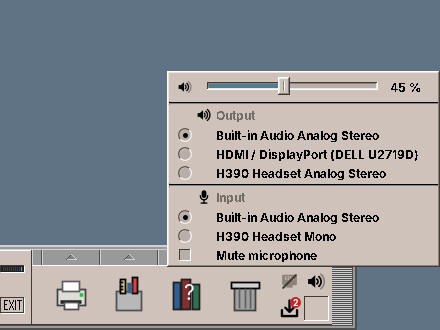
amadeOS plays sound through PipeWire, and PipeWire also speaks the PulseAudio protocol (pipewire-pulse). So the cell needs no library: PactlSoundService in base runs pactl, the PulseAudio command line client, the way the network cell runs nmcli. pactl list sinks lists the outputs and pactl list sources the inputs, each as a block of indented lines. The parser keeps only the fields of the device itself, one tab deep, and leaves out the monitors: every output has a source of that name through which a program can record what it plays, which is no microphone:
    /**
     * Devices of {@code pactl list sinks} or {@code pactl list sources}. The monitors, through which a
     * recording program can hear what an output plays, are left out of the sources.
     */
    public static List<AudioDevice> parseDevices(String list) {
        List<AudioDevice> devices = new ArrayList<>();
        String name = null;
        String description = null;
        int volume = 0;
        boolean muted = false;
        boolean monitor = false;
        for (String line : (list + "\nSink #end").split("\n")) {
            if (line.startsWith("Sink #") || line.startsWith("Source #")) {
                if (name != null && !monitor) devices.add(new AudioDevice(name, description, volume, muted));
                name = null;
                description = null;
                volume = 0;
                muted = false;
                monitor = false;
                continue;
            }
            // Only the fields of the device itself, one tab deep; Properties and Ports are indented further
            if (!line.startsWith("\t") || line.startsWith("\t\t")) continue;
            String l = line.strip();
            if (l.startsWith("Name:")) {
                name = value(l);
            } else if (l.startsWith("Description:")) {
                description = value(l);
            } else if (l.startsWith("Mute:")) {
                muted = value(l).equals("yes");
            } else if (l.startsWith("Volume:")) {
                volume = averagePercent(l);
            } else if (l.startsWith("Monitor of Sink:")) {
                monitor = !value(l).equals("n/a");
            }
        }
        return devices;
    }
pactl runs with LC_ALL=C.UTF-8, so the field names are English whatever the session's language, and the descriptions keep their accents. Volume and mute are set on @DEFAULT_SINK@, the output in use, so they follow when the user picks another device. Picking one sets the default with pactl set-default-sink and moves the streams that are playing with move-sink-input, because WirePlumber moves only the streams that follow the default, not those a program sent to one device. pactl subscribe reports every change, also those another program makes; the cell refreshes on the lines about devices and the server and ignores the many about single streams.
A slider sends a value at every pixel it moves. Starting one pactl per value would queue dozens of processes, and the volume would trail behind the mouse. So the cell shows the new volume at once and keeps only the newest value to send:
    /**
     * Asks for a volume; the cell shows it at once. While the slider is dragged only the newest value is
     * sent once the previous one is done, so pactl does not queue up. A change of volume also unmutes.
     */
    void setVolume(int percent) {
        shownVolume = percent;
        boolean unmute = shownMuted;
        shownMuted = false;
        button.setToolTipText(tooltip());
        button.repaint();
        if (pendingVolume.getAndSet(percent) >= 0) return;
        actions.execute(() -> {
            try {
                if (unmute) service.setMuted(false);
                service.setVolume(pendingVolume.getAndSet(-1));
            } catch (SoundException e) {
                pendingVolume.set(-1);
                SwingUtilities.invokeLater(() -> failed(e));
            }
            scheduleRefresh();
        });
    }
pendingVolume holds the value that waits, or -1. Only the call that finds -1 hands a task to the action thread; every later value just replaces the waiting one, and the task sends whatever is newest when it runs. While a value waits, a status read from the server does not move the cell back. The mouse wheel uses the same method in steps of 5 %, and the middle button mutes. Settings > Front Panel can hide the cell (cell.sound in panel.conf). The tests use a FakeService that records the calls, and the parser tests feed it the output of a real pactl.
The battery cell
The battery cell is the simplest one, and it shows how little a cell needs when the kernel does the work. Linux describes every power source in /sys/class/power_supply, one directory each with small text files: type (Battery or Mains), status, capacity, and the energy or charge with its rate. PowerSupplies in base reads them without privileges or a daemon. It leaves out the batteries of a wireless mouse or keyboard, which the kernel marks with the scope Device, and empty battery bays:
        List<Path> batteries = new ArrayList<>();
        try (DirectoryStream<Path> supplies = Files.newDirectoryStream(root)) {
            for (Path supply : supplies) {
                if ("Battery".equals(read(supply, "type"))
                        && !"Device".equals(read(supply, "scope"))
                        && !"0".equals(read(supply, "present"))) {
                    batteries.add(supply);
                }
            }
        } catch (IOException e) {
            return Optional.empty();
        }
Firmware reports either energy (energy_now, µWh, with power_now in µW) or charge (charge_now, µAh, with current_now in µA); the ratio is the same, so PowerSupplies takes whichever is there and adds up several batteries as one. From the rate follows the time until empty or full; without a rate it falls back to capacity and gives no time. The result is a BatteryStatus record, or empty on a desktop computer, so the test is a temporary directory with a few files, as for System Information's /proc (chapter 61).
Reading sysfs takes microseconds, so BatteryCell reads once in its constructor and the slot is laid out right from the first frame; after that a thread reads every 20 seconds. Like the updates cell it lays out the slot only when the battery comes or goes:
    /** Shows a reading on the cell; called on the event dispatch thread. */
    void show(Optional<BatteryStatus> s) {
        boolean wasAvailable = status != null && status.isPresent();
        if (Objects.equals(status, s)) return;
        status = s;
        view.setToolTipText(s.map(this::describe).orElse(null));
        view.repaint();
        if (wasAvailable != s.isPresent()) relayout.run();
    }
BatteryIcons draws a lying battery filled to the charge, in green above 50 %, yellow down to 21 % and red at 20 % and below. The three colours are fixed rather than taken from the theme, because they carry a meaning, like the red of security updates. A bolt shows mains power. There is nothing to click; the tooltip gives the percentage and the time.
The panel's language
Everything the panel says is in desktop.properties and its four translations: the drawer titles and the fixed entries, the tooltips, the Application Manager and its tabs, the clock and the calendar, the workspace names. PanelTexts loads them once, in the language of the session. That is deliberate: the session exports the language of locale.conf as LANG at login, and the panel's language button says that the panel follows at the next login, like the terminals. So PanelTexts resolves the language from the environment only (chapter 43), where Settings, a program started later, reads locale.conf itself (chapter 62).
Dates follow the language too. The calendar's tooltip used a fixed English pattern (EEEE, MMMM d, yyyy); it now uses DateTimeFormatter.ofLocalizedDate(FormatStyle.FULL) in the panel's locale, so a German session reads Donnerstag, 22. Oktober 2026, and the month on the calendar sheet is the short name in that language. The session dialog behind the exit button lives in base and has its own session.properties, so base does not depend on the panel's texts.
Exercises
- A drawer per user. Let users add their own entries to a drawer, stored in
~/.config/amadeos/panel.confwithPropertiesFile. How does such an entry survive a refill? - A low battery warning. Let
BatteryCellshow a dialog once when the battery falls to 10 % while it runs the computer, and not again until it has been charged. Where do you keep that the warning was given, and how do you test it without waiting for a real battery to run down? - Twice in one drawer. WritePad says
Office;WordProcessor;. Why does it appear once in the Text & Office drawer and not twice? Find the line that makes sure, and what would happen without it.
Summary
- The panel is a Swing window that sets the EWMH dock type and a strut through JNA; the window manager knows panels by these properties, not by name.
- Widgets are slots with a life cycle and a theme. The panel draws CDE's look in the colours of the current theme.
- Drawers fill themselves from desktop entries by category, so a package that installs a desktop entry also puts its program into the panel.
- Programs start in a session of their own with their output in a log file, and the busy cursor shows until their window appears.
- The busy light above EXIT blinks during a start, runs during an install and otherwise shows the disks and the network, read from
/procon a thread of its own. - Drawers fill themselves again a few seconds after programs are installed or removed.
- A click on the current workspace's button renames it; the panel stores the names and publishes them in
_NET_DESKTOP_NAMESfor the window manager and Settings. - Status cells read in the background, show only when they have something to say, and take their services in the constructor so tests can fake them.
- The sound cell talks to PipeWire through
pactl, followspactl subscribe, and sends only the newest volume while the slider moves. - The panel's texts and dates are in the session's language, resolved once at start.