10. Pad
The first application of amadeOS is the one every desktop needs before any other: a text editor. Configuration files, notes, shell scripts, a quick README: Pad opens them, lets you change them and saves them back exactly as they were, only with your changes.
A text editor looks simple. A text area, a menu, open and save. But behind open hides the question of how the bytes on disk become letters; behind save, how to replace a file without ever losing it; and behind both, how to keep the window alive while the disk works. Pad answers these questions, and on the way it meets everything amade-commons offers an application: start-up, the CDE look, colour themes, five languages and the background threads.
What you build
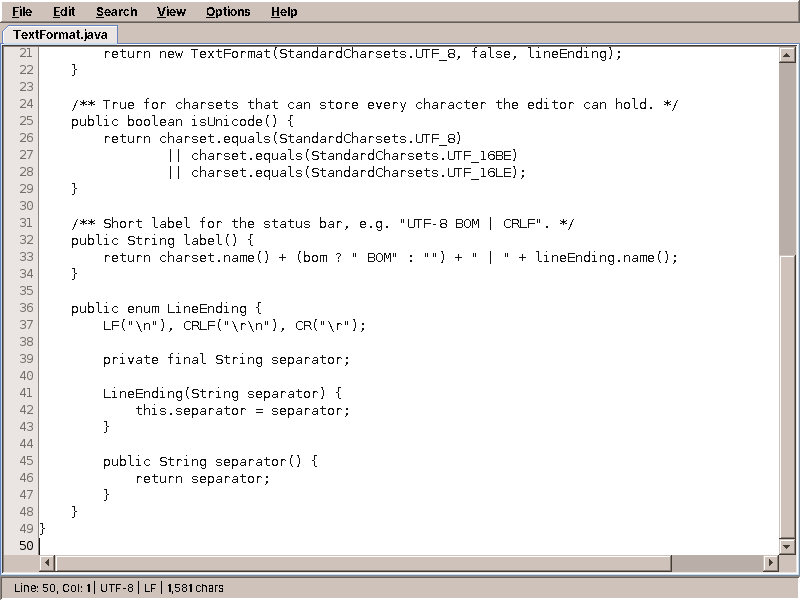
- Several documents in tabs, with a
*after the name of a changed one, and a question before a changed document is closed. - Line numbers in a margin, and optional word wrap.
- Find and replace, in a dialog that stays open while you edit.
- Encodings and line endings: Pad recognises UTF-8, UTF-16, Windows-1252 and ISO-8859-1, and Windows, Unix and old Mac line endings, and saves every file in the format it came in.
- Safe saving: a crash or a full disk during saving never leaves a half-written file behind.
- Undo and redo, cut, copy and paste.
- Five languages, and colours that follow the desktop theme.
The whole program is about 1,600 lines of Java, and another 1,100 lines of tests.
What you will learn
- To model a document as immutable values plus a small piece of state that counts changes.
- How text files are encoded, and how to read one when nobody tells you its encoding.
- How to write a file atomically.
- How to do slow work on virtual threads and bring the result back to the EDT with
CompletableFuture. - How a presenter coordinates open, save and close when all of them can overlap.
- How to test a presenter without a window, and test that it only touches the window on the EDT.
- How texts are translated, formatted and checked, and how an application chooses its language.
- How an application follows the desktop's colour theme.
- How a Debian package and a desktop entry put the editor into the Front Panel.
The document
What is a document, for a text editor? First of all its text. Then, less obviously, the way that text is stored on disk: which character encoding, whether the file starts with a byte order mark, and which characters end a line. The editor works with one kind of line end, \n; the format remembers what the file had, so that saving restores it:
package eu.amadeos.apps.pad.domain;

import java.nio.charset.Charset;
import java.nio.charset.StandardCharsets;
import java.util.Objects;

/**
 * How a document is stored on disk. The editor always works with {@code \n}; the format
 * remembers the charset, byte order mark and line separator so saving restores them.
 */
public record TextFormat(Charset charset, boolean bom, LineEnding lineEnding) {
    public static final TextFormat DEFAULT = new TextFormat(StandardCharsets.UTF_8, false, LineEnding.LF);

    public TextFormat {
        Objects.requireNonNull(charset);
        Objects.requireNonNull(lineEnding);
    }

    /** Same line ending, stored as UTF-8 without a byte order mark. */
    public TextFormat asUtf8() {
        return new TextFormat(StandardCharsets.UTF_8, false, lineEnding);
    }

    /** True for charsets that can store every character the editor can hold. */
    public boolean isUnicode() {
        return charset.equals(StandardCharsets.UTF_8)
                || charset.equals(StandardCharsets.UTF_16BE)
                || charset.equals(StandardCharsets.UTF_16LE);
    }

    /** Short label for the status bar, e.g. "UTF-8 BOM | CRLF". */
    public String label() {
        return charset.name() + (bom ? " BOM" : "") + " | " + lineEnding.name();
    }

    public enum LineEnding {
        LF("\n"), CRLF("\r\n"), CR("\r");

        private final String separator;

        LineEnding(String separator) {
            this.separator = separator;
        }

        public String separator() {
            return separator;
        }
    }
}
Text and format together are a TextDocument. Both are records: values that never change once made. That will matter as soon as a second thread is involved.
package eu.amadeos.apps.pad.domain;

import java.util.Objects;

/**
 * Immutable document contents with {@code \n} line separators, plus the on-disk format.
 */
public record TextDocument(String text, TextFormat format) {
    public TextDocument {
        Objects.requireNonNull(text);
        Objects.requireNonNull(format);
    }

    public TextDocument withFormat(TextFormat newFormat) {
        return new TextDocument(text, newFormat);
    }
}
The rest of what the editor knows about a document changes all the time: its file, and whether it has unsaved changes. That is DocumentState:
package eu.amadeos.apps.pad.domain;

import java.nio.file.Path;

/**
 * Document metadata confined to the UI thread; persistence receives immutable snapshots.
 */
public final class DocumentState {
    private Path path;
    private long revision;
    private long savedRevision;
    private TextFormat format = TextFormat.DEFAULT;

    public Path path() {
        return path;
    }

    public TextFormat format() {
        return format;
    }

    public long revision() {
        return revision;
    }

    public boolean isModified() {
        return revision != savedRevision;
    }

    public String title() {
        return title("Untitled");
    }

    /** File name, or {@code untitled} for a new document, with {@code *} when modified. */
    public String title(String untitled) {
        return (path == null ? untitled : path.getFileName().toString()) + (isModified() ? " *" : "");
    }

    public void changed() {
        revision++;
    }

    public void loaded(Path path, TextFormat format) {
        this.path = path;
        this.format = format;
        revision = 0;
        savedRevision = 0;
    }

    public void saved(Path path, long snapshotRevision, TextFormat format) {
        this.path = path;
        this.format = format;
        savedRevision = snapshotRevision;
    }
}
Why a counter and not a simple boolean modified? Because saving takes time. Imagine:
- The user presses Ctrl+S. Pad takes the text as it is now, revision 7, and starts writing it to disk.
- While the disk works, the user types another letter. Revision 8.
- The disk is done. With a
boolean, Pad would now setmodified = false, and the letter typed in step 2 would be lost the moment the user closes the tab without being asked.
With the counter, Pad remembers which revision was saved: saved(path, 7, format). Revision 8 is not 7, so the document is still modified, and the tab keeps its *. Small detail, real bug.
Reading a text file
A file is bytes. To turn bytes into letters you need to know the encoding, and a plain text file does not say which one it uses. Pad has to guess, and guess well:
    public TextDocument decode(byte[] bytes) throws IOException {
        if (startsWith(bytes, UTF8_BOM)) {
            return document(decodeStrict(StandardCharsets.UTF_8, bytes, UTF8_BOM.length), StandardCharsets.UTF_8, true);
        }
        if (startsWith(bytes, UTF16BE_BOM)) {
            return document(decodeStrict(StandardCharsets.UTF_16BE, bytes, 2), StandardCharsets.UTF_16BE, true);
        }
        if (startsWith(bytes, UTF16LE_BOM)) {
            return document(decodeStrict(StandardCharsets.UTF_16LE, bytes, 2), StandardCharsets.UTF_16LE, true);
        }
        if (looksBinary(bytes)) {
            throw new BinaryFileException();
        }
        try {
            return document(decodeStrict(StandardCharsets.UTF_8, bytes, 0), StandardCharsets.UTF_8, false);
        } catch (CharacterCodingException notUtf8) {
            for (Charset charset : LEGACY_FALLBACKS) {
                try {
                    return document(decodeStrict(charset, bytes, 0), charset, false);
                } catch (CharacterCodingException tryNext) {
                    // ISO-8859-1 maps every byte, so the loop always returns.
                }
            }
            throw notUtf8;
        }
    }
Step by step:
- A byte order mark (BOM) at the start settles it. Windows programs often write
EF BB BFbefore UTF-8 text, and UTF-16 files always start withFE FForFF FE. - NUL bytes in the first 8 KB mean the file is not text at all, but an image or a program. Pad refuses it with a clear message instead of showing garbage, and instead of destroying the file when the user saves.
- Strict UTF-8. UTF-8 has rules: certain byte sequences can never appear in it. A decoder told to report errors (instead of replacing them with
?) tells you whether the file is valid UTF-8. Today almost every text file is. - Windows-1252, then ISO-8859-1, the encodings of older Western files. ISO-8859-1 maps every possible byte to a character, so this last step always succeeds.
Then the line ends are counted, the most frequent one is remembered in the TextFormat, and all of them become \n.
Pitfall: Files.readString and silent replacement
Files.readString(path) assumes UTF-8 and throws on anything else. new String(bytes, charset) is worse: it silently replaces what it cannot decode with �, and saving writes the replacement characters back. Your user's file is damaged, and nobody noticed. When the content matters, use a CharsetDecoder with CodingErrorAction.REPORT, as TextCodec does, both for decoding and for encoding.
Encoding reverses the steps, and it, too, refuses to replace characters: if the user typed € into an ISO-8859-1 file, which has no euro sign, encoding throws an UnencodableTextException. What then? That is a decision, so it belongs to the presenter. We will get there.
Saving without losing anything
The obvious way to save a file is to open it and write the new content. But opening a file for writing empties it first. If the program crashes, the power fails or the disk fills up halfway through, the file is gone: the old content is deleted, the new one incomplete.
Pad never writes into the file it saves. It writes into a new file next to it, and only when that one is complete, swaps it in:
    @Override
    public void write(Path path, TextDocument document) throws IOException {
        // Encode first: an unencodable character must fail before any file is touched.
        byte[] bytes = codec.encode(document);
        // Write through symlinks to the real file instead of replacing the link itself.
        Path target = Files.exists(path) ? path.toRealPath() : path.toAbsolutePath();
        if (Files.isDirectory(target)) {
            throw new IOException("Cannot overwrite a directory: " + target);
        }
        Path directory = target.getParent();
        Path temp = Files.createTempFile(directory, "." + target.getFileName() + ".", ".tmp");
        try {
            try (FileChannel channel = FileChannel.open(temp, StandardOpenOption.WRITE, StandardOpenOption.TRUNCATE_EXISTING)) {
                ByteBuffer buffer = ByteBuffer.wrap(bytes);
                while (buffer.hasRemaining()) channel.write(buffer);
                channel.force(true);
            }
            copyPermissions(target, temp);
            try {
                Files.move(temp, target, StandardCopyOption.ATOMIC_MOVE, StandardCopyOption.REPLACE_EXISTING);
            } catch (AtomicMoveNotSupportedException e) {
                Files.move(temp, target, StandardCopyOption.REPLACE_EXISTING);
            }
        } finally {
            Files.deleteIfExists(temp);
        }
    }
- Encode first. If the text cannot be stored in the file's encoding, nothing on disk has been touched yet.
- Follow symbolic links. If
~/.bashrcis a link to~/dotfiles/bashrc, the real file is saved, and the link stays a link. - A temporary file in the same directory.
Files.movecan only swap files atomically within one file system, and the same directory is sure to be one. channel.force(true)waits until the bytes are really on the disk, not just in the operating system's cache.- Copy the permissions. An executable script stays executable after saving.
ATOMIC_MOVE: the rename is one step for the file system. Every other program sees either the old file or the new one, never something in between.
This pattern, write to a temporary file, then rename, is how careful programs save everything: documents, settings, databases. You will meet it again in amade-commons, where PropertiesFile saves settings the same way.
Work in the background
Reading a file of a few kilobytes takes no time. Reading a 200 MB log file from a network drive takes seconds, and for those seconds the window would be frozen: no painting, no typing, a grey rectangle. So Pad reads and writes in the background:
    public CompletableFuture<TextDocument> open(Path path) {
        Objects.requireNonNull(path);
        return CompletableFuture.supplyAsync(() -> {
            try {
                return repository.read(path);
            } catch (IOException e) {
                throw new CompletionException(e);
            }
        }, executor);
    }
CompletableFuture.supplyAsync runs the reading on the executor and immediately returns a future, a promise of the document. The executor comes from amade-commons, which creates one for every application: Executors.newVirtualThreadPerTaskExecutor(), a new virtual thread for every task. Virtual threads are cheap; a program can have thousands of them waiting for disks and networks.
The checked IOException cannot leave the lambda, so it is wrapped into a CompletionException; whoever looks at the future's error later unwraps it again.
Note what DocumentService does not do: it does not show an error, does not change a tab, does not touch Swing at all. It returns a future, and the presenter decides what happens with the result.
The presenter
MainPresenter coordinates everything the user can do with documents. Its constructor gets, from Guice, the view, the document service, the background executor, the texts and the language settings, and one more thing from amade-commons: the EdtExecutor.
package eu.amadeos.commons.swing;

import javax.swing.*;
import java.util.concurrent.Executor;

public final class EdtExecutor implements Executor {
    public static void requireEdt() {
        if (!SwingUtilities.isEventDispatchThread()) {
            throw new IllegalStateException("Swing access must run on the EDT");
        }
    }

    @Override
    public void execute(Runnable command) {
        if (SwingUtilities.isEventDispatchThread()) command.run();
        else SwingUtilities.invokeLater(command);
    }
}
It is an Executor that runs its tasks on the EDT. A future continued with ...Async(..., edt) continues on the EDT, where it may touch the window. And requireEdt() is a guard that Pad's window and presenter call at the start of their methods: if anyone ever calls them from another thread, the program fails at once and loudly, instead of rarely and mysteriously.
Opening
    public CompletableFuture<Void> open(Path path) {
        if (!available()) return CompletableFuture.completedFuture(null);
        Path normalized = path.toAbsolutePath().normalize();
        for (EditorView editor : view.editors()) {
            if (normalized.equals(editor.state().path())) {
                view.selectEditor(editor);
                return CompletableFuture.completedFuture(null);
            }
        }
        if (!opening.add(normalized)) return CompletableFuture.completedFuture(null);
        return documents.open(normalized).handleAsync((content, error) -> {
            if (error != null) {
                report("error.open", error);
                if (view.editors().isEmpty()) addEditor();
            } else {
                addEditor().load(normalized, content);
            }
            opening.remove(normalized);
            return null;
        }, edt);
    }
- A file that is already open is not opened twice; its tab is selected. Paths are made absolute and normalised first, so that
./notes.txtand/home/alex/notes.txtare recognised as the same file. - A file that is being opened (the user double-clicked twice) is not opened again either:
openingremembers it until the result is there. handleAsync(..., edt)receives either the document or the error, on the EDT. On success a new tab gets the document; on failure the user gets a message, and if that leaves the window without any tab, an empty one.
Saving
Saving is where the threads really meet. The user can keep typing while a file is written, can press Ctrl+S twice, or can close the tab while it is being saved:
    private CompletableFuture<Boolean> save(EditorView editor, boolean saveAs) {
        if (saves.containsKey(editor)) return saves.get(editor);
        Path path = editor.state().path();
        if (saveAs || path == null) path = view.chooseSavePath(path);
        if (path == null) return CompletableFuture.completedFuture(false);
        Path target = path.toAbsolutePath().normalize();
        TextDocument snapshot = new TextDocument(editor.text(), editor.state().format());
        long revision = editor.state().revision();
        CompletableFuture<Boolean> result = new CompletableFuture<>();
        saves.put(editor, result);
        write(editor, target, snapshot, revision).whenCompleteAsync((success, error) -> {
            saves.remove(editor);
            if (error != null) result.completeExceptionally(error);
            else result.complete(success);
        }, edt);
        return result;
    }
The snapshot is taken on the EDT: the text and the format as they are at this moment, as an immutable TextDocument, together with the revision number. Only the snapshot travels to the background thread. The tab can change freely meanwhile; the file gets exactly the text the user saw when pressing Ctrl+S.
saves holds one future per tab that is being saved. A second Ctrl+S during saving gets the same future instead of starting a second write, and closing a tab waits for it.
Then the writing itself, and the question from the section on encodings, what to do with a € in an ISO-8859-1 file:
    /**
     * Writes the snapshot; if its charset cannot store the text, offers to save as UTF-8 instead
     * of replacing characters.
     */
    private CompletableFuture<Boolean> write(EditorView editor, Path target, TextDocument snapshot, long revision) {
        return documents.save(target, snapshot).handleAsync((unused, error) -> {
            if (error == null) {
                editor.saved(target, revision, snapshot.format());
                return CompletableFuture.completedFuture(true);
            }
            if (rootCause(error) instanceof UnencodableTextException unencodable
                    && !snapshot.format().isUnicode()
                    && view.confirmSaveAsUtf8(unencodable.charset().name())) {
                return write(editor, target, snapshot.withFormat(snapshot.format().asUtf8()), revision);
            }
            report("error.save", error);
            return CompletableFuture.completedFuture(false);
        }, edt).thenCompose(next -> next);
    }
Pad asks the user whether to save the file as UTF-8 instead, which can store every character. If yes, write calls itself with the format changed. The original encoding is never "fixed" silently, and a character is never replaced by a question mark.
thenCompose(next -> next) flattens the result: the handler returns a future (the retry may be another write), and the caller wants a single CompletableFuture<Boolean>, not a future of a future.
Telling the user what went wrong
An error message should say what happened in the user's language. Java's exceptions speak English and are written for programmers (java.nio.file.AccessDeniedException: /etc/hosts). The presenter translates the usual ones and falls back to the exception's message for the rest:
    /** A translated reason for the usual errors, else the exception's own message. */
    private String describe(Throwable error) {
        if (error instanceof NoSuchFileException) return msg.get("error.not-found");
        if (error instanceof AccessDeniedException) return msg.get("error.access-denied");
        if (error instanceof BinaryFileException) return msg.get("error.binary");
        if (error instanceof UnencodableTextException u) return msg.format("error.unencodable", u.charset().name());
        return error.getMessage();
    }
The window
MainWindow implements MainView: tabs in the middle, a status bar at the bottom, the menu bar on top. Each tab is an EditorTab, a JTextArea in a scroll pane with a LineNumberMargin as its row header. Every change of the text counts as a revision:
        textArea.getDocument().addDocumentListener(new DocumentListener() {
            public void insertUpdate(DocumentEvent e) {
                changed();
            }

            public void removeUpdate(DocumentEvent e) {
                changed();
            }

            public void changedUpdate(DocumentEvent e) {
                changed();
            }

            private void changed() {
                state.changed();
                onStateChanged.run();
            }
        });
onStateChanged is how the tab tells the window to update the tab title (notes.txt *) and the status bar.
The window's methods are short, because the presenter has already decided everything. Showing an error is one of them, with one subtle detail:
    @Override
    public void showError(String message) {
        EdtExecutor.requireEdt();
        // Passing a text component avoids interpreting file names/messages as Swing HTML.
        javax.swing.JTextArea text = new javax.swing.JTextArea(message);
        text.setEditable(false);
        text.setOpaque(false); // shows the dialog colour of the current theme
        JOptionPane.showMessageDialog(this, text, msg.get("dialog.error.title"), JOptionPane.ERROR_MESSAGE);
    }
Pitfall: Swing renders HTML
A Swing label, button or dialog message whose text starts with <html> is rendered as HTML, images from the web included. "Failed to open file: …" does not start with it, but a translation may well put the file name first, and an exception's message may be nothing but text from outside. A file called <html><img src=http://…> would then make the error dialog fetch a picture from a stranger's server. Show text that came from outside (file names, mail subjects, server messages) in a non-editable JTextArea, which never interprets HTML.
The menu bar
        JMenu file = menu("menu.file");
        item(file, "menu.file.new", KeyEvent.VK_N, CTRL, presenter::newDocument);
        item(file, "menu.file.open", KeyEvent.VK_O, CTRL, presenter::chooseOpen);
        item(file, "menu.file.save", KeyEvent.VK_S, CTRL, () -> presenter.saveCurrent(false));
        item(file, "menu.file.save-as", KeyEvent.VK_S, CTRL | InputEvent.SHIFT_DOWN_MASK, () -> presenter.saveCurrent(true));
        file.addSeparator();
        item(file, "menu.file.close-tab", KeyEvent.VK_W, CTRL, presenter::closeActiveTab);
        item(file, "menu.file.exit", KeyEvent.VK_Q, CTRL, presenter::exit);
    private JMenu menu(String key) {
        JMenu menu = Mnemonics.apply(new JMenu(), msg.get(key));
        add(menu);
        return menu;
    }

    private void item(JMenu menu, String key, int keyCode, int modifiers, Runnable action) {
        JMenuItem item = new JMenuItem(msg.get(key));
        if (keyCode != 0) item.setAccelerator(KeyStroke.getKeyStroke(keyCode, modifiers));
        item.addActionListener(e -> action.run());
        menu.add(item);
    }
Every menu entry is a key into the texts, a keyboard shortcut and a method of the presenter. That is all a menu entry should be. The menu titles get their mnemonic letter from the text (&File), through Mnemonics from amade-commons, which we look at with the languages below.
Searching
The find dialog is not modal: it stays open while you edit, like in every good editor. The searching itself is SearchService, plain Java without Swing, with one trap worth knowing:
    private int search(String text, String query, int from, boolean matchCase) {
        if (matchCase) return text.indexOf(query, from);
        // Case conversion can change string length; regionMatches preserves editor offsets.
        for (int i = Math.max(0, from); i <= text.length() - query.length(); i++) {
            if (text.regionMatches(true, i, query, 0, query.length())) return i;
        }
        return -1;
    }
The obvious way to search without case is text.toLowerCase().indexOf(query.toLowerCase()). But changing the case can change the length of a string: the German ß becomes SS in upper case, and İ (Turkish capital I with dot) becomes two characters in lower case. The position found in the converted text is then not the position in the editor, and Pad would select the wrong letters. regionMatches(true, ...) compares character by character without converting the string.
Testing the presenter
The presenter is plain Java, so a test can create it with a fake view. Pad uses Mockito for the fakes, and adds one check that a hand-written fake could not do as easily: every call to the view must happen on the EDT.
            view = mock(MainView.class, invocation -> {
                assertTrue(SwingUtilities.isEventDispatchThread(), "All view access must be on EDT");
                return RETURNS_DEFAULTS.answer(invocation);
            });
The mock answers every call with a default value, but first it asserts that it was called on the event dispatch thread. If any code path in the presenter ever forgets the edt executor, a test fails.
With the document service mocked too, a test controls exactly when the "disk" is done. Here, the scenario from the beginning of the chapter, typing during saving:
    @Test
    void saveUsesImmutableSnapshotAndDoesNotClearLaterEdits() throws Exception {
        CompletableFuture<Void> io = new CompletableFuture<>();
        when(service.save(path, snapshot)).thenReturn(io);
        onEdt(() -> { state.loaded(path, TextFormat.DEFAULT); state.changed(); return null; });
        CompletableFuture<Boolean> result = onEdt(() -> presenter.saveCurrent(false));
        onEdt(() -> { state.changed(); return null; });
        io.complete(null);
        assertTrue(result.join());
        verify(editor).saved(path, 1L, TextFormat.DEFAULT);
        assertTrue(onEdt(state::isModified));
    }
io is a future that the test completes by hand. Between starting the save and completing it, the test changes the document. After saving, the editor was told that revision 1 was saved, and the document is still modified.
A second test class, PadModuleTest, does the opposite: no mocks, the real Guice wiring, a real window and real files in a temporary directory. It only needs the theme and settings directories pointed at that directory:
    /** The production wiring, with theme and config directories inside the test directory. */
    private Injector injector(ExecutorService executor) {
        ThemeStore themes = new ThemeStore(directory, new ThemeRegistry());
        XdgDirectories xdg = new XdgDirectories(Map.of(), directory.toString());
        return Guice.createInjector(new CommonsModule(AmadePadApplication.APP, executor, themes, xdg), new PadModule());
    }
Many fast tests of the presenter with fakes, and a few slow ones of the whole program: that mix catches the most bugs for the least waiting.
Five languages
amadeOS speaks English, German, French, Spanish and Italian, and so does every application. Pad's texts are in src/main/resources/eu/amadeos/apps/pad/messages.properties, with a file per translation next to it:
# {0}: line, {1}: column, {2}: encoding and line ending, {3}: number of characters
status.position=Line: {0}, Col: {1} | {2} | {3} chars
status.no-document=No document open
# {0}: number of replacements
search.replaced={0,choice,1#Replaced 1 occurrence.|1<Replaced {0,number,integer} occurrences.}
The module loads them once, in the language the application runs in (Messages.load(PadModule.class, MESSAGES, locale), shown in chapter 2). Then:
msg.get("menu.file")returns a text as it is.msg.format("status.position", line, column, format, length)fills in{0},{1}, … with Java'sMessageFormat, in the language's way:1,234 charsin English,1.234 Zeichenin German.{0,choice,1#…|1<…}picks a text by number, so that English says 1 occurrence and 3 occurrences. Every language writes its own rule.- A missing text shows as
!key!and is logged once, instead of crashing the program.
Behind the scenes: apostrophes
Plain MessageFormat treats ' as a quote character, so translators would have to write l''eau to get l'eau. That mistake is made in every project that uses it. Messages doubles every apostrophe before formatting, so translators simply write French.
Testing the translations
A forgotten translation is found by users, in the worst case in a dialog that appears once a year. Pad finds it at build time instead:
package eu.amadeos.apps.pad.ui.main;

import java.util.Locale;
import java.util.Map;
import eu.amadeos.commons.i18n.Messages;
import eu.amadeos.commons.i18n.TranslationCheck;
import eu.amadeos.apps.pad.bootstrap.PadModule;
import org.junit.jupiter.api.Test;

import static org.junit.jupiter.api.Assertions.assertEquals;

class TranslationTest {
    @Test
    void everyLanguageHasEveryText() {
        assertEquals(Map.of(), TranslationCheck.problems(PadModule.class, PadModule.MESSAGES));
    }

    @Test
    void textsAreFormattedInTheLanguage() {
        Messages german = Messages.load(PadModule.class, PadModule.MESSAGES, Locale.GERMANY);
        assertEquals("Zeile: 12, Spalte: 3 | UTF-8 | LF | 1.234 Zeichen",
                german.format("status.position", 12, 3, "UTF-8 | LF", 1234));
        assertEquals("1 Vorkommen ersetzt.", german.format("search.replaced", 1));
        Messages french = Messages.load(PadModule.class, PadModule.MESSAGES, Locale.FRANCE);
        assertEquals("Fermer l'onglet", french.get("menu.file.close-tab"));
        assertEquals("Texte introuvable : « l'eau »", french.format("search.not-found", "l'eau"));
        Messages english = Messages.load(PadModule.class, PadModule.MESSAGES, Locale.ENGLISH);
        assertEquals("Replaced 3 occurrences.", english.format("search.replaced", 3));
    }
}
TranslationCheck from amade-commons compares every translation with the English file. It reports texts that are missing, texts that English does not have (often a typo in a key), and texts that use other {n} arguments than English. The expected result is an empty map. The second test checks a few formatted texts as a native speaker would read them.
Mnemonics
&Datei, &Fichier, &Archivo: the letter after & is underlined and opens the menu with Alt. Because it is part of the text, each language picks a letter of its own word. Mnemonics turns the marked text into a Swing text and a key code:
    /** Sets text and mnemonic of a button, menu or menu item; returns it for chaining. */
    public static <B extends AbstractButton> B apply(B button, String marked) {
        Text t = parse(marked);
        button.setText(t.text());
        button.setMnemonic(t.keyCode());
        if (t.index() >= 0) button.setDisplayedMnemonicIndex(t.index());
        return button;
    }
Which language?
When Pad starts, AmadeApplication decides its language. There are four places to look, and the first one that names a language amadeOS is translated into wins:
    /**
     * Decides the locale: the application's own setting, else the desktop's, else the environment, else
     * English. A setting whose language amadeOS is not translated into is skipped.
     *
     * @param application the application's own setting; empty means "follow the desktop"
     * @param desktop     the locale of {@code locale.conf}, see {@link LocaleStore#current()}
     * @param environment the process environment
     */
    public static LocaleResolution resolve(Optional<Language> application, Optional<Locale> desktop,
                                           Map<String, String> environment) {
        Optional<Locale> fromEnvironment = fromEnvironment(environment);
        if (application.isPresent()) {
            Language language = application.get();
            // Keep the region of the desktop or the environment if it is the same language (de-AT, fr-CH).
            Locale locale = desktop.filter(l -> Language.of(l).equals(application))
                    .or(() -> fromEnvironment.filter(l -> Language.of(l).equals(application)))
                    .orElse(language.locale());
            return new LocaleResolution(locale, language, Source.APPLICATION);
        }
        if (desktop.isPresent()) return of(desktop.get(), Source.DESKTOP);
        if (fromEnvironment.isPresent()) return of(fromEnvironment.get(), Source.ENVIRONMENT);
        return new LocaleResolution(Language.ENGLISH.locale(), Language.ENGLISH, Source.DEFAULT);
    }
- The application's own setting,
~/.config/amadeos/pad/language.conf. - The desktop's language,
~/.config/amadeos/locale.conf. - The environment, as other Linux programs read it:
LANGUAGE,LC_ALL,LC_MESSAGES,LANG. That is how Pad speaks the right language on a desktop that is not amadeOS. - English.
The region is kept: on an Austrian desktop (de_AT), Pad speaks German and writes dates the Austrian way.
The first place, the application's own language, is set in Pad under Options → Language:
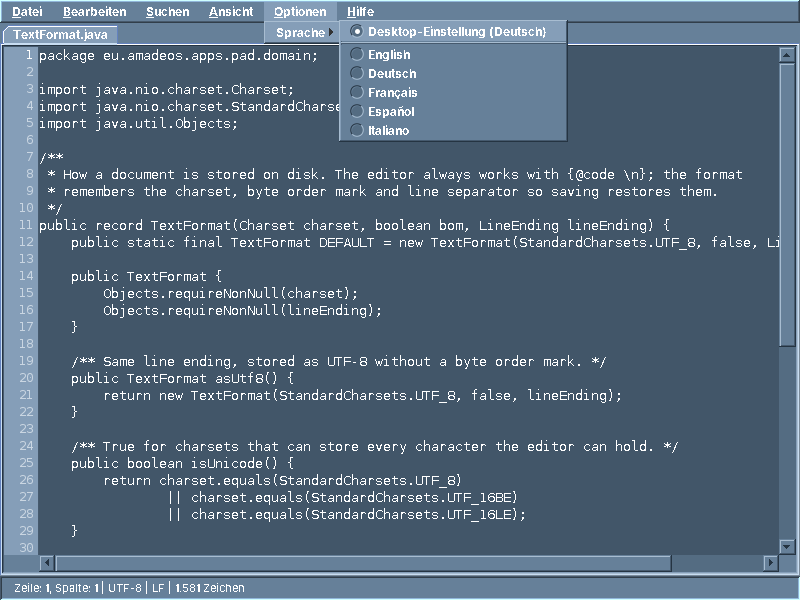
    /** "Desktop setting (Deutsch)" and the five languages; the choice applies at the next start. */
    private JMenu languageMenu(MainPresenter presenter, LocaleSettings locales) {
        JMenu menu = new JMenu(msg.get("menu.options.language"));
        Messages commons = Messages.commons(msg.locale());
        List<Optional<Language>> choices = new ArrayList<>();
        choices.add(Optional.empty());
        for (Language language : Language.values()) choices.add(Optional.of(language));
        ButtonGroup group = new ButtonGroup();
        Optional<Language> current = locales.applicationLanguage();
        for (Optional<Language> choice : choices) {
            String label = choice.map(Language::nativeName).orElseGet(() -> commons.format("language.follow-desktop",
                    locales.desktopResolution().language().nativeName()));
            JRadioButtonMenuItem item = new JRadioButtonMenuItem(label, choice.equals(current));
            item.setName(choice.map(Language::code).orElse(LocaleSettings.FOLLOW_DESKTOP));
            item.addActionListener(e -> presenter.setLanguage(choice));
            group.add(item);
            menu.add(item);
            if (choice.isEmpty()) menu.addSeparator();
        }
        return menu;
    }
The first entry follows the desktop and says which language that is now. Every language is listed in its own name, Français, not French: a user who accidentally switched to a language they cannot read must still find their own. The texts of this menu come from amade-commons itself (Messages.commons), because every application shows the same menu.
    /**
     * Stores the application's own language ("Options > Language"); empty follows the desktop. The
     * language changes at the next start, which the user is told.
     */
    public void setLanguage(Optional<Language> language) {
        if (!available()) return;
        try {
            locales.setApplicationLanguage(language);
        } catch (IOException e) {
            report("error.save", e);
            return;
        }
        if (locales.restartRequired()) {
            view.showInfo(Messages.commons(msg.locale()).format("language.restart", "amade-pad"));
        }
    }
The choice is stored, and takes effect at the next start. Changing the language of a running Swing program would mean rebuilding every window, menu and dialog, including the JDK's own file chooser. Restarting is simpler, and the user is told.
Following the desktop theme
The user picks a colour theme in Settings, and the desktop changes at once: window frames, Front Panel, backdrop. So does Pad, while it runs. Here is the same window after switching to Dark Slate:
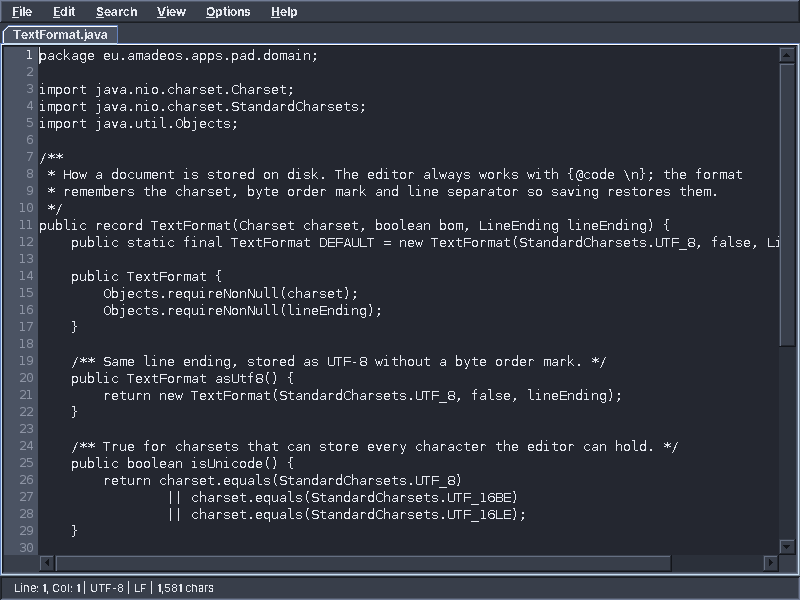
Pad has not a single line of code for this. When the application starts, AmadeApplication installs the CDE look with the current theme's colours and then follows the theme:
    /** Follows theme changes of the desktop: watches the theme files and applies changes on the EDT. */
    public static void follow(ThemeStore store) {
        store.addListener(changed -> SwingUtilities.invokeLater(() -> apply(changed)));
        store.watch();
    }
ThemeStore watches ~/.config/amadeos/theme.conf. When the file changes, the new theme is applied on the EDT: Swing's colour table is filled with the new colours, and every open window is updated.
That works for every colour that comes from Swing's colour table: panels, menus, text areas, lists, the status bar. It does not work for colours a program sets itself:
The component keeps that colour forever, and after switching to Dark Slate one bright bar remains. For colours beyond the standard ones, amade-commons has AmadeUI.style:
    /**
     * Gives a component colours beyond the standard ones, e.g. a white message pane or a highlighted bar.
     * The styler runs now and after every theme change.
     */
    public static <C extends JComponent> C style(C component, BiConsumer<? super C, DesktopTheme> styler) {
        @SuppressWarnings("unchecked")
        BiConsumer<JComponent, DesktopTheme> stored = (BiConsumer<JComponent, DesktopTheme>) (BiConsumer<?, ?>) styler;
        component.putClientProperty(STYLER, stored);
        stored.accept(component, theme);
        return component;
    }
The styler is a function from theme to colours; it runs now and again after every theme change. Pad does not need one: its text area takes TextArea.background from the theme. The line number margin paints itself and simply asks for AmadeUI.theme() each time it paints, which is the other correct way: a component that draws its own pixels reads the theme while drawing, and the repaint after a theme change does the rest. Files, Calendar, Mail and WritePad use style, and you will see them in their chapters.
Starting it
Now every part is there, and main from chapter 2 starts them. Here is what AmadeApplication.launch does for it:
    public static void launch(AppInfo app, Consumer<Injector> start, Module... modules) {
        // Before any Swing class is used, so that the JDK's own texts (OK, Cancel, file chooser) and every
        // date and number format follow the language as well.
        XdgDirectories xdg = XdgDirectories.system();
        LocaleSettings locales = new LocaleSettings(new LocaleStore(xdg.amadeosConfig()),
                xdg.appConfig(app.configName()), System.getenv());
        Locale locale = locales.locale();
        Locale.setDefault(locale);
        LoggerFactory.getLogger(AmadeApplication.class).info("{} runs in {} (from {})", app.id(),
                locale.toLanguageTag(), locales.applied().source());
        SwingUtilities.invokeLater(() -> {
            JComponent.setDefaultLocale(locale);
            ExecutorService executor = Executors.newVirtualThreadPerTaskExecutor();
            try {
                ThemeStore themes = ThemeStore.system();
                AmadeUI.install(themes.current());
                AmadeUI.follow(themes);
                List<Module> all = new ArrayList<>();
                all.add(new CommonsModule(app, executor, themes, xdg, locales));
                all.addAll(List.of(modules));
                start.accept(Guice.createInjector(all));
            } catch (RuntimeException e) {
                LoggerFactory.getLogger(AmadeApplication.class).error("{} failed to start", app.id(), e);
                JOptionPane.showMessageDialog(null, Messages.commons(locale).format("app.start-failed", app.title(), e),
                        app.title(), JOptionPane.ERROR_MESSAGE);
                executor.shutdownNow();
            }
        });
    }
In order:
- The language, before any Swing class is loaded, so that the JDK's own dialogs (the file chooser, OK and Cancel) speak it too.
- On the EDT, everything else: the look and the theme, then the Guice injector with
CommonsModuleand the application's modules, then the application's own start code. - If start-up fails, a message box says so in the user's language, instead of a program that silently does not appear when clicked in the Front Panel.
AppInfo names the application three times, for three audiences: amade-pad for the system (package name, keyring entries), Text Editor for people, and pad for the directory ~/.config/amadeos/pad.
Shipping it
On amadeOS, programs are installed as Debian packages. ./gradlew deb builds one; it contains the jar in /opt/amade-pad, a start script /usr/bin/amade-pad, an icon, the licence, and a desktop entry:
        // 3. Create desktop entry
        def desktopFile = new File(appDir, "amade-pad.desktop")
        desktopFile.text = """[Desktop Entry]
Type=Application
Version=1.0
Name=amadeOS Text Editor
GenericName=Text Editor
Comment=Lightweight Motif/CDE-style text editor
Icon=amade-pad
Exec=/usr/bin/amade-pad %F
Terminal=false
Categories=Utility;TextEditor;
MimeType=text/plain;text/x-java;text/x-c;text/x-shellscript;
StartupNotify=true
"""
The desktop entry is a small file in the freedesktop format that every Linux desktop reads:
Categories=Utility;TextEditor;puts Pad into the Text & Office drawer of the amadeOS Front Panel, and into the right menu on other desktops.MimeType=text/plain;...tells file managers that Pad can open text files, so Open With lists it.Exec=/usr/bin/amade-pad %Fpasses the chosen files as arguments, whichmainopens.
The amadeOS image is built from many such packages. Every application has the same task to put its package where the image build finds it:
tasks.register('installToAmadeOs') {
    dependsOn 'deb'
    description = 'Builds and drops the .deb package into amadeos/config/packages.chroot/'
    group = 'distribution'

    doLast {
        def targetDir = file("../amadeos/config/packages.chroot")
        if (!targetDir.exists()) {
            targetDir.mkdirs()
        }
        def buildDirFile = layout.buildDirectory.get().asFile
        def debFile = new File(buildDirFile, "distributions/amade-pad_${project.version}_all.deb")
        copy {
            from debFile
            into targetDir
        }
        println "[installToAmadeOs] Copied ${debFile.name} to ${targetDir.absolutePath}"
    }
}
What amade-commons gives Pad
Pad is the first application of this book, but not the first program on amadeOS: the desktop's own tools and the games were there before it. So the parts every program needs were already in amade-commons, and Pad uses them:
| Part | Package | What it does for Pad |
|---|---|---|
AmadeApplication, AppInfo |
app |
Starts the program: language, look, theme, EDT, Guice |
CommonsModule |
app |
Binds the background executor, EdtExecutor, language settings, directories |
EdtExecutor |
swing |
Continues futures on the EDT; requireEdt() guards |
AmadeUI, DesktopTheme, ThemeStore |
swing, theme |
The CDE look in the desktop's colours, following changes |
Messages, Mnemonics |
i18n |
Texts in five languages, formatted; menu letters |
TranslationCheck |
i18n |
A test that every translation is complete |
LocaleSettings, LocaleResolution, Language |
i18n |
Which language; Options → Language |
XdgDirectories |
config |
Where settings live |
And what stays in Pad? Everything about text files: TextCodec, the atomic writing of documents, the line number margin, find and replace. No other application of the book reads plain text files with unknown encodings, so these stay where they are, until one does.
Tip: resist the shared library
It is tempting to put TextCodec into amade-commons right away, "because it is useful". Wait. When the second program needs it, you will know which parts of it are general and which are Pad's. A library that only contains what two programs really share stays small enough to understand.
Exercises
- Line endings. Add View → Line Ending with LF, CRLF and CR, which changes the
TextFormatof the current document. Where does the decision go: menu, presenter orDocumentState? Write the presenter test first. - Recent files. Remember the last eight opened files in
~/.config/amadeos/pad/recent.txtand list them in the File menu. Write them with the temporary-file pattern of this chapter. Which class reads and writes the file, and how does the presenter get it? - Large files. Ask before opening a file larger than 20 MB. The question is a new
MainViewmethod; the size check belongs in the presenter. - Zoom. Ctrl++ and Ctrl+- change the font size of all tabs, and the line numbers follow.
- A sixth language. Translate Pad into Dutch. You will find that
TranslationCheckdoes not know Dutch yet: the list of languages lives in amade-commons (Language). What else would have to change for the whole desktop to speak Dutch?
Summary
- A document is an immutable value (
TextDocument) plus state that counts revisions, so a save in the background cannot lose later changes. - Read text with strict decoders and a clear order of guesses; never replace characters silently, neither when reading nor when writing.
- Save by writing a temporary file and renaming it atomically.
- Slow work runs on virtual threads and returns a
CompletableFuture; the presenter continues on the EDT withEdtExecutor, and only immutable snapshots cross between the threads. - A mock view that asserts the EDT finds threading mistakes in tests.
- Texts live in five
.propertiesfiles, checked by a test; the language comes from the application, the desktop or the environment. - The look and the theme come from amade-commons; never set theme colours directly.
- A Debian package with a desktop entry puts the program into the Front Panel.
Pad has shown everything that the start of an application needs. The next application, a viewer for the documentation on the disk, needs something new: opening a link in another program, safely.