62. Settings
Every application of this book follows the desktop theme (chapter 42). This chapter is the other end: Settings, amadeOS's successor of CDE's Style Manager (dtstyle), where the user picks the theme, the text size, the backdrop, the workspace names and the Front Panel, keyboard, mouse, bell, the resolution and arrangement of the monitors, screen saver, window behaviour, clipboard and what starts at login, and, for the system, the keyring, the updates, the language and the time zone. It is a desktop module, so it starts without Guice and talks to X11. It writes the files the applications and the window manager follow, and it applies some settings by running the X server's own tools.
What you will learn
- How one window offers a sidebar with a search and, for CDE users, the old row of buttons, from the same pages.
- How the desktop writes the theme and the text size that
ThemeStorereads in every application, and why it writes atomically. - How the window manager and the panel hear about a new theme without watching files, and how the window manager follows
window.conf. - Applying input settings with
xset,xmodmapandxrdb, from pure functions that tests can check. - Changing the resolution with
xrandrsafely, with a countdown back to the old layout, and how the desktop follows a new screen size. - How pages that reach the keyring, the package manager and the time zone stay testable, and how a user switches off a service of the system without touching a file of a package.
Pages, a sidebar and a search
CDE's Style Manager was a row of buttons, each opening a small dialog. That works for a handful of controls, and amadeOS has more of them every release, so Settings shows them in a sidebar in four groups, Appearance, Input and Sound, Desktop and System, with the page of the selected control on the right. The controls are an enum, SettingsCategory, in CDE's order; each knows its group, whether amadeOS has it yet (a control that is not ready is shown dimmed with a tooltip) and the words a search finds it by:
package eu.amadeos.system.settings;

import java.util.Arrays;
import java.util.List;
import java.util.Locale;

/**
 * The controls of the Settings: CDE's dtstyle controls in their order, grouped for the sidebar, with amadeOS's
 * own controls added: Workspaces and Front Panel after Backdrop, Display before Screen, Clipboard after Window,
 * and the System group (Passwords, Updates, Language) at the end.
 */
public enum SettingsCategory {
    COLOR(Group.APPEARANCE, true),
    FONT(Group.APPEARANCE, true),
    BACKDROP(Group.APPEARANCE, true),
    WORKSPACES(Group.APPEARANCE, true),
    PANEL(Group.APPEARANCE, true),
    KEYBOARD(Group.INPUT, true),
    MOUSE(Group.INPUT, true),
    BEEP(Group.INPUT, true),
    DISPLAY(Group.DESKTOP, true),
    SCREEN(Group.DESKTOP, true),
    WINDOW(Group.DESKTOP, true),
    CLIPBOARD(Group.DESKTOP, true),
    STARTUP(Group.DESKTOP, true),
    PASSWORDS(Group.SYSTEM, true),
    UPDATES(Group.SYSTEM, true),
    LANGUAGE(Group.SYSTEM, true);

    /** The headings of the sidebar. */
    public enum Group {
        APPEARANCE, INPUT, DESKTOP, SYSTEM;

        public String label() {
            return SettingsTexts.get("group." + name().toLowerCase(Locale.ROOT));
        }
    }

    private final Group group;
    private final boolean available;

    SettingsCategory(Group group, boolean available) {
        this.group = group;
        this.available = available;
    }

    public Group group() {
        return group;
    }

    /** The name in the sidebar and on the button, from {@code category.<name>} in the texts. */
    public String label() {
        return SettingsTexts.get(key());
    }

    /** The line under the page title and the tooltip, from {@code category.<name>.description}. */
    public String description() {
        return SettingsTexts.get(key() + ".description");
    }

    /** More words the search finds this control by, from {@code category.<name>.keywords}, comma-separated. */
    public List<String> keywords() {
        return Arrays.stream(SettingsTexts.get(key() + ".keywords").split(","))
                .map(String::strip).filter(s -> !s.isEmpty()).toList();
    }

    /** True if the search text is part of the name, the description or one of the keywords, in any case. */
    public boolean matches(String query) {
        String q = query.strip().toLowerCase(Locale.ROOT);
        if (q.isEmpty()) return true;
        if (label().toLowerCase(Locale.ROOT).contains(q) || description().toLowerCase(Locale.ROOT).contains(q)) {
            return true;
        }
        return keywords().stream().anyMatch(k -> k.toLowerCase(Locale.ROOT).contains(q));
    }

    private String key() {
        return "category." + name().toLowerCase(Locale.ROOT);
    }

    /** False for controls that exist in CDE but are not implemented in amadeOS yet. */
    public boolean available() {
        return available;
    }
}
The keywords are texts like any other, category.screen.keywords=screen saver, lock, password, idle, blank, so a German user finds Bildschirm by Sperre. Typing into the search field (or ++ctrl+f++) dims the controls that do not match and lists the ones that do; ++enter++ opens the first, ++esc++ clears the search.
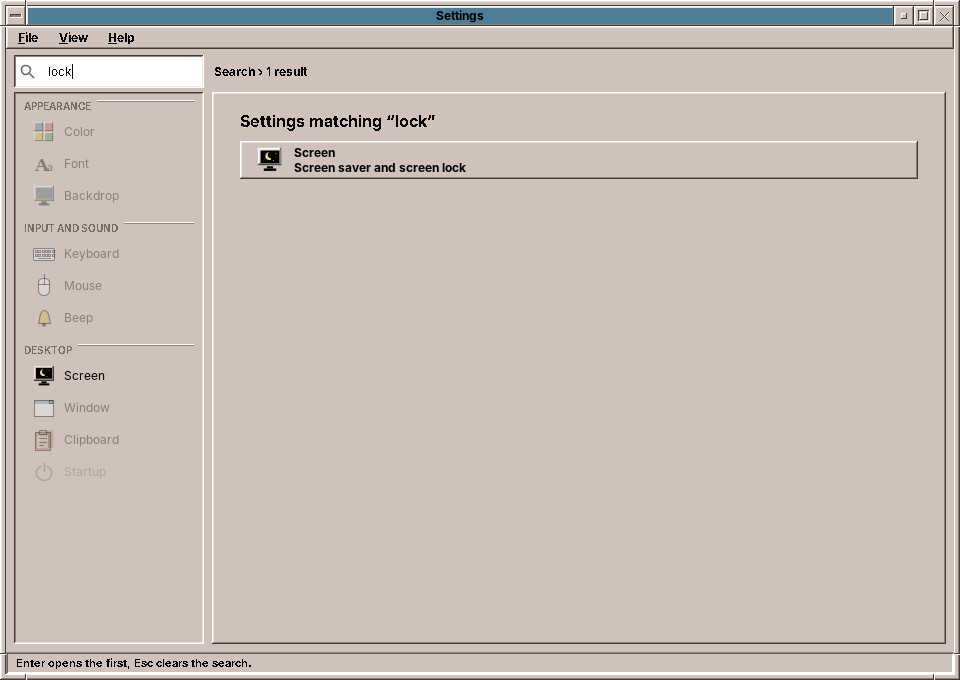
Each control is a SettingsPage, a panel with its controls and two methods: apply() saves and applies and returns a line for the status bar, cancelled() undoes a preview that was not applied (the screen saver, the bell, the font preview):
package eu.amadeos.system.settings;

import eu.amadeos.commons.swing.AmadeUI;

import javax.swing.BorderFactory;
import javax.swing.Box;
import javax.swing.BoxLayout;
import javax.swing.JComponent;
import javax.swing.JLabel;
import javax.swing.JPanel;
import javax.swing.UIManager;
import java.awt.BorderLayout;
import java.awt.Component;
import java.awt.FlowLayout;
import java.util.function.Consumer;

/**
 * A page of the Settings, one control such as Color or Screen. The sidebar view shows it on the right with Apply
 * and Reset; the compact view puts it into a {@link ControlDialog} with CDE's OK, Apply and Cancel.
 */
abstract class SettingsPage extends JPanel {
    private final SettingsCategory category;
    private final Consumer<String> status;

    SettingsPage(SettingsCategory category, Consumer<String> status) {
        super(new BorderLayout());
        this.category = category;
        this.status = status;
    }

    SettingsCategory category() {
        return category;
    }

    /** Puts the page's controls in place; call at the end of the subclass constructor. */
    protected final void layoutPage(JComponent content) {
        add(content, BorderLayout.CENTER);
    }

    /** Applies the page and puts its message on the status line; false if that failed. */
    final boolean applyChanges() {
        try {
            String message = apply();
            if (message != null) status.accept(message);
            return true;
        } catch (RuntimeException e) {
            status.accept(SettingsTexts.format("status.error", e.getMessage()));
            return false;
        }
    }

    /** Called on Reset, Cancel and when the window closes; undoes previews that were not applied. */
    protected void cancelled() {
    }

    /** Puts a line on the status bar, e.g. when an operation that runs in the background has ended. */
    protected final void status(String message) {
        status.accept(message);
    }

    /** A line of components from the left. */
    protected static JPanel line(Component... components) {
        JPanel row = new JPanel(new FlowLayout(FlowLayout.LEFT, 8, 2));
        for (Component c : components) row.add(c);
        row.setAlignmentX(Component.LEFT_ALIGNMENT);
        return row;
    }

    /** An explanation in the small type of the hints, wrapped to the page's width. */
    protected static JComponent note(String text) {
        JLabel label = new JLabel("<html>" + text + "</html>");
        AmadeUI.style(label, (l, t) -> l.setFont(UIManager.getFont("Label.font").deriveFont(AmadeUI.scaled(11f))));
        JPanel holder = new JPanel(new BorderLayout());
        holder.setBorder(BorderFactory.createEmptyBorder(2, 8, 2, 8));
        holder.add(label);
        holder.setAlignmentX(Component.LEFT_ALIGNMENT);
        return holder;
    }

    /** A titled frame with its lines one below the other, as CDE groups the settings of a dialog. */
    protected static JPanel section(String title, Component... lines) {
        JPanel box = new JPanel();
        box.setLayout(new BoxLayout(box, BoxLayout.Y_AXIS));
        box.setBorder(BorderFactory.createTitledBorder(title));
        for (Component line : lines) {
            if (line instanceof JComponent c) c.setAlignmentX(Component.LEFT_ALIGNMENT);
            box.add(line);
        }
        box.setAlignmentX(Component.LEFT_ALIGNMENT);
        return box;
    }

    /** Sections and hints one below the other at the top of the page. */
    protected final void layoutSections(JComponent... parts) {
        JPanel content = new JPanel();
        content.setLayout(new BoxLayout(content, BoxLayout.Y_AXIS));
        for (int i = 0; i < parts.length; i++) {
            parts[i].setAlignmentX(Component.LEFT_ALIGNMENT);
            content.add(parts[i]);
            if (i < parts.length - 1) content.add(Box.createVerticalStrut(10));
        }
        JPanel top = new JPanel(new BorderLayout());
        top.add(content, BorderLayout.NORTH);
        layoutPage(top);
    }

    /** Applies the page's settings; returns a message for the status line. */
    protected abstract String apply();
}
An exception from apply becomes a status line instead of a crash, and the page stays as it is, so the user can correct the value. The window puts a page into a frame of its own: a heading with the control's icon, name and description, the page in a scroll pane, and Apply and Reset below. Pages are created the first time they are shown and kept, so changes that were not applied wait on their page while the user looks at another one; Reset throws the page away and builds it anew from the saved settings.
    private JComponent pageView(SettingsPage page) {
        SettingsCategory category = page.category();
        JLabel title = new JLabel(category.label());
        AmadeUI.style(title, (l, t) -> l.setFont(UIManager.getFont("Label.font").deriveFont(Font.BOLD, AmadeUI.scaled(17f))));
        JLabel description = new JLabel(category.description());
        AmadeUI.style(description, (l, t) -> l.setFont(UIManager.getFont("Label.font").deriveFont(Font.PLAIN)));
        JPanel texts = new JPanel(new GridLayout(2, 1));
        texts.add(title);
        texts.add(description);
        JPanel head = new JPanel(new BorderLayout(12, 0));
        head.add(new JLabel(SettingsIcons.of(category)), BorderLayout.WEST);
        head.add(texts, BorderLayout.CENTER);
        JPanel north = new JPanel(new BorderLayout(0, 8));
        north.add(head, BorderLayout.CENTER);
        north.add(new JSeparator(), BorderLayout.SOUTH);

        JPanel holder = new WidthTrackingPanel();
        holder.add(page, BorderLayout.NORTH);
        JScrollPane scroll = new JScrollPane(holder, ScrollPaneConstants.VERTICAL_SCROLLBAR_AS_NEEDED,
                ScrollPaneConstants.HORIZONTAL_SCROLLBAR_AS_NEEDED);
        scroll.setBorder(BorderFactory.createEmptyBorder());

        JButton apply = new JButton(SettingsTexts.get("button.apply"));
        apply.addActionListener(e -> page.applyChanges());
        JButton reset = new JButton(SettingsTexts.get("button.reset"));
        reset.setToolTipText(SettingsTexts.get("button.reset.tooltip"));
        reset.addActionListener(e -> reset(category));
        JPanel buttonRow = new JPanel(new FlowLayout(FlowLayout.RIGHT, 10, 0));
        buttonRow.add(apply);
        buttonRow.add(reset);
        JPanel south = new JPanel(new BorderLayout(0, 8));
        south.add(new JSeparator(), BorderLayout.NORTH);
        south.add(buttonRow, BorderLayout.CENTER);

        JPanel root = new JPanel(new BorderLayout(0, 10));
        root.setBorder(BorderFactory.createEmptyBorder(12, 18, 10, 18));
        root.add(north, BorderLayout.NORTH);
        root.add(scroll, BorderLayout.CENTER);
        root.add(south, BorderLayout.SOUTH);
        return root;
    }
The compact view
View → Compact (CDE controls) shows the row of CDE instead, built from the same enum:

    private JComponent compactView() {
        buttons.clear();
        // CDE's row had nine buttons; with amadeOS's controls it takes two rows.
        JPanel row = new JPanel(new GridLayout(2, 0, 4, 4));
        row.setBorder(BorderFactory.createEmptyBorder(8, 8, 8, 8));
        for (SettingsCategory category : SettingsCategory.values()) {
            JButton button = new JButton(category.label(), SettingsIcons.of(category));
            button.setVerticalTextPosition(SwingConstants.BOTTOM);
            button.setHorizontalTextPosition(SwingConstants.CENTER);
            AmadeUI.style(button, (b, t) -> b.setFont(UIManager.getFont("Button.font").deriveFont(AmadeUI.scaled(11f))));
            button.setEnabled(category.available());
            button.setToolTipText(tooltip(category));
            button.addActionListener(e -> openControl(category));
            buttons.put(category, button);
            row.add(button);
        }
        return row;
    }
A button opens the same page in a ControlDialog with CDE's three buttons: OK applies and closes, Apply applies and stays, Cancel and the window's close button call cancelled(). The pages do not know in which view they are. The chosen view is kept in ~/.config/amadeos/settings.conf.
The jar has more entry points: amadeos-settings mouse opens the window at a control, and amadeos-settings input applies the keyboard, mouse and bell settings without a window; the session runs the latter at login from /etc/amadeos/autostart.d/10-amadeos-input, and amadeos-settings display-apply from 15-amadeos-display (see Display below). The package was called amadeos-style before; it Provides, Replaces and Conflicts that name, so an update removes the old package, and a small script /usr/bin/amadeos-style still starts Settings.
Writing the theme
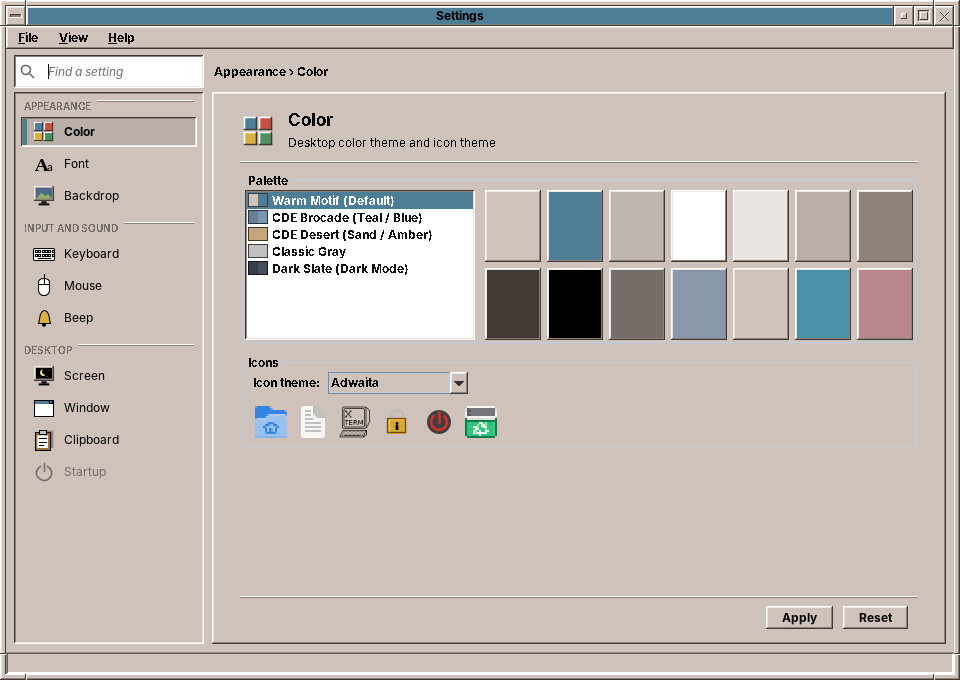
The Color page (in the picture at the top) lists the themes with a swatch each, shows the selected palette as fourteen chips (base, title bars, bevel shades, text and the four workspace colours) and lets the user choose an icon theme with a preview of six icons.
On Apply it hands the theme to ThemeManager in base, the desktop's side of theming:
    @Override
    protected String apply() {
        StringBuilder message = new StringBuilder();
        DesktopTheme theme = themes.getSelectedValue();
        if (theme != null && !theme.id().equals(ThemeManager.currentTheme().id())) {
            ThemeManager.applyTheme(theme.id());
            try (X11EwmhHelper helper = X11EwmhHelper.open(null)) {
                helper.setDesktopTheme(theme.id());
            } catch (Exception e) {
                LOGGER.fine("No X11 theme broadcast: " + e.getMessage());
            }
            message.append(SettingsTexts.format("color.status.palette", theme.name()));
        }
        IconManager.IconThemeInfo icons = (IconManager.IconThemeInfo) iconThemes.getSelectedItem();
        if (icons != null && !icons.id().equalsIgnoreCase(ThemeManager.currentTheme().iconTheme())) {
            ThemeManager.applyIconTheme(icons.id());
            if (!message.isEmpty()) message.append(", ");
            message.append(SettingsTexts.format("color.status.icons", icons.name()));
        }
        return message.isEmpty() ? SettingsTexts.get("color.unchanged") : message.toString();
    }
    public static synchronized void applyTheme(String themeId) {
        DesktopTheme found = REGISTRY.find(themeId).orElse(null);
        if (found == null) {
            LOGGER.warning("Theme '" + themeId + "' not found, keeping current: " + currentTheme.id());
            return;
        }
        if (currentTheme.id().equals(found.id())) {
            return;
        }
        DesktopTheme theme = found.withFontSize(currentTheme.fontSize());
        currentTheme = theme;
        AmadeUI.install(theme);
        IconManager.clearCache();
        LOGGER.info(() -> "Applied desktop theme: " + theme.name() + " (" + theme.id() + ")");
        persist(ThemeStore.THEME_FILE, theme.id());
        notifyListeners(theme);
    }
ThemeManager uses the same ThemeRegistry as every application, so a custom theme in ~/.config/amadeos/themes appears in the list too (chapter 42). It installs the theme into its own process with AmadeUI.install, clears the icon cache, writes the file and tells its listeners. The Settings window is such a listener; they restyle with AmadeUI.apply, like any application.
The file is written atomically, a temporary file renamed over the old one:
    /**
     * Writes the file atomically: applications watch these files and must never read a half-written id.
     */
    private static void persist(String fileName, String value) {
        try {
            Path dir = XdgDirectories.amadeosConfigDir();
            Files.createDirectories(dir);
            Path temp = Files.createTempFile(dir, fileName, ".tmp");
            try {
                Files.writeString(temp, value, StandardCharsets.UTF_8);
                try {
                    Files.move(temp, dir.resolve(fileName), StandardCopyOption.REPLACE_EXISTING,
                            StandardCopyOption.ATOMIC_MOVE);
                } catch (AtomicMoveNotSupportedException e) {
                    Files.move(temp, dir.resolve(fileName), StandardCopyOption.REPLACE_EXISTING);
                }
            } finally {
                Files.deleteIfExists(temp);
            }
        } catch (IOException e) {
            LOGGER.warning("Cannot save " + fileName + ": " + e.getMessage());
        }
    }
That matters more here than anywhere else. A dozen programs watch theme.conf with a ConfigWatcher (chapter 44), and each of them reads it within 150 ms of a change. A file written in place could be read while it holds half an id, and that program would fall back to Warm Motif while the others switch to Dark Slate. A rename is seen as one change from the old content to the new.
Telling the desktop
The applications watch the file. The window manager and the panel learn it another way: ColorPage.apply also sets the property _AMADEOS_THEME on the X root window, and both poll that property. The panel reads it twice a second, together with the current workspace and the busy flag it needs anyway, and switches when the id differs from its own:
        // Check for theme and workspace updates on root window
        pollTimer = new Timer(500, e -> {
            String remoteThemeId = helper.getDesktopTheme();
            if (remoteThemeId != null && !remoteThemeId.isBlank()
                    && !remoteThemeId.equals(ThemeManager.currentTheme().id())) {
                ThemeManager.applyTheme(remoteThemeId);
            }
            int remoteDesktop = helper.getCurrentDesktop();
            if (remoteDesktop >= 0 && remoteDesktop < 4) {
                switcher.setActiveWorkspace(remoteDesktop + 1);
            }
            boolean launching = helper.isLaunchBusy() || System.currentTimeMillis() - launchedAt < 1000;
            showBusy(launching);
            switcher.activityLight().setLaunching(launching);
            switcher.activityLight().setInstalling(updatesCell.installing());
            // A new resolution (Settings > Display): back to the bottom centre of the new screen.
            if (screenSize != null && !screenSize.equals(new Dimension(helper.screenWidth(), helper.screenHeight()))) {
                placeDock();
                registerAsDock();
            }
        });
        pollTimer.start();
Why two channels? The window manager and the panel are X11 programs that read root window properties anyway, for the workspace and the busy cursor, so one more property costs them nothing. The applications know nothing of X11 properties and rely on the file alone.
Programs read, the desktop writes
ThemeStore in amade-commons has no method to write a theme, and ThemeManager in base has one. That split is the whole design: one program decides, everyone else follows (chapter 42).
Keyboard, mouse and bell
Keyboard repeat and click, mouse handedness, double-click time and acceleration, and the bell are settings of the X server. Settings does not set them through Xlib calls. It runs the X server's standard tools from x11-xserver-utils, which every X desktop has: xset for repeat, click, acceleration and the bell, xmodmap for the button order of left-handed use, xrdb for the double-click time that X toolkits, AWT included, read at start.
The translation from settings to commands is a pure function, so tests check the command lines without an X server:
    public static List<Command> keyboard(InputSettings.Keyboard k) {
        List<Command> commands = new ArrayList<>();
        if (k.autoRepeat()) {
            commands.add(Command.of("xset", "r", "on"));
            commands.add(Command.of("xset", "r", "rate", Integer.toString(k.repeatDelayMs()),
                    Integer.toString(k.repeatRate())));
        } else {
            commands.add(Command.of("xset", "r", "off"));
        }
        commands.add(k.clickVolume() == 0 ? Command.of("xset", "c", "off")
                : Command.of("xset", "c", Integer.toString(k.clickVolume())));
        return commands;
    }
InputApplier runs the commands and reports the ones that failed. The settings themselves are stored in ~/.config/amadeos/input.conf with PropertiesFile from amade-commons (chapter 44). A broken file gives the defaults, never an exception at login.
Tip: settings that survive a restart of the X server
Settings applied with xset live in the X server and are gone at the next login. That is why the session runs amadeos-settings input at every start: the file is the truth, the X server's state is a copy of it.
Backdrop and screen
The Backdrop page paints the root window: an image (fill, fit, stretch, tile or centre), a plain colour, or one of CDE's pattern backdrops, X bitmaps coloured with the backdrop colour of the theme. WallpaperManager in base stores the choice in ~/.config/amadeos/wallpaper.conf and exports the picture as the root pixmap, so that programs with transparent windows see it too.
As in CDE, each workspace can have a backdrop of its own. The page opens on the current workspace, which it reads from _NET_CURRENT_DESKTOP, and lists the four under the names the Front Panel published in _NET_DESKTOP_NAMES (chapter 63), with All workspaces first. The file keeps the common backdrop as before (wallpaper, mode, color) and the same three keys under workspace.2. for each workspace with one of its own; WallpaperManager.backdropOf(int) returns a Backdrop record, falling back to the common one. Settings paints the root window only when the workspace it changed is the current one. The window manager does the rest at each switch: it reads the file anew, because Settings is another program, renders each backdrop once into a server pixmap and from then on only swaps pixmaps:
    /**
     * Shows the current workspace's backdrop on the root window, as CDE gives every workspace its own. The
     * Settings store the backdrops; they are read anew on every switch and rendered once per backdrop.
     */
    void showWorkspaceBackdrop() {
        Backdrop backdrop = WallpaperManager.backdropOf(currentDesktop);
        NativeLong pixmap = backdropPixmaps.get(backdrop);
        if (pixmap == null) {
            int depth = x11.XDefaultDepth(display, screen);
            Pointer visual = x11.XDefaultVisual(display, screen);
            pixmap = WallpaperManager.renderPixmap(x11, display, rootWindow, screenWidth, screenHeight, depth, visual, backdrop);
            if (pixmap == null) return;
            backdropPixmaps.put(backdrop, pixmap);
        }
        WallpaperManager.showPixmap(x11, display, rootWindow, pixmap);
        // Keep only the pixmaps of backdrops a workspace still has.
        java.util.Set<Backdrop> inUse = new java.util.HashSet<>();
        for (int i = 0; i < NUMBER_OF_DESKTOPS; i++) {
            inUse.add(WallpaperManager.backdropOf(i));
        }
        inUse.add(backdrop);
        backdropPixmaps.entrySet().removeIf(entry -> {
            if (inUse.contains(entry.getKey())) return false;
            x11.XFreePixmap(display, entry.getValue());
            return true;
        });
    }
The Backdrop record is the key of the cache: when the user picks another picture, scaling or colour for a workspace, its record changes, the next switch renders the new one and the pixmap nobody uses any more is freed. Refresh Desktop in the root menu empties the cache, for a picture that changed on disk under the same name.
The Screen page sets the screen saver of the session module: which saver (Qix, Swarm, Starfield, Floating Logo, Blank), after how many minutes it starts and whether it locks. The page previews the chosen saver while it is shown, and Test runs it on the whole screen.
Font: one number for every program
The Font page offers seven sizes, from Smallest to Largest, with a preview in the fonts of the look. Apply hands the number to ThemeManager.applyFontSize, which keeps it in the theme value, installs it in its own process and writes ~/.config/amadeos/font.conf atomically, like the theme. Every program built on amade-commons reads the file with ThemeStore and scales the fonts of its look by the same factor (chapter 42), so the change needs no code in the applications.
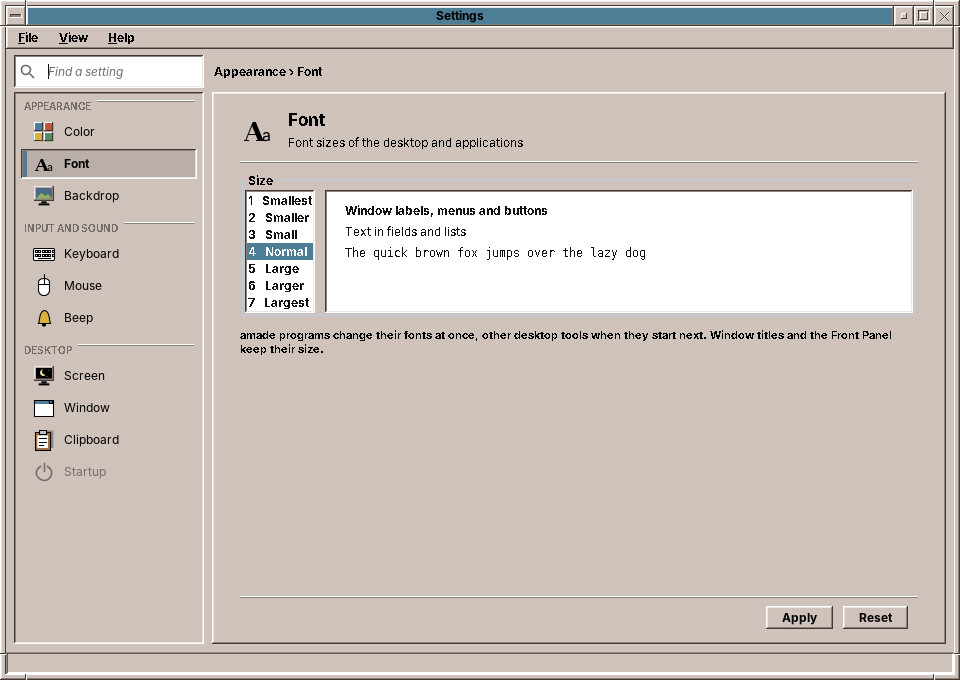
The window manager's title bars and the Front Panel keep their size on purpose: the panel's slots and the frames are drawn to a fixed grid, and the desktop around a larger text stays where the user knows it.
Window: settings the window manager follows
The Window page sets CDE's window behaviour: whether a click or the pointer makes a window active, whether the active window comes to the front, and whether a moved window shows its contents or an outline.
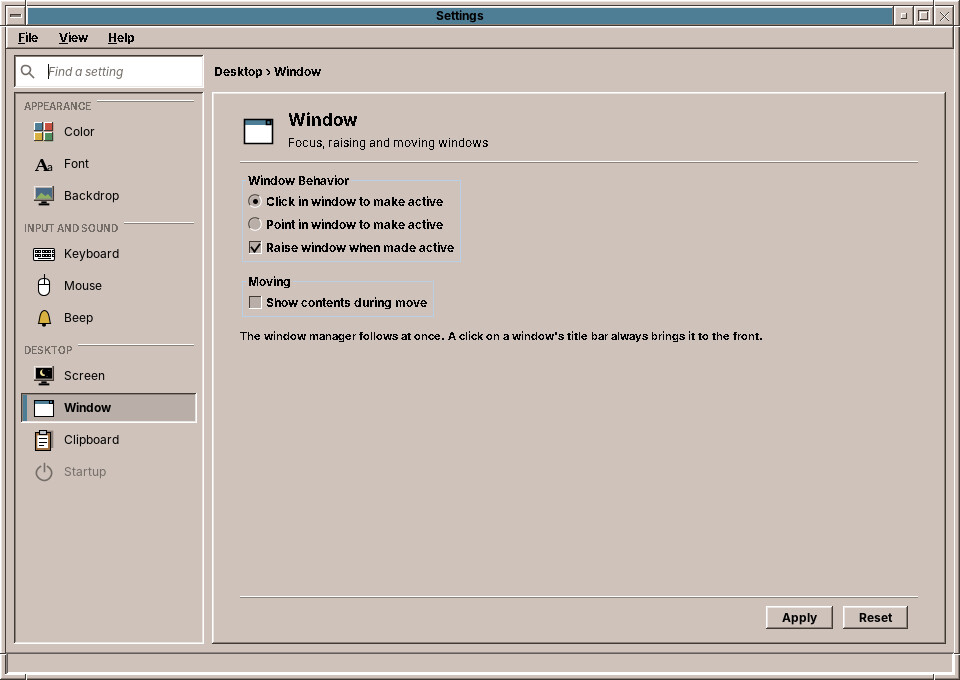
The settings are a record in base, so that Settings and the window manager share it:
package eu.amadeos.system.base.window;

/**
 * How the window manager treats windows, CDE's Window control of the Settings: which window gets the keyboard
 * and whether it comes to the front, and whether a window shows its contents while it is moved.
 *
 * @param focus                  how a window is made active
 * @param raiseWhenActive        whether the window that is made active comes to the front; a click on its
 *                               frame always raises it
 * @param showContentsDuringMove move the window itself instead of an outline
 */
public record WindowSettings(Focus focus, boolean raiseWhenActive, boolean showContentsDuringMove) {
    /** CDE's defaults, which amadeOS had before the setting existed: click to focus, raise, move an outline. */
    public static final WindowSettings DEFAULTS = new WindowSettings(Focus.CLICK, true, false);

    public enum Focus {
        /** A click in a window makes it active. */
        CLICK,
        /** The window under the pointer is active. */
        POINTER
    }

    public WindowSettings {
        if (focus == null) focus = DEFAULTS.focus();
    }

    public WindowSettings withFocus(Focus newFocus) {
        return new WindowSettings(newFocus, raiseWhenActive, showContentsDuringMove);
    }

    public WindowSettings withRaiseWhenActive(boolean raise) {
        return new WindowSettings(focus, raise, showContentsDuringMove);
    }

    public WindowSettings withShowContentsDuringMove(boolean show) {
        return new WindowSettings(focus, raiseWhenActive, show);
    }
}
WindowSettingsStore reads and writes ~/.config/amadeos/window.conf (focus=click or pointer, raise.when.active, move.contents), with the defaults for a missing or broken file. The window manager reads the store at start and follows the file with a ConfigWatcher (chapter 44), so Apply takes effect on the next click. With pointer focus it selects EnterNotify on each frame and makes the window under the pointer active, ignoring the crossings caused by a move, a grab or a child window. A click into a window raises it only if Raise window when made active is on; a click on the title bar always does. With Show contents during move, the drag moves the frame itself with XMoveWindow instead of drawing the XOR outline CDE used.
Display: the monitors through xrandr
The Display page sets the resolution, refresh rate and rotation of each monitor, which monitors are on, where they stand next to each other and which is the primary one. Like the input settings, it does not talk to the X server's RandR extension through native calls. It runs xrandr, from the same x11-xserver-utils package, and keeps the pieces apart so that tests need no monitor:
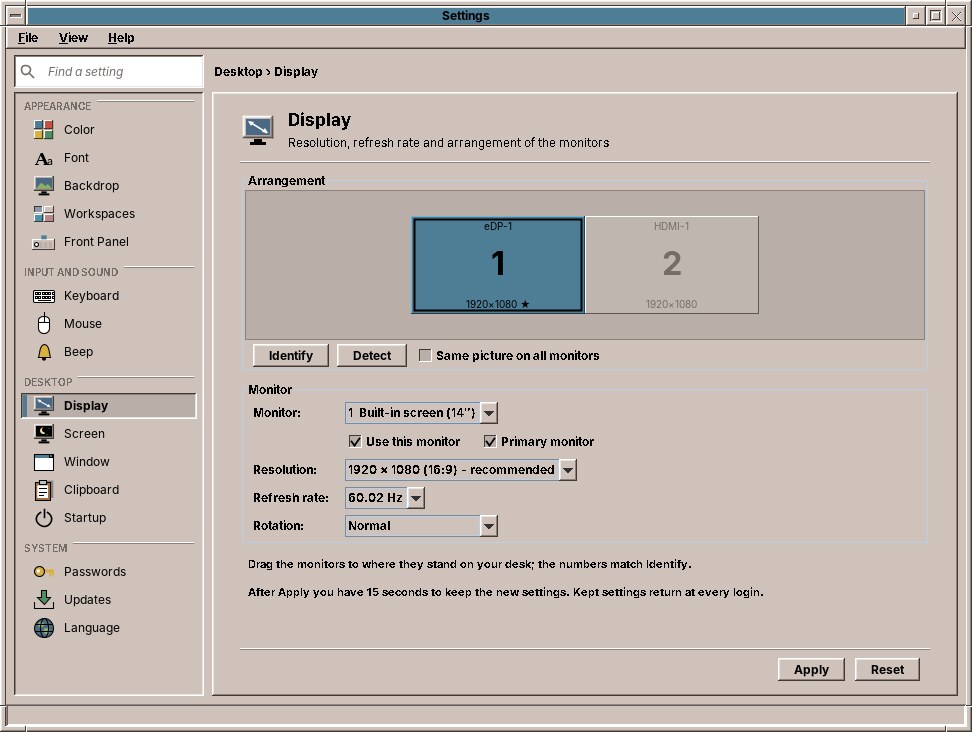
Xrandr.parsereads the text ofxrandr --queryintoOutputrecords: the connector, whether a monitor is connected and on, its place, its current mode and rotation, its size in millimetres and theDisplayModes it offers with their refresh rates (*marks the current one,+the one the monitor asks for, sometimes separated by a space). The geometry in the header line is after rotation, so a monitor turned left reports1080x1920; the record keeps the mode before rotation andOutputSetting.screenWidth()turns it again.Xrandr.commandwrites the opposite direction, one call for all monitors:
    /**
     * The arguments of one xrandr call that sets every monitor of the layout at once. Outputs that are not in
     * the layout stay as they are.
     */
    public static List<String> command(List<OutputSetting> layout) {
        List<String> args = new ArrayList<>(List.of("xrandr"));
        for (OutputSetting s : normalized(layout)) {
            args.add("--output");
            args.add(s.name());
            if (!s.enabled()) {
                args.add("--off");
                continue;
            }
            args.add("--mode");
            args.add(s.width() + "x" + s.height());
            if (s.rate() > 0) {
                args.add("--rate");
                args.add(String.format(Locale.ROOT, "%.2f", s.rate()));
            }
            args.add("--pos");
            args.add(s.x() + "x" + s.y());
            args.add("--rotate");
            args.add(s.rotation().xrandr());
            if (s.primary()) args.add("--primary");
        }
        return args;
    }
One call matters: two monitors that change places in two calls would overlap in between, and X refuses a layout in which two CRTCs need more screen than it has. The positions are moved so the leftmost and topmost monitor start at 0,0, whatever the user dragged.
DisplayApplierrunsxrandrlikeInputApplierrunsxset, with a protectedrunthat a test replaces by a fake xrandr that answers--querywith the layout it was last given.
Apply, then ask
A wrong resolution can leave the user with a black monitor and no way to click Cancel. Every desktop answers this the same way, and so does this page: Apply sets the new layout, then asks whether to keep it, and without an answer the old layout comes back after 15 seconds. Only a kept layout is saved:
    @Override
    protected String apply() {
        List<OutputSetting> wanted = Xrandr.normalized(settings());
        if (wanted.isEmpty()) return SettingsTexts.get("display.none");
        if (wanted.equals(Xrandr.normalized(applied))) {
            store.save(wanted);
            return SettingsTexts.format("status.applied", SettingsCategory.DISPLAY.label());
        }
        List<OutputSetting> previous = applied;
        if (!displays.apply(wanted)) {
            displays.apply(previous);
            throw new IllegalStateException(SettingsTexts.get("display.refused"));
        }
        keepQuestion.ask(keep -> {
            if (keep) {
                store.save(wanted);
                applied = wanted;
                status(SettingsTexts.format("status.applied", SettingsCategory.DISPLAY.label()));
            } else {
                displays.apply(previous);
                status(SettingsTexts.get("display.reverted"));
            }
            reload();
        });
        return null;
    }
The question is a KeepQuestion the page asks, a modeless dialog with a Swing Timer by default; a test sets one that answers at once. apply() returns null, so the status line waits for the answer instead of saying applied too early.
DisplaySettingsStore keeps one layout per set of connected monitors in ~/.config/amadeos/display.conf, the key being their sorted names, eDP-1+HDMI-1.HDMI-1=1920x1080 60.00 1920 0 normal primary. A laptop then has one layout at the desk and another on the road. At login amadeos-settings display-apply asks xrandr which monitors are connected and sets the layout kept for exactly those, or nothing.
The desktop follows a new size
Changing the resolution changes the size of the root window, and the window manager, the backdrop and the Front Panel had read it once at start. RandR tells every client that selected StructureNotifyMask on the root with a ConfigureNotify for the root window, and the window manager already selects it. It takes the new size from the event, because Xlib's DisplayWidth keeps the size the connection was opened with:
    /**
     * The screen got a new size, e.g. from the Display page of the Settings (xrandr): the backdrop is drawn
     * anew, maximized and full screen windows fill the new screen, and other windows are moved back onto it.
     * The front panel places itself.
     */
    void screenResized(int width, int height) {
        if (width <= 0 || height <= 0 || (width == screenWidth && height == screenHeight)) {
            return;
        }
        LOGGER.info("Screen resized from " + screenWidth + "x" + screenHeight + " to " + width + "x" + height);
        screenWidth = width;
        screenHeight = height;
        forgetBackdropPixmaps();
        try {
            showWorkspaceBackdrop();
        } catch (RuntimeException e) {
            LOGGER.fine("Backdrop not redrawn: " + e.getMessage());
        }
        int maxH = Math.max(100, screenHeight - dockMarginBottom);
        for (FrameWindow frame : java.util.List.copyOf(clientToFrame.values())) {
            FrameMetrics m = frame.metrics();
            if (frame.isFullScreen()) {
                frame.setBounds(-m.clientOffsetX(), -m.clientOffsetY(), m.frameWidth(screenWidth), m.frameHeight(screenHeight));
            } else if (frame.isMaximized()) {
                frame.setBounds(0, 0, screenWidth, maxH);
            } else {
                int w = Math.min(frame.frameWidth(), screenWidth);
                int h = Math.min(frame.frameHeight(), maxH);
                int x = Math.max(0, Math.min(frame.frameX(), screenWidth - w));
                int y = Math.max(0, Math.min(frame.frameY(), maxH - h));
                if (x == frame.frameX() && y == frame.frameY() && w == frame.frameWidth() && h == frame.frameHeight()) {
                    continue;
                }
                frame.setBounds(x, y, w, h);
            }
            x11.XMoveResizeWindow(display, frame.frameWindow(), frame.frameX(), frame.frameY(), frame.frameWidth(), frame.frameHeight());
            x11.XMoveResizeWindow(display, frame.clientWindow(),
                    frame.clientX(), frame.clientY(), frame.clientWidth(), frame.clientHeight());
            frame.render();
            frame.blit(display, gc, screen);
            sendSyntheticConfigureNotify(frame);
            core.registry().updateGeometry(frame.clientWindow().longValue(),
                    new WindowGeometry(frame.frameX(), frame.frameY(), frame.frameWidth(), frame.frameHeight()));
        }
        x11.XFlush(display);
    }
The Front Panel is a Swing window and gets no such event for the root. It checks the screen size in the poll it runs twice a second anyway (see Telling the desktop above) and places itself again when it differs. X11EwmhHelper.screenWidth() asks the server for the root window's geometry for the same reason the window manager reads the event:
    /**
     * Puts the dock centered at the bottom of the screen (or where the test properties say). Called at start and
     * whenever the screen size changes, e.g. after a new resolution in Settings > Display.
     */
    private void placeDock() {
        int screenW = helper.screenWidth();
        int screenH = helper.screenHeight();
        // Width follows the slots: adding or removing a widget resizes the dock
        int dockWidth = Math.min(rootPanel.getPreferredSize().width, screenW);
        int dockX = Math.max(0, (screenW - dockWidth) / 2);
        int dockY = screenH - DOCK_HEIGHT;

        if (Boolean.getBoolean("amadeos.dock.center")) {
            dockY = Math.max(0, (screenH - DOCK_HEIGHT) / 2);
        } else {
            String customY = System.getProperty("amadeos.dock.y");
            if (customY != null) {
                try {
                    dockY = Integer.parseInt(customY);
                } catch (Exception ignored) {}
            }
        }
        setBounds(dockX, dockY, dockWidth, DOCK_HEIGHT);
        screenSize = new Dimension(screenW, screenH);
    }
Testing under Xvfb
Xvfb offers RandR with one mode only, so a test cannot switch resolutions. It can shrink the screen: xrandr --fb 320x240 makes the root smaller (with an error about the CRTC, which is expected), and the window manager's integration test checks that a window moves back onto the smaller screen.
All monitors together still form one root window, so a maximized window covers all of them. Maximizing on one monitor needs the window manager to know the monitors' rectangles, which xrandr --listmonitors or RandR's XRRGetMonitors provide; see the exercises.
Workspaces and Front Panel: files the panel follows
The Workspaces page names the four workspaces, the Front Panel page chooses an analog or a digital clock, whether the network and updates cells are shown, and whether the busy light shows disk and network activity. Neither page talks to the panel. They write workspaces.conf and panel.conf, and the panel follows both files with one ConfigWatcher, as the window manager follows window.conf. The settings of the panel are a record in base, beside the store that reads and writes them:
package eu.amadeos.system.base.panel;

/**
 * What the Front Panel shows: the clock as a dial or in digits, which cells of the status slot appear, and
 * whether the busy light above Exit shows disk and network activity.
 *
 * @param clock         how the clock in the first slot is drawn
 * @param networkCell   whether the status slot shows the network
 * @param soundCell     whether the status slot shows the volume and the sound devices
 * @param batteryCell   whether the status slot shows the battery (on computers that have one)
 * @param updatesCell   whether the status slot shows waiting software updates
 * @param activityMeter whether the busy light shows disk and network activity besides starting applications
 */
public record PanelSettings(Clock clock, boolean networkCell, boolean soundCell, boolean batteryCell,
                            boolean updatesCell, boolean activityMeter) {
    /** An analog clock, all cells and the disk and network activity in the busy light. */
    public static final PanelSettings DEFAULTS = new PanelSettings(Clock.ANALOG, true, true, true, true, true);

    public enum Clock {
        ANALOG, DIGITAL
    }

    public PanelSettings {
        if (clock == null) clock = DEFAULTS.clock();
    }

    public PanelSettings withClock(Clock newClock) {
        return new PanelSettings(newClock, networkCell, soundCell, batteryCell, updatesCell, activityMeter);
    }

    public PanelSettings withNetworkCell(boolean show) {
        return new PanelSettings(clock, show, soundCell, batteryCell, updatesCell, activityMeter);
    }

    public PanelSettings withSoundCell(boolean show) {
        return new PanelSettings(clock, networkCell, show, batteryCell, updatesCell, activityMeter);
    }

    public PanelSettings withBatteryCell(boolean show) {
        return new PanelSettings(clock, networkCell, soundCell, show, updatesCell, activityMeter);
    }

    public PanelSettings withUpdatesCell(boolean show) {
        return new PanelSettings(clock, networkCell, soundCell, batteryCell, show, activityMeter);
    }

    public PanelSettings withActivityMeter(boolean show) {
        return new PanelSettings(clock, networkCell, soundCell, batteryCell, updatesCell, show);
    }
}
The panel had a file of its own for the clock, clock.conf, written by the clock's context menu. PanelSettingsStore reads it when panel.conf has no clock yet, and the menu now writes panel.conf, so the page and the menu always agree. For the workspace names the panel stays the only writer of _NET_DESKTOP_NAMES (chapter 63): when workspaces.conf changes, it reloads the names and publishes them again, and Settings never touches the root window.
Startup: switching off without changing a package
The session runs the scripts of /etc/amadeos/autostart.d at login. They belong to packages, and a user must not edit them. So the Startup page writes the names of the scripts the user switched off into ~/.config/amadeos/startup.conf (disabled=40-amadeos-clipboard), and amadeos-session skips them. Some scripts the desktop cannot do without, the input settings, the polkit agent and the screen lock; the page shows them checked and greyed out.
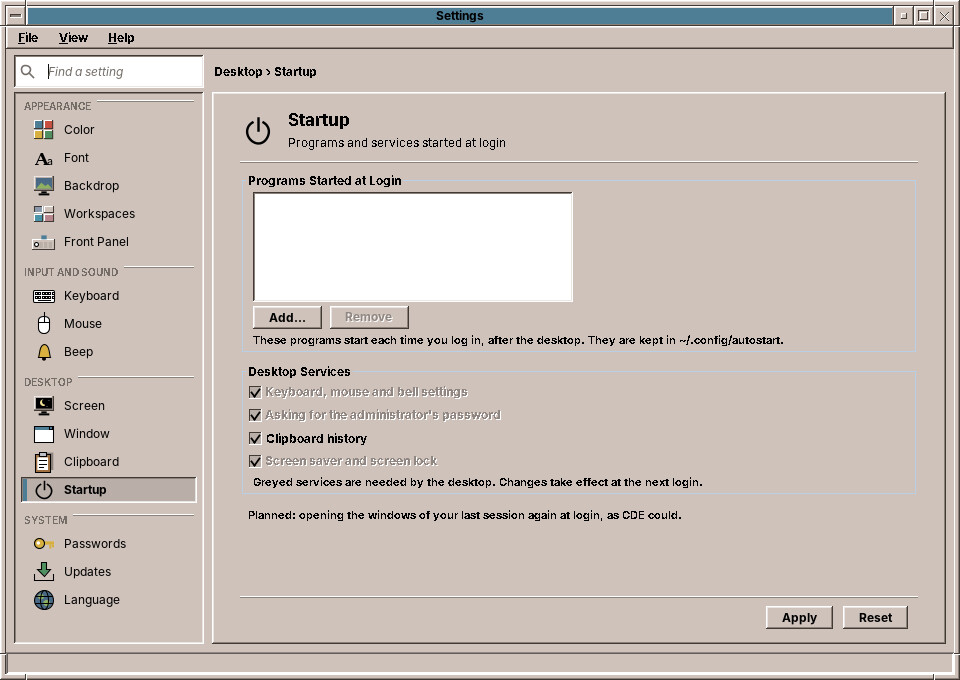
The user's own programs follow the freedesktop.org autostart convention: a desktop entry in ~/.config/autostart/ per program, the folder other desktops use too. Add… copies the entry of an installed program there, Remove deletes the copy. After the scripts, the session runs amadeos-session autostart, which launches the entries with XdgDesktopEntry.launch(), so field codes such as %U are handled like a start from the Front Panel, and skips entries whose program is gone.
The System pages: keyring, packages and time zone
Passwords, Updates and Language reach beyond the files of the user: the login keyring on the session bus, the package manager through pkexec, the computer's time zone through timedatectl. The window gets all of that as one record, so a test hands in stand-ins and never needs a keyring, apt or root:
package eu.amadeos.system.settings;

import eu.amadeos.system.base.process.ProcessLauncher;
import eu.amadeos.system.base.xdg.XdgApplicationManager;
import eu.amadeos.system.base.xdg.XdgDesktopEntry;
import eu.amadeos.system.display.DisplayApplier;
import eu.amadeos.system.keyring.Keyring;
import eu.amadeos.system.keyring.SecretServiceKeyring;
import eu.amadeos.system.packages.AptPackageService;
import eu.amadeos.system.packages.PackageService;

import java.io.IOException;
import java.util.List;
import java.util.function.Consumer;
import java.util.function.Supplier;
import java.util.logging.Logger;

/**
 * What the System pages of the Settings reach beyond files of the user: the login keyring, the package
 * manager, the computer's time zone, the monitors (through xrandr), and starting other programs. Tests give the window stand-ins.
 *
 * @param launcher     starts a program of the desktop, e.g. {@code amadeos-software --updates}
 * @param applications the installed programs, as the Front Panel's drawers list them
 */
record SystemAccess(Keyring keyring, PackageService packages, TimeZones timeZones, Consumer<List<String>> launcher,
                    Supplier<List<XdgDesktopEntry>> applications, DisplayApplier displays) {
    private static final Logger LOGGER = Logger.getLogger(SystemAccess.class.getName());

    static SystemAccess system() {
        return new SystemAccess(new SecretServiceKeyring(), new AptPackageService(), TimeZones.system(), command -> {
            try {
                ProcessLauncher.start(command);
            } catch (IOException e) {
                LOGGER.warning("Cannot start " + command + ": " + e.getMessage());
            }
        }, () -> XdgApplicationManager.getInstance().getAllApplications(), new DisplayApplier());
    }
}
The keyring is an interface in the session module, which already depends on dbus-java for the polkit agent:
package eu.amadeos.system.keyring;

import java.io.IOException;

/**
 * The user's login keyring, where gnome-keyring keeps the passwords of Mail and other programs: whether it is
 * there and unlocked, how many passwords it holds, and locking, unlocking and changing its password. The
 * Settings use it for their Passwords page; {@link SecretServiceKeyring} talks to the real one.
 */
public interface Keyring {
    /**
     * @param available whether a keyring service runs and has a default keyring
     * @param locked    whether the keyring is locked (programs then cannot read their passwords)
     * @param items     the number of stored passwords and keys
     */
    record Status(boolean available, boolean locked, int items) {
        public static final Status NONE = new Status(false, true, 0);
    }

    Status status();

    void lock() throws IOException;

    /** Unlocks the keyring; fails with a wrong password. */
    void unlock(char[] password) throws IOException;

    /** Gives the keyring a new password; fails if {@code current} is wrong. */
    void changePassword(char[] current, char[] newPassword) throws IOException;
}
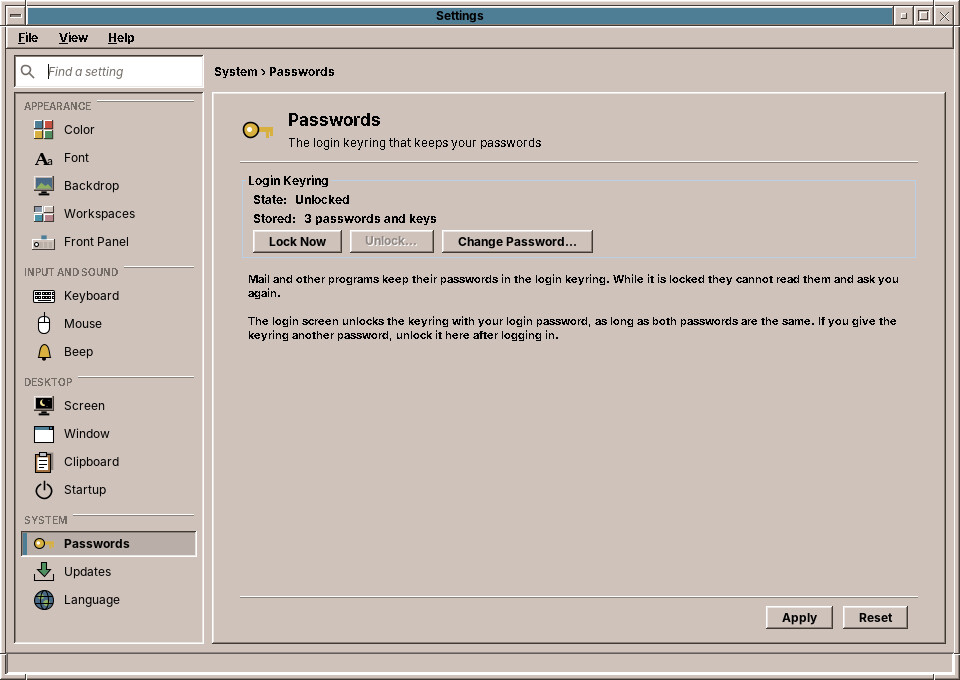
SecretServiceKeyring reads the default collection's Locked and Items properties through the freedesktop.org Secret Service, and locks with its Lock method. The Secret Service has no method to unlock with a password or to change one: a client asks for a prompt, and the keyring shows its own window. amadeOS wants the question in its own Motif dialog, so for these two it uses GNOME Keyring's own interface, UnlockWithMasterPassword and ChangeWithMasterPassword. The password travels as a Secret Service secret in a plain session on the user's own session bus, and the byte array is overwritten as soon as the call returns. A wrong password comes back as an error, which the page shows on its status line.
All three pages do their work in a SwingWorker: reading the keyring, asking apt for the waiting updates, switching automatic security updates (which asks for the administrator's password) and setting the time zone. apply() returns a status line such as saving… at once, and the worker puts the result there when it is done.
Five languages without Guice
Settings speaks the five languages of the applications. Its texts are in messages.properties and its translations, with the menu letters marked by & (chapter 43). What a tool program gets from Guice, Settings does itself in a small class: it resolves the language once, the way CommonsModule does for the applications, from the desktop language in locale.conf and then from the environment:
    static synchronized Messages texts() {
        if (texts == null) {
            Locale locale = LocaleResolution.resolve(Optional.empty(), LocaleStore.system().current(), System.getenv())
                    .language().locale();
            texts = Messages.load(SettingsTexts.class, BUNDLE, locale);
        }
        return texts;
    }
Everything with a name asks it: SettingsCategory.label() reads category.keyboard and keywords() category.keyboard.keywords, the pages their labels, the status line status.applied with the control's name as its argument. Two details show where texts hide. The scaling modes of the backdrop are an enum in base, whose toString the combo box used to show; a renderer now shows backdrop.scale.fill and its translations instead, and base stays free of the texts of Settings. And the status lines are built from parts (Bildschirm: Schoner nach 10 Min., Sperre aus), so each part is a text of its own with {0} for the number, never English glued to a translation.
SettingsTextsTest runs TranslationCheck over the five files and checks a German and a French line. SettingsWindowTest compares English texts, so it sets the language with SettingsTexts.use(Locale.ENGLISH) before it starts: a test must not depend on the language of the computer it runs on.
Exercises
- Following the language switch. Settings reads the language at start. Let it follow the panel's language button while it is open:
LocaleStorecan watchlocale.conf. Which texts are already on the screen, and how do you replace them? - Resuming the session. Let the Startup page offer CDE's Resume current session: at logout, record the programs whose windows are open (
WM_COMMAND, or the desktop entry of theirWM_CLASS), and at the next login start them again fromamadeos-session autostart. Which programs cannot be resumed that way, and what should the page say about them? - One monitor at a time. With two monitors a maximized window covers both. Let the window manager ask RandR for the monitors (
XRRGetMonitors, orxrandr --listmonitorsat each rootConfigureNotify) and maximize a window on the monitor that holds its centre. Where should the Front Panel go, and what does_NET_WORKAREAhave to say then? - A theme editor. Add New… to the Color page: pick a base colour, derive the rest with
DesktopTheme.fromBase, show the palette and write~/.config/amadeos/themes/<id>/theme.properties.
Summary
- Settings is a desktop module: it starts without Guice and runs the X server's own tools.
- One set of pages serves two views, the sidebar with a search and CDE's row of buttons; the controls are an enum with groups and translated keywords.
- It writes
theme.confthroughThemeManager, atomically, because a dozen programs read the file within milliseconds of a change. - The window manager and the panel also follow the root window property
_AMADEOS_THEME; the applications follow the file alone. - The text size travels with the theme in
font.conf; the window settings are a record inbasethat the window manager follows throughwindow.conf, and the panel followspanel.confandworkspaces.confthe same way. - Startup switches off a script of the system in a file of the user's,
startup.conf, and keeps the user's programs as desktop entries in~/.config/autostart. - The System pages get the keyring, the package manager and the time zone as one record, so tests hand in stand-ins; the keyring is unlocked through GNOME Keyring's own interface, in Settings' own dialog.
- Settings of the X server are files first and commands second, so the session can apply them again at every login.
- The Display page sets all monitors in one
xrandrcall, saves only a layout the user kept within 15 seconds, one per set of monitors; the window manager and the panel follow the new root size themselves. - Without Guice, a small class resolves the language from
locale.confand loads the texts; status lines are built from translated parts.